
SFTP
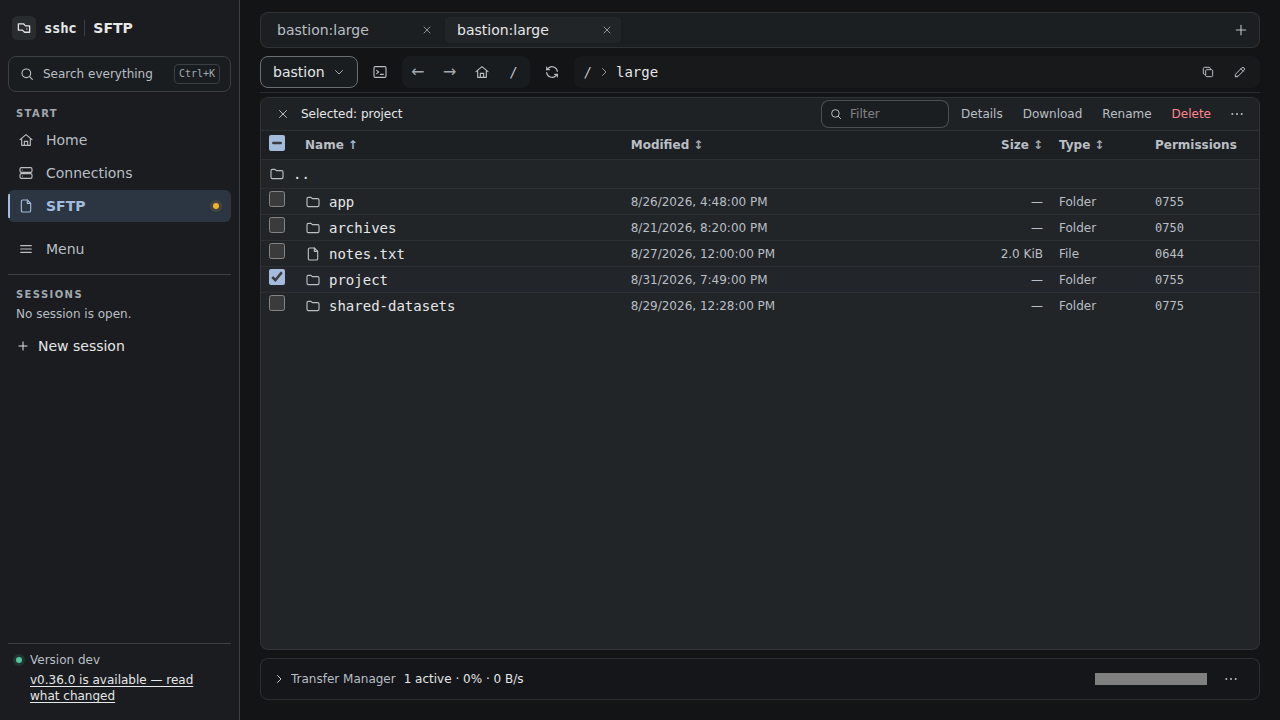
Selecting a host does not open an SFTP connection. sshc connects only after you press Connect. Restored tabs show their saved host and path without reconnecting in the background. The host picker searches aliases, groups, destination hosts and users, and switches between recently connected and SSH Config group views. A first connection opens the login user's home directory reported by the SFTP server and reuses the saved SSH configuration, host keys and credentials.
Switching hosts immediately clears the previous listing and open file. A delayed response from the previous host is discarded instead of being shown under the new selection.
Operations on the same host (listing, details, preview, editing, transfers and the sshc sftp CLI) reuse the SFTP connection the previous operation used; a connection that goes unused for 60 seconds is closed. Moving between folders therefore does not repeat the SSH handshake or ask for a one-time code again. As with an open Terminal, locking the vault leaves that recent connection alive for those seconds.
File operations
- Navigate, create, rename, chmod and delete remote entries
- Select or drag and drop files and folders for upload
- Download files or folders as ZIP archives
- Edit UTF-8 text files up to 2 MiB with Monaco Editor
Use the leading .. row to move to the parent directory. The navigation controls move back or forward through visited directories, return to the server home directory, or open the root directory. The current path is a clickable breadcrumb; use its edit control when you need to type a path directly. You can filter the current list by name.
Select one row, or use the checkboxes to select multiple entries, to reveal download, rename, delete, and other relevant actions in the selection toolbar. On desktop, Shift-click selects a range, Ctrl/Cmd-click adds to the selection, and Ctrl/Cmd+A selects all displayed entries. The action menu can invert the displayed selection or copy selected names or full paths. Permission and rename actions remain available for a single selection. Double-click or press Enter to open a folder or edit a text file in a modal without resizing the list. Creation and uploads are grouped in the + menu at the upper left.
Sort by name, type, size or modified time. Sizes are shown in KiB, MiB or GiB; the details dialog also gives the exact byte count. Permissions appear below the entry name. The selected host and directory are reflected in navigation state, so a terminal remote-path action can open the same location.
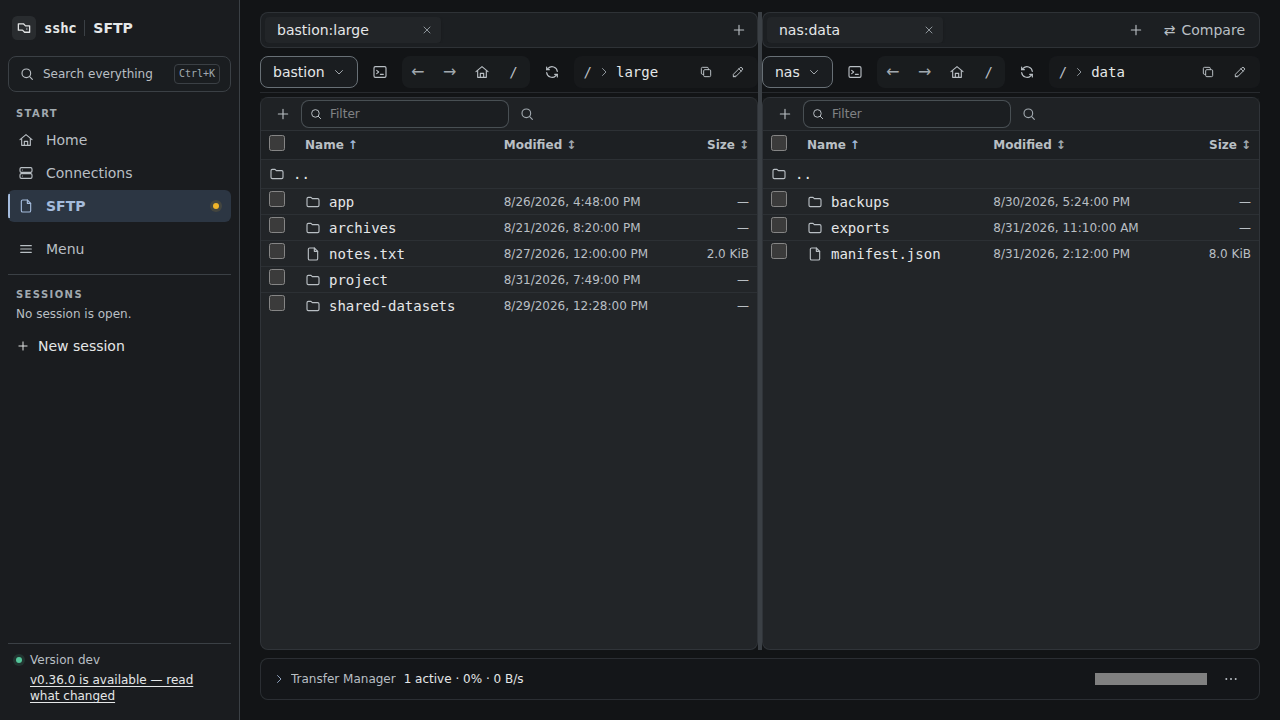
On desktop, drag a tab onto the file list to split the view into two panes. With one pane, dropping on the left or right half moves that tab into a new pane on that side and leaves a blank tab behind. With two panes, dropping on the other pane moves the tab there, and a pane whose last tab leaves closes. There are at most two panes, and the handle between them resizes the split. With the keyboard, select a tab and press Shift+← or Shift+→ for the same moves. Both panes have their own tab strip and + action, with up to eight independent tabs per side. Tabs share one width whatever the host name; when they exceed the pane width they shrink and then scroll, and + stays at the right edge. Each tab remembers its host and location on the device, as does the split.
Drag files or folders from the currently visible tab on one side to the visible tab on the other. Between two hosts you choose copy or move; a drop into another directory of the same host moves, as it does in a desktop file manager, and a drop back into the directory the rows came from does nothing. Data streams directly between the two SFTP connections without a plaintext local spool file. A move within the same connection uses a server-side rename when possible.
An uploaded file is given the modification time of its source (browser uploads, the CLI's put, host-to-host copies and transfers with the engine's disk). A newly created file gets the server's default permissions (its umask); a replaced file keeps its own.
Symlinks are listed as name → target. A link to a directory opens as that directory; a link to a file is what details, preview, edit and download act on. Saving an edited file rewrites the file the link points to and leaves the link in place. A link whose target cannot be found is marked (not found) and cannot be opened. Copy, move, delete, compare and transfers with the engine's disk take the link itself and never follow it.
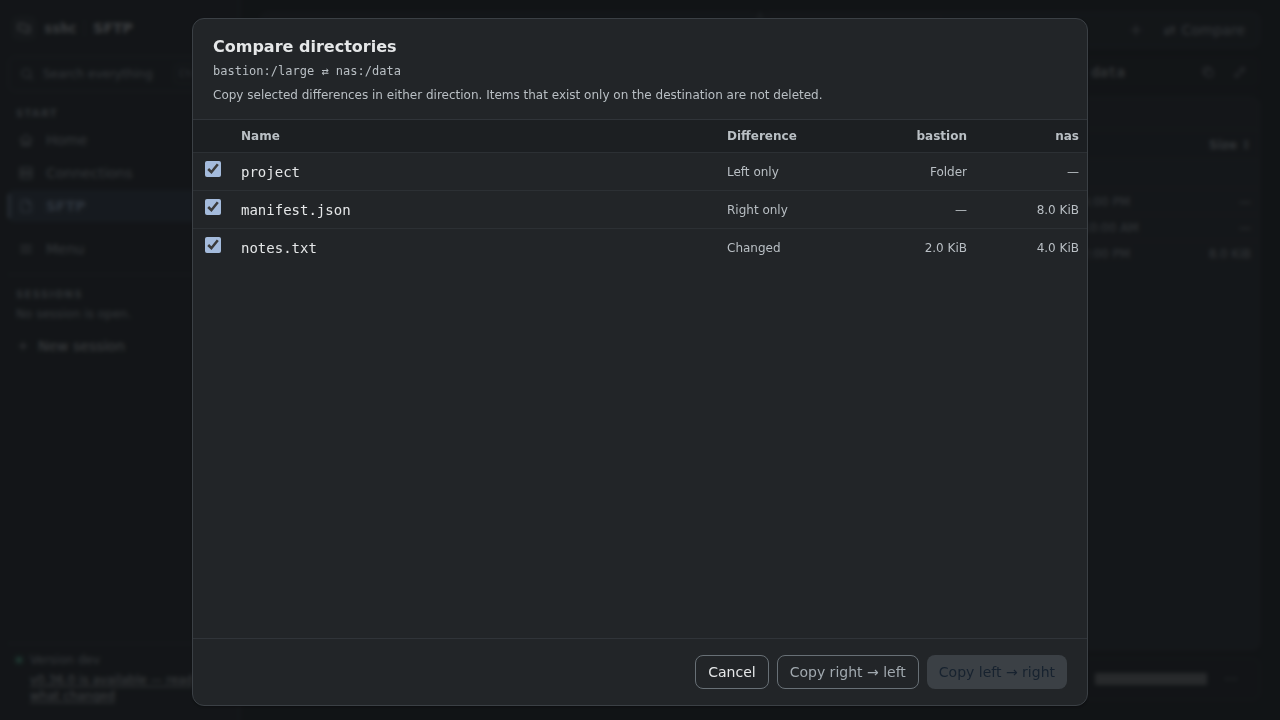
Use Compare to recursively inspect the directories in the currently selected left and right tabs by metadata such as size, modification time, permissions, and type. The preview distinguishes left-only, right-only, changed, and type-mismatched entries. Select only the entries you want, then copy left to right or right to left. Comparison never deletes entries that exist only on the destination.
The pane action menu can open an SSH Terminal at the displayed directory. In the other direction, a remote directory reported by OSC 7 can be opened in SFTP from the Terminal action menu.
On desktop a narrow pane keeps every column and scrolls the table sideways rather than dropping columns. Phones emphasize the filename, place permissions, size and modified time on one metadata line, and show one horizontally scrollable tab strip and the left pane only; tab dragging, the right pane's connection and comparison stay inactive. Returning to desktop brings the right pane and its tabs back.
Transfer Manager
The Transfer Manager is docked below the file list. Files and folders share one queue, with two concurrent transfers by default and a configurable limit from one to eight. Its compact state shows the active count, aggregate progress, and speed; expand it for per-file progress, speed, remaining time, and controls. Its action menu can pause, resume or cancel all transfers, and failed files in a batch can be retried independently.
Regular file uploads and downloads support up to 512 GiB. By default a file travels over one SFTP connection. Raising the connection count in the Transfer Manager settings divides files of at least 100 MiB into 32 MiB ranges and transfers them over that many independent connections. A host that authenticates with a one-time code transfers over one connection whatever the setting. Upload ranges write to a remote temporary file; the engine records completed ranges, verifies the full contents, and atomically renames the file when complete. File downloads use HTTP Range to resume when the retained local prefix still matches the remote revision. Even with an empty queue, expand the Transfer Manager to enter any allowed split threshold, stream count from one to 128, and chunk size; one stream disables splitting. The engine needs temporary free space roughly equal to the downloaded file so it can preserve a safe resumable snapshot.
The engine Transfer Manager owns the queue and persists it in ~/.ssh/sshc/transfers.json. Queued, paused, and recoverable jobs are restored after an engine restart. Remote-to-remote transfers run entirely in the engine and continue even when the SFTP view or browser is closed.
The browser or WebView still handles local file I/O for uploads and downloads. Those transfers continue when you navigate away from SFTP within the same application, but byte transfer stops when the browser or WebView closes. After a reload, an upload requires you to select the same local file again. A folder ZIP download restarts from byte zero rather than resuming.
See Transfer Manager for states, recovery, and cancellation.