
Android
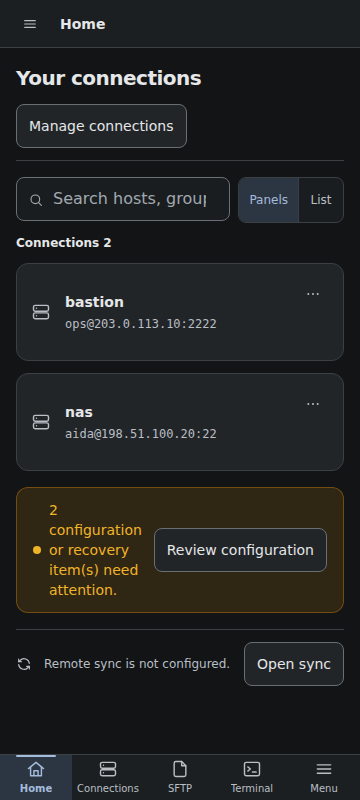
Install the signed APK from GitHub Releases. Android 13+ back navigation closes dialogs, Command Palette, the drawer, and Inspector before moving through page history.
Mobile controls
The screen changes below are available in release v0.33.3 and later.
- Use Home / Connections / SFTP / Terminal / Menu in the bottom navigation to switch screens. The navigation and header hide while the keyboard is open, leaving more room for input.
- Connections switches between the list and editor. Rotating a phone keeps this single-pane layout.
- Terminal scrolling continues with deceleration after a swipe. Touching again stops it; selection and leaving the screen also stop momentum. The system's reduced-motion preference is respected.
- Ctrl, Esc, Tab, and arrows occupy one row of extra keys. Open “…” for Alt and symbols. The keys remain available in landscape and preserve terminal input focus.
- Dialogs and action sheets stay within the visible area above the keyboard. Long content scrolls inside them. Android Back dismisses the topmost menu before its parent dialog.
The top-left menu button opens a drawer with running terminals and Command Palette. Screen-edge gestures remain available for Android Back. Tap outside the drawer or use Back to close it.
SFTP on a phone
The file list gets most of the screen. Its toolbar contains the host picker, Back, current folder, Search, and “…”. Tap the folder name to edit its path. Open “…” for folder creation, uploads, opening a terminal here, sorting, and other actions.
Tap a name once to open a folder or preview a file. Use a checkbox or long press to select items and reveal their actions. While selection is active, tapping another name adds or removes it from the selection. Directory navigation and remote search show progress and temporarily prevent actions on the old listing.
Transfer Manager stays in a single summary row with counts and progress. Tap it to open the detailed sheet without reducing the file list's height. Transfer settings expand inside the sheet. File properties also expand on demand, leaving more space for previews.
SFTP uses Android's system file picker and Storage Access Framework. Transfer completion and failure can produce Android notifications. External URLs open in the system browser.
Development APK
The development build installs as sshc Dev (com.github.aida0710.sshc.dev) alongside the release app. Its Vault and settings use separate app storage; data from the release app is not imported automatically.
Device testing with real keyboards and gestures is still required for these changes. The repository's docs/mobile-ux-review.md records the verification checklist and development build commands.
Engine service and backups
The engine runs as a foreground service with a persistent "sshc is running" notification. Tapping Stop in the notification, or swiping the app away from recent tasks, ends the engine and every SSH session. Android 15 and later cap how long a data-sync service may run; the engine stops when that cap is reached. The notification permission is requested once, when the first transfer finishes, and never again after it is declined.
App data (the vault, keys, settings, and browser registrations) is excluded entirely from Android Auto Backup and device-to-device transfer. To move to a new device, use encrypted Sync or set up the configuration and keys again there.
Local shell
The local shell runs in the app's private directory with Android sandbox permissions. It is not a full desktop Linux environment; aliases such as ll and tools such as dir may not exist.
Startup failure
The failure screen lists six items: Version, Code, Detail, Android SDK, device, and ABI. Copy diagnostics copies them together and Try again restarts the launch. The workspace path or the local port result appears inside Code and Detail when it is relevant. Reports exclude private keys, passwords, tokens, and bucket secrets.