
Workspaces
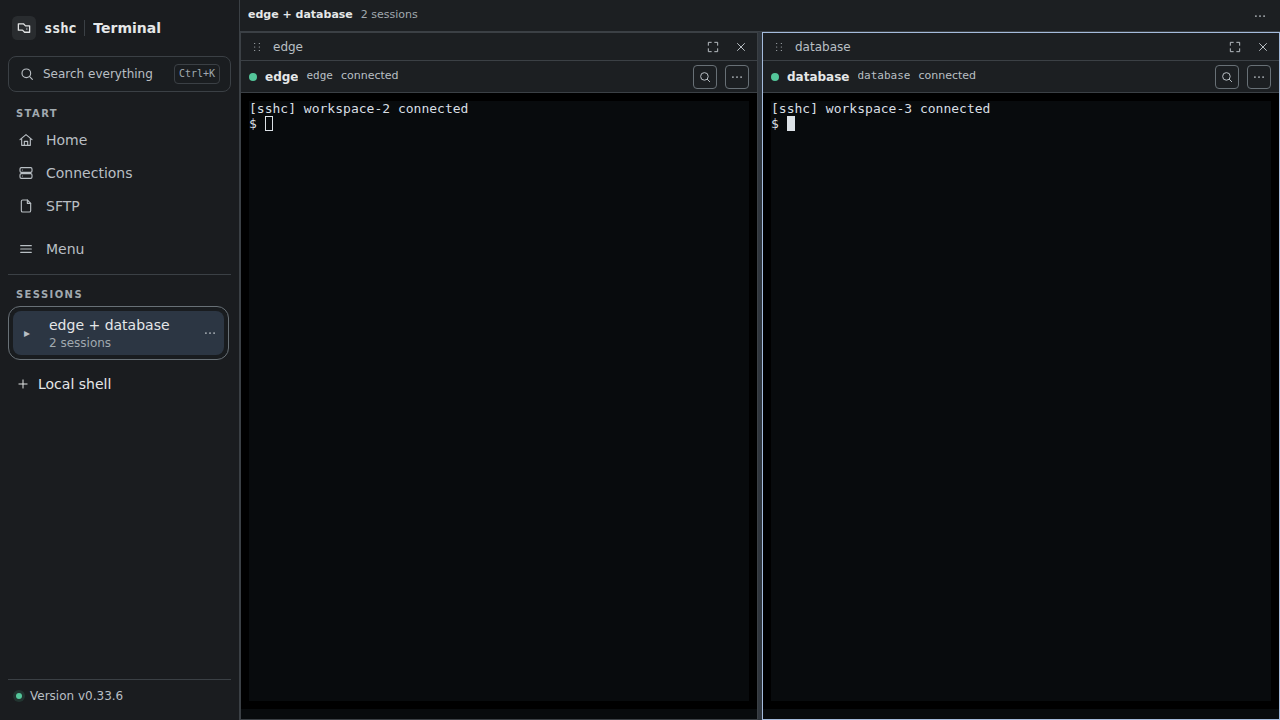
Drag a connected terminal onto the current pane to split above, below, left or right according to the drop position. SSH and local shells belong to the same workspace model.
Layout
- Up to four panes
- Drag dividers between 10% and 90%
- Swap panes
- Focus Mode for one pane
- Rename a workspace before or after saving it
- Save a named layout on this device
The saved record contains pane kinds, targets, the split tree, ratios and focus—not session IDs, remote processes or scrollback. Reopening it from Home starts fresh SSH sessions or local shells.
Command Center
Preview the targets and expanded command, then send the command and Enter to every connected pane. SSH and local shells can be mixed; each PTY keeps its current directory, environment and shell state.
On mobile, sshc shows workspace panes one at a time instead of squeezing the split layout into a narrow screen. The pane and workspace name remain visible, while rename and overflow management controls are hidden at narrow widths. Manage the layout from a desktop-width view.
Rename a workspace from its actions menu in the session list. A live workspace can be named before its layout is saved.
Build and reuse a workspace
- Open at least two terminals.
- Drag a session from the session list onto the current pane.
- Drop on the top, bottom, left, or right zone.
- Drag the divider to tune the ratio.
- Optionally save a named layout.
With one connection, sshc hides layout and broadcast controls and keeps the pane title and search. Saved layouts reopen from Home as new sessions.