
Remote sessions
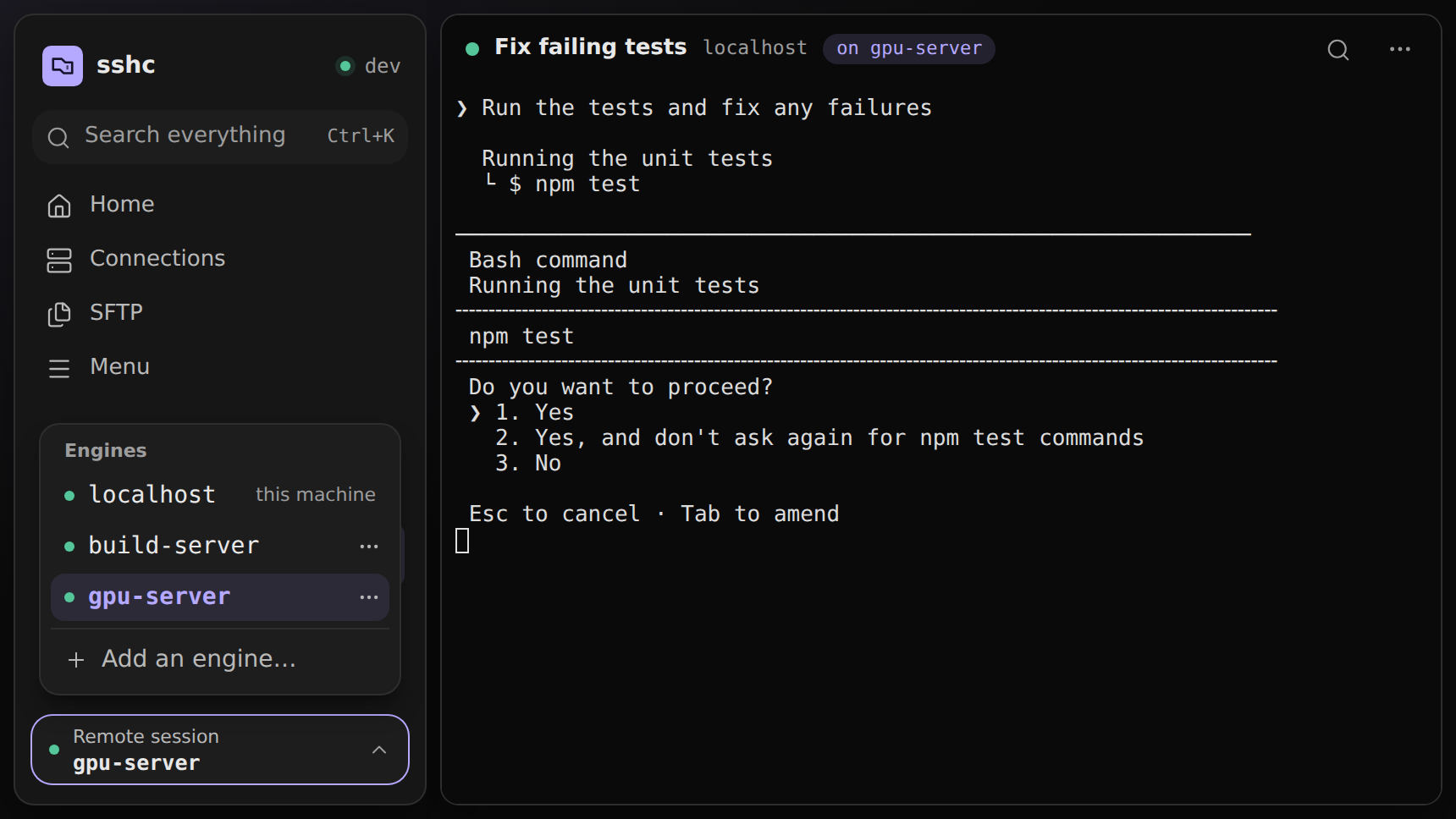
A remote session runs your terminals on the sshc engine of another machine. Remote session at the bottom of the sidebar chooses which engine.
Keep an sshc engine running on an SSH host (an always-on server, for example), and this machine's browser can use that engine's terminals. They keep running there after the browser or this machine is closed, which suits agents left running for a long time.
A regular SSH session differs in which engine holds the connection. This machine's engine holds it, so the session ends when this machine's engine stops. A remote session runs on the host's engine, so it stays connected when this machine's engine stops.
Only the terminals change: sessions and workspaces. Connections, SFTP, the vault and settings stay this machine's.
Usage
- Install sshc on the host and keep its engine running, for example with
sshc service install. Using the same version as on this machine is the safest choice. - Connect to that host once from a terminal on this machine to confirm its host key. Save any passphrase or password it needs in Connections.
- Open Remote session at the bottom of the sidebar and choose the host from Add an engine….
- Choose the host in the list: the workspaces and sessions become that engine's, and the terminal heading says it runs there.
Switching engines opens the session you last had open on that engine. If it has been closed, the session at the top of the sidebar opens instead (sessions in hidden workspaces are not picked).
Which engine is chosen is saved as this machine's state, so it stays after a reload. Only the session you last had open is remembered by this browser tab alone: after a reload, the top of the sidebar opens first.
Each host's … offers Engine information…, Open its full screen in a new tab (the host engine's own screen, like sshc open <alias>) and Remove from the list. Removing it stops neither the host's engine nor its terminals.
If the chosen host's vault is locked, the terminal area shows a field for that vault's password. Pressing the chosen row in Remote session again opens the unlock dialog too. This machine's engine passes the password to the host's engine inside the SSH connection and does not save it here. Once the vault is unlocked, the session the lock kept from opening opens.
Which engine a session opens on
With a remote session chosen, some actions still open the session on this machine.
| Action | Opens on |
|---|---|
| New session in the sidebar | The chosen engine |
| Open a session while no session is open | The chosen engine |
| Connect in Connections | The chosen engine |
| Connect all in Connections | The chosen engine |
| Open a local shell on Home | The chosen engine |
| A connection card on Home (double click, a tap on a touch screen, or Connect in its …) | This machine. Remote session switches back to localhost |
An SSH session in a remote session takes its connection name from this machine's list, but the remote engine decides where it connects with its own machine's ~/.ssh/config. If that file has no connection of the same name, the session cannot open.
Typing user@host[:port] in the new session search offers only Connect. The remote engine's configuration files cannot be written from here, so Save as a connection and connect is not offered.
Connection status
Remote session at the bottom of the sidebar shows how the connection is going, on every page.
| Shown | Meaning |
|---|---|
| ● Remote session | Connected, and the list can be read |
| Connecting | Waiting for the host. It appears once reading the list takes longer than 0.6 seconds |
| Loading | Reading this machine's session list |
| Can't connect (red) | The host could not be reached |
| Locked, Can't be used (red) | The host's vault is locked, or the two versions of sshc do not work together |
The list also marks each host Connected or Not connected. Not connected is not a failure: this machine just holds no SSH connection to it yet.
While it waits, the terminal area shows the step and the seconds elapsed.
- Connecting to the host: the SSH connection is being tried. If the host does not answer, this waits until the connection times out (
ConnectTimeout, 30 seconds by default). Once authentication has begun, one attempt waits up to 5 minutes, which includes waiting for a host key answer or a password. - Waiting for the sshc engine on the host: the SSH connection is up. If the engine does not answer, this gives up after 20 seconds.
Switch back to localhost works during the wait too. It stops the reads to the host, so this machine's screens do not wait for them.
When the host cannot be reached
While the session list cannot be read from the chosen host's engine, the middle of the terminal area says what happened and what you can do. It is not a dialog: the sidebar, Remote session and the other screens stay usable.
It also shows when the list was last tried. The list is read again every few seconds, so this goes away by itself once the host can be reached.
- When the host cannot be reached: Reconnect now reads the list again at once. When the reason is known, the terminal area shows one of the sentences in the table below.
- When the host's vault is locked: enter the vault password there and choose Unlock. If the host has no vault yet, create one with Open its full screen in a new tab.
- When sshc on the host does not work with this machine’s: both versions are shown side by side, and the update button there runs
sshc update --yeson the host. While it runs, the seconds elapsed and what the host'ssshcwrites are shown as it is written; when it ends, the list is read again. Updating ends every session running on the host. Leaving the page does not stop the update on the host. If this machine's sshc is the older one, update it here instead.
In every case, Switch back to localhost returns to this machine's terminals. Details shows the error code and detail the engine returned, and Engine information… is also offered. From any other page, pressing the chosen row in Remote session again takes you to the terminal area.
| Shown | What to do |
|---|---|
| The sshc engine is not running on 〈name〉. | Run sshc service install or sshc open on the host |
| The host key of 〈name〉 has not been confirmed. | Connect to it once from a terminal on this machine and accept its host key |
| The host key of 〈name〉 changed. | Find out why in Known Hosts before connecting again |
| The host key of 〈name〉 is marked as revoked, so sshc does not connect to it. | Check the entry in Known Hosts |
| Connecting to 〈name〉 needs a passphrase or password that is not saved. | Save it in Connections |
| The SSH server on 〈name〉 does not allow forwarding (AllowTcpForwarding). | Set AllowTcpForwarding to yes or local in the host's sshd_config |
| sshc is not installed on 〈name〉. | Install sshc on the host |
| The engine on 〈name〉 could not be verified. | Run sshc status on the host to check its engine |
| Could not connect to 〈name〉. | See the reason in Details, or connect from a terminal on this machine to find out |
Engine information
Engine information… shows the host engine's version, its vault state and how many sessions run on it. From there you can run the following. Each one ends every terminal on that host, so it asks first.
- Update: runs
sshc update --yeson the host. Use it to bring the host up to this machine's version after updating this machine. - Restart: runs
sshc service restart --yeson the host. It works only for an engine running as the sshc-managed service. - Stop: runs
sshc stopon the host. To use it again, runsshc openorsystemctl --user start sshcon the host.
After Update or Restart, a password-protected vault is locked. Unlock it with Unlock… in its vault row.
While an action runs, the dialog shows what the host's sshc writes as it is written. Leaving the page does not stop the action on the host.
Requirements and limits
- sshc on the host can be a different version from this machine’s as long as both versions handle remote sessions the same way. When they differ, the version line in the engine information dialog also shows this machine’s version.
- When a release changes how remote sessions work between machines, update sshc on the host to that release or later too. The release notes of such a release say that hosts need updating. If sshc on the host does not work with this machine’s, update the host right from the terminal area.
- The host's SSH server must allow TCP forwarding to its
127.0.0.1(AllowTcpForwarding yesorlocal). - If the host has no vault yet, create it through Open its full screen in a new tab.
- SSH sessions opened in a remote session can use port forwarding. For Local and Dynamic forwards, this machine listens on its
127.0.0.1and carries each connection to the remote sshc engine. A Remote forward's destination is resolved from the remote sshc engine. These forwards are temporary and cannot be saved to the connection's settings. - Quick Commands and sending a command to several sessions also work in remote sessions. The snippets are this machine's, and variables and secrets are filled in on this machine. The confirmation shows the command with secrets hidden, and only the remote sshc engine receives the filled-in command. A command is sent only to sessions on the engine being shown (never across engines).
- Path preview and Open in SFTP for an SSH session opened in a remote session work only when this machine's settings have the same alias with the same destination (HostName, Port and User) as the remote sshc engine's.
- When a terminal on an engine that is not chosen sends a notification, the Remote session button and that engine's row get a mark. Only engines that this machine's engine is connected to get marks (sshc does not connect or ask for a password to show one). sshc checks every 15 seconds, so a mark can appear a little late. Choosing that engine clears the mark, and the rows of the sessions that sent notifications get their own unread marks.
- The host must run macOS or Linux.
How it works
This machine's engine opens a single SSH connection to the host and forwards terminal operations and their input and output through it.
- Both machines listen on
127.0.0.1only. - It signs in to the host's engine the way that host's own
sshccommand does, without adding a browser registration there.