Authentication and local accounts
The login method is set with the AUTH_MODE environment variable of the API server. You can use Authentik (SSO) only, local accounts only, or both. The layout is the same as Mado.
AUTH_MODE | Login methods | Required settings | Good for |
|---|---|---|---|
local | Local accounts | None (OIDC_* is ignored) | Environments without SSO, closed LANs |
oidc | Authentik (SSO) only | OIDC_ISSUER_URL, OIDC_CLIENT_ID, OIDC_ALLOWED_GROUPS, MMT_SESSION_ENCRYPTION_KEY | Production after the move to SSO |
hybrid (default) | SSO and local accounts | Same as oidc | Introducing SSO while keeping a local administrator as an emergency login |
development | Development login | None | Local development. Refused when NODE_ENV=production |
If a required setting is missing, the API prints only the names of the missing settings and does not start. Values are never logged. Login routes of a mode you did not choose return 404 (the SSO start and callback in local, the local login in oidc).
The Authentik side and group-based permissions are described in Authentik (SSO).
Login screen
The login screen shows only the methods enabled by AUTH_MODE.
oidc: the SSO button only. Its label isOIDC_LABEL(defaultAuthentik)hybrid: the SSO button, then the username and password fields for local accountslocal: the username and password fields only
A session ends after AUTH_SESSION_IDLE_SECONDS without activity or AUTH_SESSION_ABSOLUTE_SECONDS after login, whichever comes first. Both default to 604800 seconds (7 days), so a login lasts for up to seven days, including inactivity. The API does not start if the idle limit is longer than the absolute limit.
Create the initial administrator
In local and hybrid, create the first global administrator in a terminal on the API server. The username and password are typed in the terminal and never appear in command arguments or logs.
npm run bootstrap-admin -w @mmt/apiWith Docker Compose, run it in the API container:
docker compose run --rm api npm run bootstrap-admin -w @mmt/api| Prompt | What to enter |
|---|---|
Admin username: | The administrator's username: lowercase letters, digits, ., _, and - (for example admin) |
New admin password: | A password used once (12 to 1024 bytes). Input is hidden |
Confirm password: | The same password again |
Admin ready: admin (<user ID>); password change required means the account is ready. When you sign in from a browser, the password change screen opens. Until the password is changed, other screens and API calls are refused (403 password_change_required).
If the username already exists, the command makes that user an active global administrator again, replaces the password, and ends the user's sessions. Use it to recover when an administrator forgets the password or all global administrators are locked out. Creation and reset are recorded in the audit log as auth.bootstrap_admin.
Create a local account
A global administrator creates local accounts on the screen. You can create them in any AUTH_MODE, but they cannot sign in when the mode is oidc.
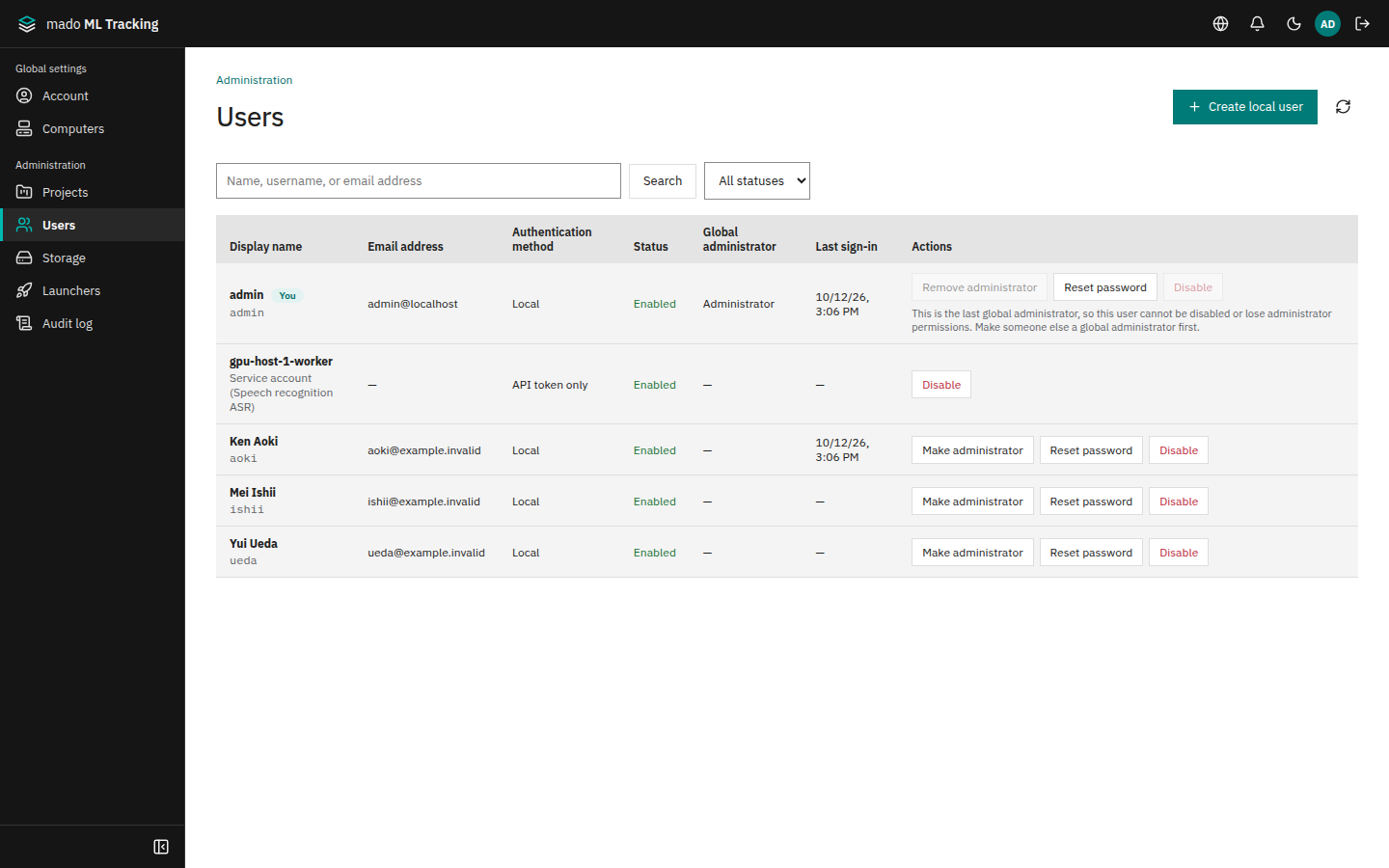
- Open Global settings from the user menu, then Users under Administration in the sidebar (
/settings/users). - Click Create local user. When local login is off (
AUTH_MODEisdevelopmentoroidc), the dialog says that local accounts cannot sign in with the current server settings. You can still create the account; it can sign in onceAUTH_MODEislocalorhybrid. - Enter the following and save.
| Field | Value |
|---|---|
| Username | Lowercase letters, digits, ., _, -, up to 64 characters. Example: tanaka |
| Display name | The name shown on screens. Example: Tanaka |
| Email address (optional) | Example: tanaka@example.com |
| Initial password | At least 12 characters. Generate creates a random value |
| Make global administrator | Select only for a global administrator |
The account is created when it appears in the list. Give the initial password to the user through a safe channel. The user must change it at the first login.
A new user can use Public Projects right away. To use a Private Project, add the user under Members in Project settings (Permissions and roles).
Passwords
Local account passwords are stored as Argon2id hashes. A new password must be 12 to 1024 bytes and differ from the current one.
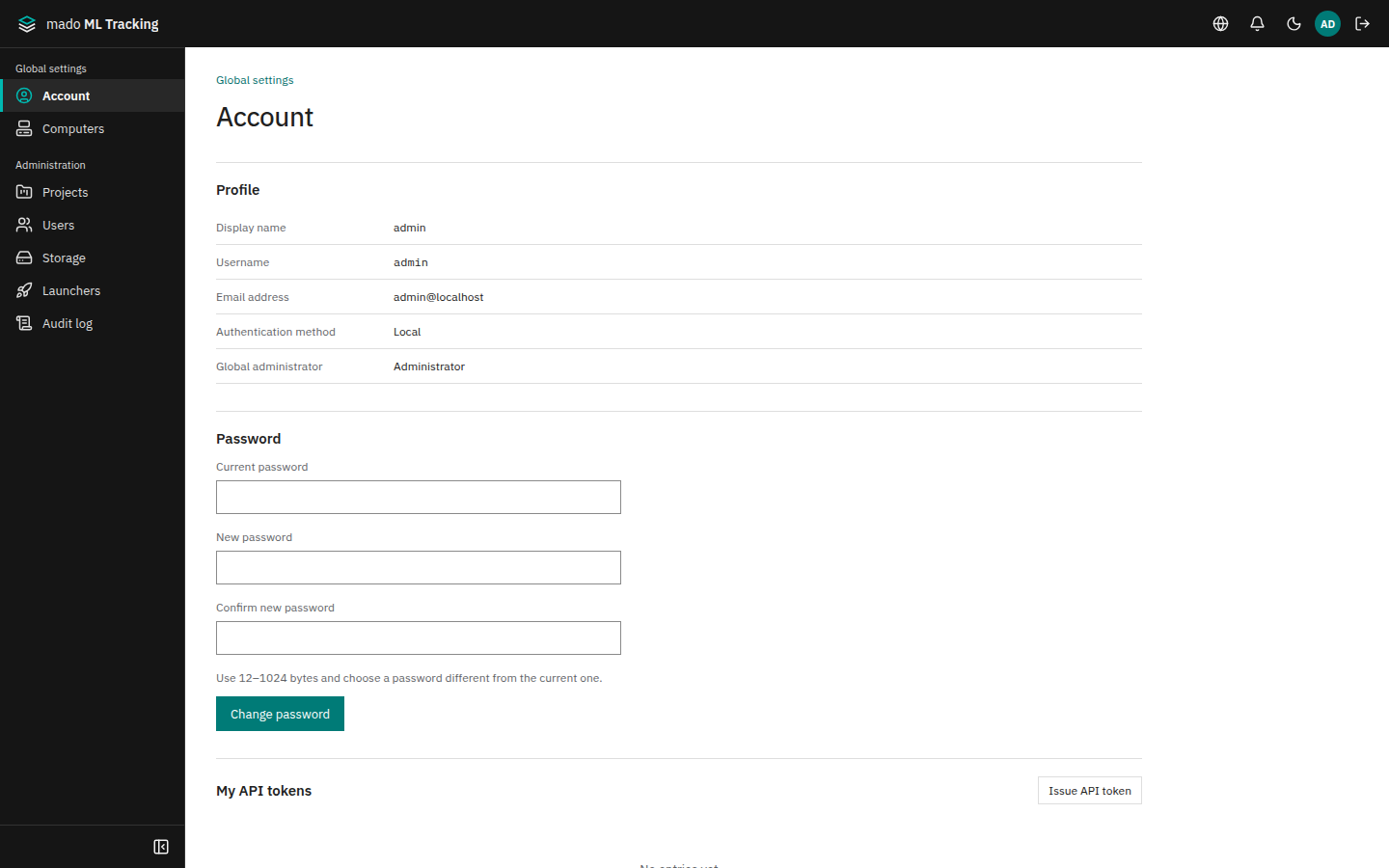
- Change your own: open Change password from the user menu (your avatar) at the top right (
/settings/account/password). You can also change it under Password on Account in Global settings. Changing it ends your logins in other browsers and machines. - Forgotten password: a global administrator clicks Reset password on the user's row in Administration → Users. A temporary password is shown once; give it to the user through a safe channel. The user's sessions end and the next login asks for a new password.
- SSO-only users have no password in this application. Their passwords are managed in Authentik.
Login and current-password checks are rate limited. Over the limit, the screen says the attempt limit was reached and the API returns 429 with Retry-After.
| Target | Limit |
|---|---|
| Logins from the same source address | 30 per minute |
| Failed logins for the same username | 10 per 15 minutes |
| Current-password checks when changing the password | 10 per 15 minutes per user |
The counters live in the API process memory and reset when the API restarts. An unknown username, a wrong password, and a disabled user all get the same "Incorrect username or password" message.
Disable and re-enable users
When someone leaves or changes teams, a global administrator uses Administration → Users.
- Click Disable on the row and confirm. The user's sessions end immediately, and the user's API tokens (including the MLflow-compatible API) return 401 from the next request.
- For SSO users, also remove the user from the Authentik groups. If you re-enable the user without doing so, the next login restores the global role derived from the groups.
- To restore the user, click Enable on the same row. API tokens work again, but ended sessions do not come back; the user signs in again.
Users cannot be deleted, so that the creators of Runs and model versions stay on record. The last active global administrator cannot be disabled or demoted (409 last_active_admin); on the screen, that row's Disable and Remove administrator are disabled with the reason. Prepare another global administrator first.
- Your own row is marked You. Disabling or demoting yourself is confirmed with a warning that you are signed out (or lose global administration) at once, and that only another global administrator can undo it.
- A Service Account's row shows Service account (Project name), which opens Service accounts in that Project's settings. Disabling it also stops the tokens its workers use.
For SSO users, Authentik is the source of truth for the global administrator flag and the display name, so they cannot be changed on the screen. The administrator column shows that the Authentik group is authoritative.
Move to SSO
To move an environment that used local accounts to SSO, go through hybrid.
- Put
AUTH_MODE=hybridand the Authentik settings in.env, runnpm run db:migrate, and restart the API. - Create a local administrator with
bootstrap-adminand change its password. - Have an administrator and regular members sign in with SSO, and check the global administrator flag and Project permissions.
- When everything is correct, change to
AUTH_MODE=oidcand restart. Local account logins return 404.
If Authentik stops and nobody can sign in, change back to AUTH_MODE=hybrid and restart; the local administrator can sign in again.
Check your account
Open Account from the user menu (your avatar) at the top right (/settings/account) to see your display name, email, login method, whether you are a global administrator, your groups (SSO users only, with the last sync time), and your API tokens. Local accounts can also change their password here. You can also open it from Account in the Global settings sidebar.