Computers and visibility
A computer is a place where Jobs run. There are three kinds.
| Kind | What it is | How to set it up |
|---|---|---|
| SSH | A GPU machine the worker reaches over SSH | Compute targets |
| Local | The worker's own host. Available only in development mode | Compute targets |
| Site | A supercomputer, a lab GPU server, or your own PC. Jobs are submitted by a launcher or by mado-tracking submit | External computers (sites) |
Computers do not belong to a Project. You add them under Computers in Global settings, and each computer's visibility (Public or Private) decides whose Jobs can run on it.
When to use this
- You want to add your PC or a lab GPU server and use it only for your own experiments.
- You want a shared GPU server to be usable from every Project.
- You want to see what computers other people have added and whether you can use them now.
Open Computers in Global settings
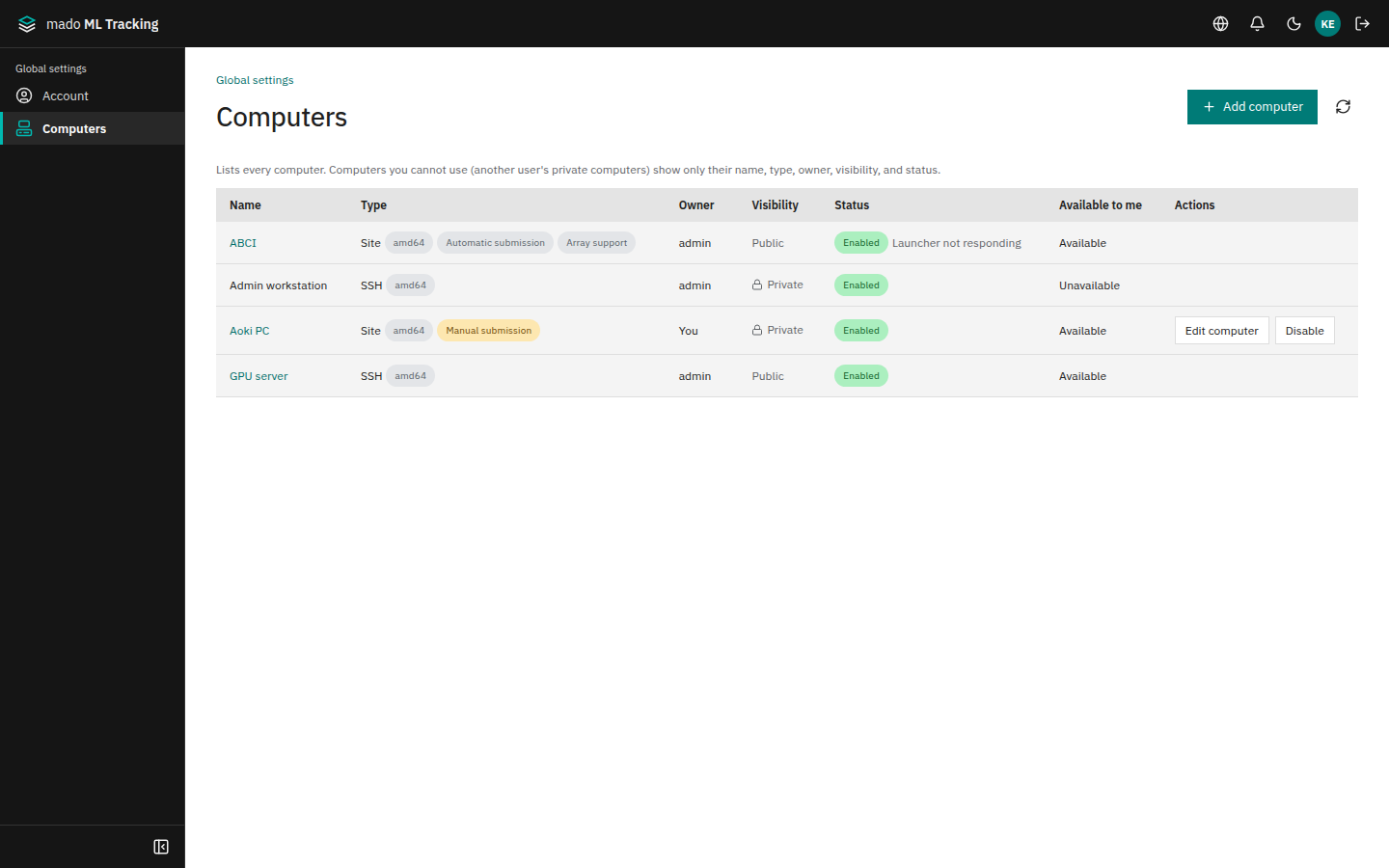
Click Global settings in the user menu at the top right, then open Computers under Global settings in the sidebar (/settings/computers). Anyone can open Global settings, not only global administrators. You can also get there from Open Computers in global settings on a Project's Compute page.
The list shows every computer, including other people's Private ones.
| Column | Content |
|---|---|
| Name | For a computer you can use or manage, click the name to open its details below the list |
| Type | SSH, Local, or Site, with the CPU architecture and, for a site, automatic or manual submission and array support |
| Owner | The person who added the computer. You for your own, Global for one without an owner |
| Visibility | Public or Private. Private has a lock icon |
| Status | Enabled or Disabled. For an automatic site, also the launcher's state, such as Launcher not responding or Launcher revoked |
| Available to me | Whether your Jobs run on the computer |
| Actions | Only owners and global administrators see Edit computer and Disable, plus Open connection check for SSH and Local |
For a computer you cannot use (someone else's Private computer), only the name, kind, owner, visibility, and state are shown. The destination, accounts, paths, and job shell are not.
Add a computer
Anyone can add their own computers. Whoever adds a computer becomes its owner.
| Who | Can add |
|---|---|
| Global administrators | SSH and Site, plus Local in development mode |
| Other users (researchers) | Site only |
- Under Computers in Global settings, click Add computer.
- Enter a name and choose Visibility. The default is Private. Global administrators also choose Type: SSH or Site, plus Local in development mode.
- Fill in the settings for the kind and save.
- SSH and Local are added in two steps. In step 1, Connection, enter the destination, choose the worker that checks it, and press Check connection and continue. In step 2, Settings after connecting, review the working directory and the other settings and press Save. See Compute targets.
- A site is added on one screen: fill in the settings and press Save. See External computers (sites).
After saving, the computer's details open below the list. An SSH or Local computer is listed, disabled, as soon as step 1 is done, and becomes usable when you save step 2 with Enabled on.
Visibility
| Visibility | Who can run Jobs |
|---|---|
| Public | Everyone. Jobs from any Project can run |
| Private | The owner, and the Service Accounts the owner created |
On a Private computer, the check uses the person a Job runs as.
| How the Job starts | Who is checked |
|---|---|
| Creating a Job, running a Task, or rerunning, from the screen, the Python SDK, or the API | The creator of the Run (for a token, the token's owner) |
| Hook | The hook's owner |
| Automation rule | The rule's owner (the Service Account, if you moved ownership to one) |
| Sweep | The person who created the Sweep |
- "Service Accounts the owner created" are the Service Accounts that the owner created as a Project Admin. A Service Account created by someone else cannot use the owner's Private computers.
- Service Accounts cannot have their own settings (My settings), so they cannot use sites that submit with each person's own account (External computers (sites)).
- Even a global administrator cannot run Jobs on a Private computer they do not own. They can still change its settings, disable it, or make it Public.
Creating a Job on a computer you cannot use returns 422 target_not_available. Tasks, automation rules, hooks, and Sweeps run the same check when they are saved.
Change the visibility
The owner or a global administrator chooses another Visibility in Edit computer in the list and saves. The change is recorded in the audit log (compute_target.update).
- A computer without an owner stays Public and cannot be made Private (422
target_owner_missing). - When a computer becomes Private after Jobs were created, the queued Jobs of people who can no longer use it fail when they are submitted (
submit_failed). Running Jobs are not stopped.
Computers from before visibility existed
Computers that existed before visibility was introduced became:
- Public, if they have no owner (those added by global administrators)
- Private, if they have an owner (sites added by researchers)
Sharing with Projects no longer exists. To let others use a computer you used to share, its owner makes it Public.
A Project's Compute page
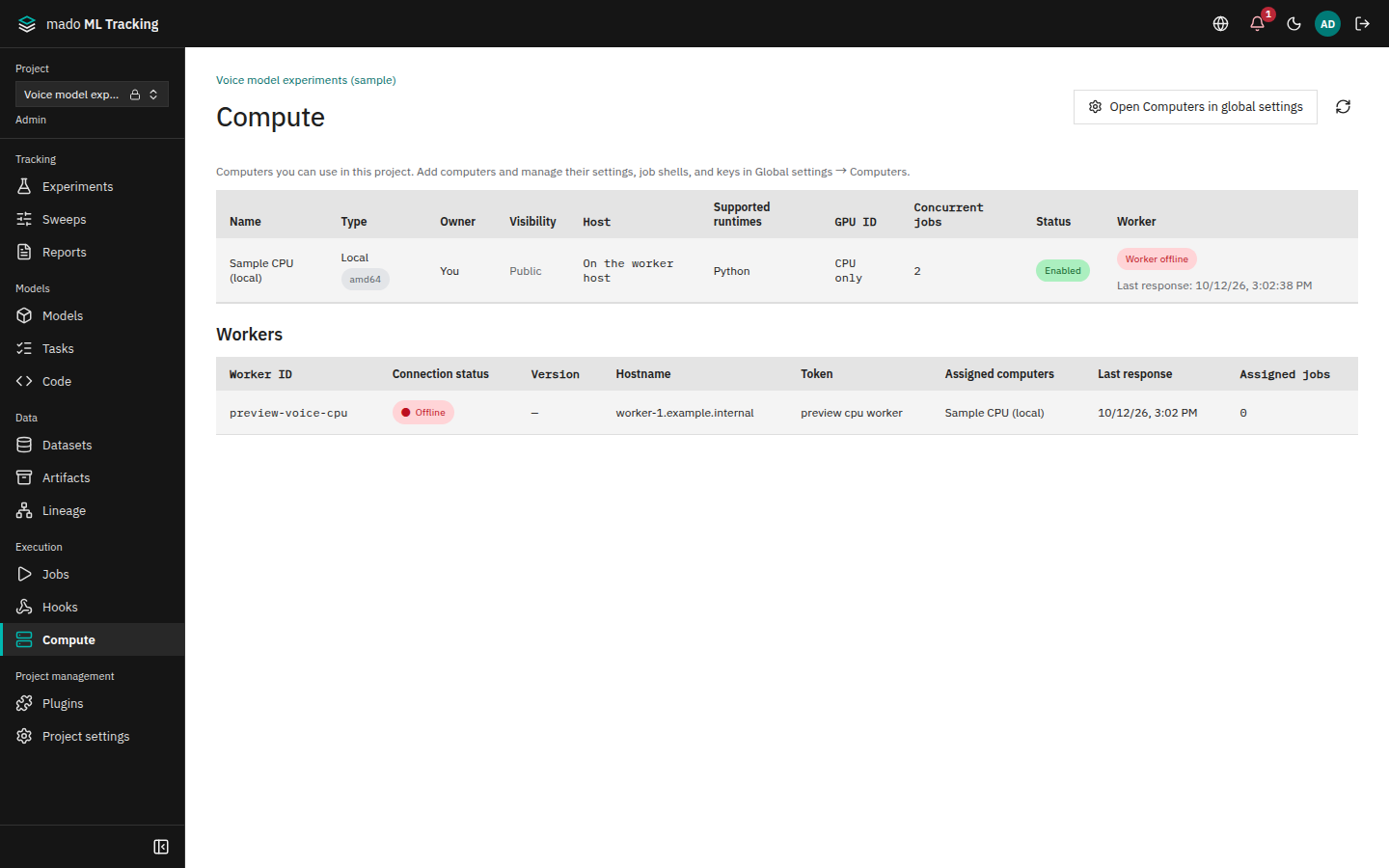
A Project's Compute page shows the computers you can use (read only) and the state of the workers connected to the Project (Workers). To add or configure computers, use Open Computers in global settings at the top right to go to Global settings.
The target list on the Job screens also shows only the computers you can use.
Before you use someone else's computer
Using a Public computer means trusting its owner. The owner and global administrators decide the job shell and where the runner reports, and on the computer they can read the Job's spec directory (including the Job token). A Job token can write only to that Job's Run, but it can read the Project's data.
On a site that runs as your own account, the job shell chosen by the owner runs as you. See External computers (sites).
Permissions
| Operation | Who |
|---|---|
| Open Computers in Global settings and see every computer's name, kind, owner, visibility, and state | Anyone signed in |
| Add a site | Anyone signed in |
| Add SSH or Local computers | Global administrators |
| Change settings and visibility, enable or disable, check the connection, save job shells, the shared account's key | The owner or a global administrator |
| Run Jobs | Public: everyone. Private: the owner and the Service Accounts the owner created |
Use the API
| Operation | API | Permission |
|---|---|---|
| List every computer | GET /api/targets/overview | read. In each row, usable says whether your Jobs run there and canManage whether you manage it |
| Details of the computers you can use or manage | GET /api/targets (?projectId=<Project ID> returns only the ones you can use) | read |
| Add | POST /api/targets (visibility is public or private; private if omitted) | Anyone signed in from a browser (sites only; API tokens get 403 session_required). Global administrators can also add SSH and Local, and can use a token with the admin scope |
| Change settings and visibility | PATCH /api/targets/<ID> (visibility and other fields) | The owner (signed in from a browser) or a global administrator (a token with the admin scope also works). Others get 403 target_owner_required |
A researcher adding an SSH or Local computer gets 403 target_admin_required, and opening the job shell, keys, or own settings of a site you cannot use returns 403 target_not_available. See API for details.