External computers (sites)
A site is a computer such as a supercomputer, a GPU server reached over SSH, or a researcher's PC. A launcher logs in to the site, runs its job shell and submits the Job to the scheduler (on computers you submit to yourself, the requester's mado-tracking submit does this). The runner on the compute node reports to tracking directly with the Job token.
Jobs of workflow steps go only to launchers and mado-tracking submit whose runner passes dataset roles and selection conditions to the code. With older ones, workflow Jobs stay queued, so upgrade them.
Who can add and use one
Anyone can add a site. Whoever adds a computer becomes its owner.
| Who | Adds |
|---|---|
| Global administrators | Sites, and also SSH and Local computers (Compute targets) |
| Researchers | Sites only |
Each computer's visibility decides whose Jobs run on it (Computers and visibility).
| Visibility | Who can run Jobs |
|---|---|
| Public | Everyone in every Project |
| Private (default) | The owner, and the Service Accounts the owner created |
The target list on the Job screens shows only the computers you can use. Sites that researchers added before visibility existed became Private, and sharing with Projects no longer exists. To let others use a site, its owner makes it Public.
Add a computer
- Click Global settings in the user menu at the top right, open Computers in the sidebar (
/settings/computers), and press Add computer. Global administrators choose Site under Type; researchers get a dialog for sites only. - Choose Visibility. With the default, Private, only your Jobs and those of the Service Accounts you created run. Choose Public to let others use it.
- Choose how Jobs are submitted.
- Automatic: a launcher logs in to the site over SSH and submits. Enter the launcher and the connection (host, port, jump hosts, known_hosts). Check the output of
ssh-keyscanagainst the host key fingerprints before pasting it as known_hosts. - Manual: the requester submits by running
mado-tracking submiton that computer. Use it for sites that need a one-time password to log in, and for PCs the launcher cannot reach.
- Automatic: a launcher logs in to the site over SSH and submits. Enter the launcher and the connection (host, port, jump hosts, known_hosts). Check the output of
- For automatic sites, choose the account to log in as: one shared account for everyone, or each requester's own account.
- Enter the work directory (a path the compute nodes see the same way), the runner's Python (3.11 or later), the API URL as the runner reaches it, variables (
NAME=VALUE), and so on. - Pick a job shell template (PBS, Slurm, Grid Engine, Fujitsu TCS, or a GPU host without a scheduler using Docker or Apptainer) and adapt the queue, resources and groups to the site's documentation.
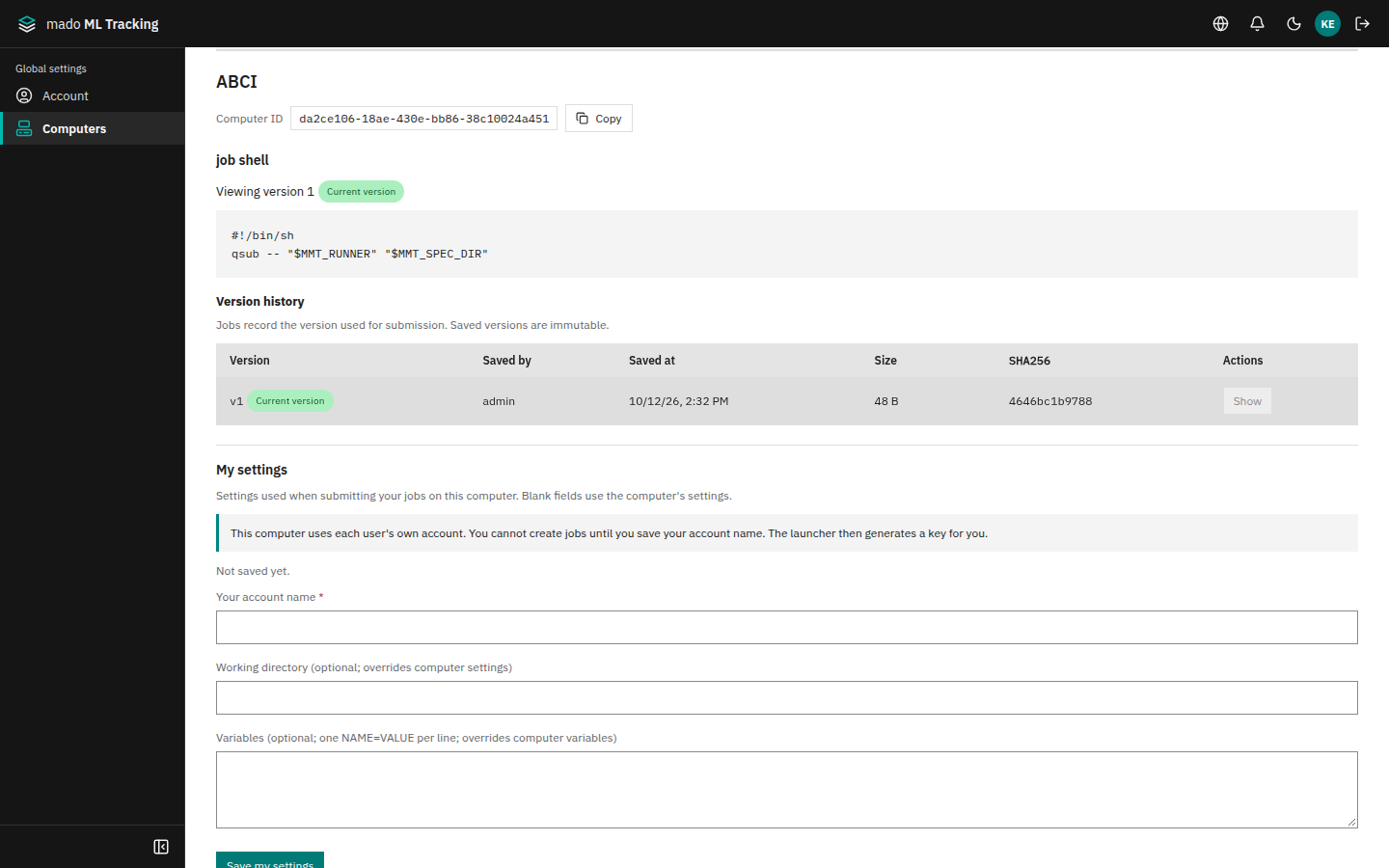
- Press Save. The computer's details (job shell, keys, your own settings) open below the list.
Each save that changes the job shell makes a new version, and each Job records the version it was submitted with. Only the owner and global administrators can change the job shell and the settings.
Keys and connection checks
On automatic sites, the launcher makes the login key and shows its public key in the computer's details. The private key never leaves the launcher's host.
- Shared account: the owner adds the public key to the shared account's
~/.ssh/authorized_keys. Users do nothing. - Each requester's account: when you save your account name (and variables such as
GROUP) in the computer's My settings, the launcher makes a key for you. Register its public key with your account in the site's way (a user portal, for example). Until you save your settings, you cannot create Jobs on that computer. Service Accounts cannot have their own settings, so they cannot use sites that run as each requester's account. - Check connection makes the launcher log in once with that key and account.
- Check that the site's rules allow automatic logins from another host and extra public keys. If they do not, use manual submission for that site.
Submit manually
When you create a Job on a manual computer, Jobs shows that it waits for manual submission. Run this on that computer (a login node, or your PC):
export MMT_API_URL=https://tracking.example.org MMT_API_TOKEN=<your API token>
mado-tracking submit --site <computer ID> --dry-run      # show the waiting Jobs and the settings
mado-tracking submit --site <computer ID>                # submit your waiting Jobs once
mado-tracking submit --site <computer ID> --watch        # repeat until stopped (your PC)
mado-tracking submit --site <computer ID> --watch --all  # owner: also other people's Jobs, once the computer is Public
For a Job on a manual computer someone else added: if you can log in to that computer with your own account (a Public supercomputer, for example), submit it yourself with mado-tracking submit there. On a computer where the owner waits with --watch --all (such as the owner's PC), the owner's side submits it.
The token is your own API token with jobs:write (and read to show the counts). Nothing keeps running unless you use --watch. Jobs taken with --all also run as the account that ran the command. --all takes only the Jobs of the token's Project (write tokens are made per Project); to take Jobs from several Projects, run one --watch --all per Project with that Project's token.
Before you use someone else's computer
Using a Public computer means trusting its owner. The owner and global administrators decide the job shell and where the runner reports. On computers that run as your own account (automatic with your account, or manual), that job shell runs as you. Make sure you trust the owner before you register a public key or run mado-tracking submit.
Permissions
| Action | Required role |
|---|---|
| Add your own computer (site) | Anyone signed in |
| Change a computer or its visibility, save its job shell, its shared account key | Owner or global administrator |
| Run Jobs on the computer | Public: everyone. Private: the owner and the Service Accounts the owner created |
| Save your settings, replace your key, check your own login | Anyone who can use the computer |
| Register launchers, replace their tokens, revoke them (Administration → Launchers) | Global administrator |