Permissions and roles
Permissions have two levels: whether a user is a global administrator, and the role in each Project.
Global settings and Administration
Global settings are the pages that do not belong to a Project (/settings/<section>). Anyone can open them from Global settings in the user menu at the top right. The sidebar items fall into two groups.
| Group | Items | Who sees it |
|---|---|---|
| Global settings | Account, Computers, About | Everyone |
| Administration | Projects, Users, Storage, Launchers, Audit log | Global administrators only |
These groups appear only in the sidebar of the Global settings pages, not on Project pages. People who are not global administrators do not see Administration, and opening one of its URLs directly takes them to Account with a note that the page is for global administrators only.
When Global settings is opened from a Project page, Back to “…” (with the Project's name) appears at the top; it returns to the page you came from (Jobs, for example).
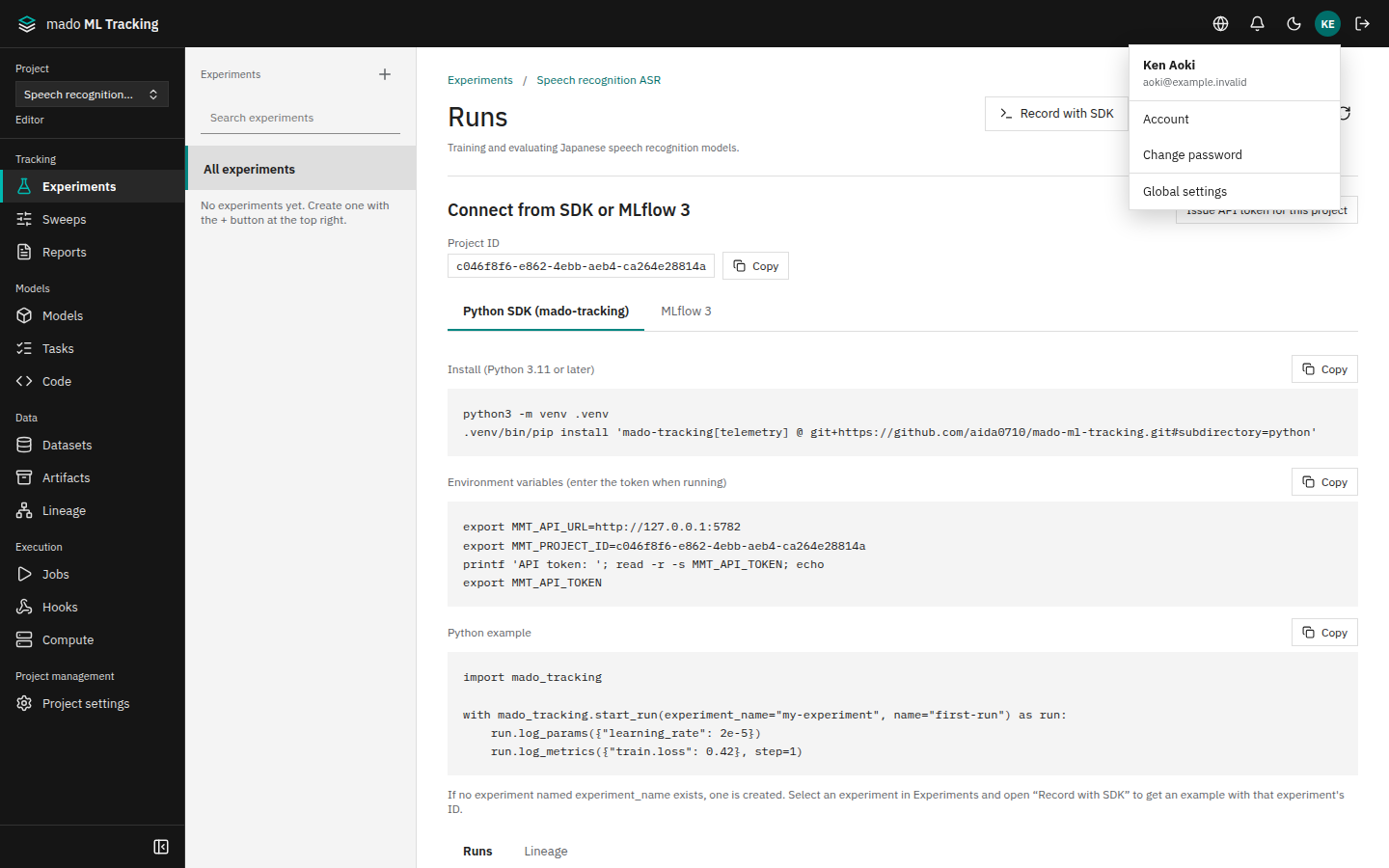
The user menu at the top right has Account, Change password (local accounts only), Global settings, and Sign out (Authentication modes and local accounts).
About (/settings/about) shows the running web version, the commit it was built from with its date, and the repository.
Global administrators
Global administrators manage application-wide settings. Most of their pages open from the Administration group in the sidebar of the pages opened from Global settings in the user menu.
- Listing every Project, and restoring or permanently deleting archived Projects (Administration → Projects; see Create and manage Projects)
- Creating, disabling, and resetting passwords of users (Administration → Users)
- Adding storage backends and choosing the default backend (Administration → Storage; see Storage)
- Registering launchers (Administration → Launchers)
- The global audit log (Administration → Audit log)
- Adding SSH and Local computers, and changing the settings and visibility of every computer (Computers in Global settings; see Computers and visibility). They still cannot run Jobs on other people's Private computers. Researchers can add sites too
- Creating, changing, and testing notification channels (Notifications and operations alerts)
- Configuring and enabling built-in Mado connections (Mado integration)
Whether an SSO user is a global administrator is decided by Authentik groups (Authentik (SSO)). For local accounts, use Make administrator and Remove administrator in Administration → Users.
A global administrator signed in from a browser can operate any Project as an Admin, including Private Projects they are not a member of. With an API token, even a global administrator needs a role in the Project.
Project roles
| Role | Can do |
|---|---|
| Viewer | View experiments, Runs, models, datasets, and Artifacts |
| Editor | Everything Viewer can, plus recording experiments, registering models and datasets (including deleting dataset versions nothing uses), running Jobs and stopping or retrying the Jobs they started, and changing aliases (a protected alias only with a passing promotion check) |
| Admin | Everything Editor can, plus stopping or retrying Jobs started by others, Project settings (description, visibility, storage), members and group grants, Service Accounts, the Project token list, notification rules, transferring automation owners, deleting Artifacts, using the Mado integration (checking the connection, importing datasets, resending events), the Project audit log, and archiving the Project |
Any user who is not disabled can create a Project: click Create project at the bottom of the Project switcher. The creator becomes an Admin of the new Project. See Create and manage Projects for the steps.
Project visibility
A Project is Public or Private. New Projects are Public by default.
| Visibility | Who can see it |
|---|---|
| Public | Everyone who can sign in. They work as Editors without being added as members |
| Private | Members only (direct grants and group grants) |
- Even in a Public Project, Admin is granted only to members.
- In a Public Project, someone given Viewer still works as an Editor. Members shows their effective role as Editor (Public), and choosing Viewer in Add member says so. To make someone read-only, make the Project Private.
- Public access is given only to the accounts of active people, not to Service Accounts or launchers.
- A Project Admin changes the visibility in the Project section of Project settings. Projects that existed before visibility was introduced become Private on upgrade.
See Create and manage Projects for details.
Computer visibility
Computers that run Jobs also have Public and Private, separately from Projects. Jobs from any Project can run on a Public computer. On a Private computer, only Jobs of the owner (the person who added it) and of the Service Accounts the owner created run, whatever their Project role. Global administrators are no exception. See Computers and visibility.
Direct grants and group grants
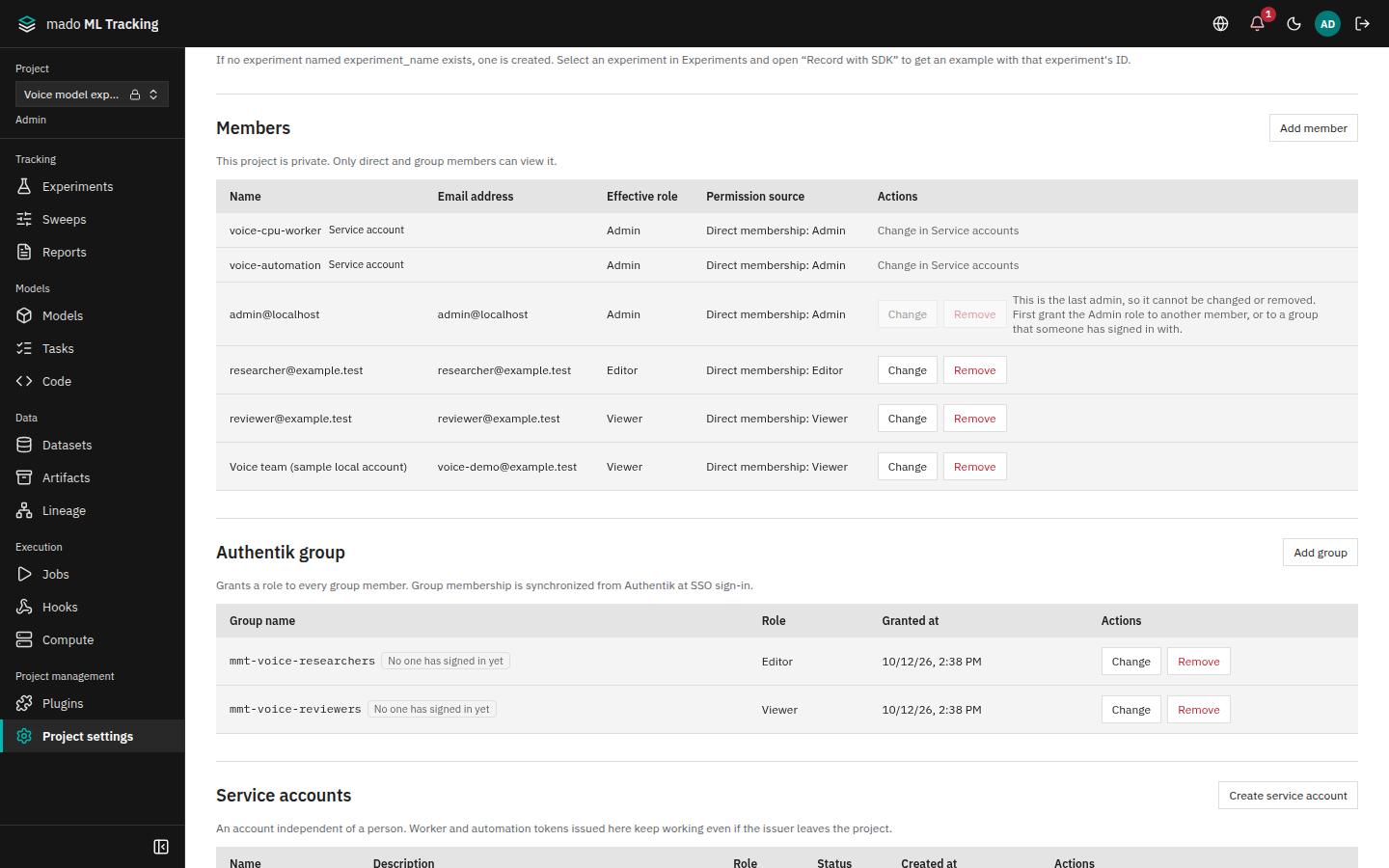
There are two ways to grant a Project role. A Project Admin sets both in Project settings.
| Method | Granted to | Where |
|---|---|---|
| Direct grant | One user | Add member under Members |
| Group grant | An Authentik group | Add group under Authentik group |
The effective role is the strongest of the direct grant and the grants of the groups the user belongs to. In a Public Project, the Editor role everyone who can sign in gets is included as well.
| Direct grant | Group grant | Effective role |
|---|---|---|
| Viewer | Editor | Editor |
| Admin | Viewer | Admin |
| None | Editor | Editor |
| Editor | None | Editor |
In the Members list, the Effective role and Permission source columns (for example "Direct membership: Editor" for a direct grant, or "group mmt-proj-asr-editors: Editor") show where a role comes from. The list shows only people with a direct or group grant. People who only use the Project through Public access are not listed, and the Effective role column does not include the Public Editor role.
The effective role is the same on the screen, in the native API, in the MLflow-compatible API, for API tokens, and for Job tokens.
Add a member
- Click Add member under Members in Project settings.
- Type the start of a name, email, or username and pick the user. SSO users appear only after their first login. Users who already have a direct grant are listed as already added (for example "Already has the Editor role. Use “Change” in the list to change it") and cannot be picked; change their role with Change in the list.
- Choose a role and save. Editor is selected at first, as for the members chosen while creating a Project.
The member is added when the user appears in the list.
Service Accounts appear in Members too, marked Service account. Their role and disabling are changed under Service accounts: instead of Change and Remove, the Actions column of their row shows Change in Service accounts, which jumps to that section.
Someone who is not a Project Admin sees, in the Project part of Project settings, the names of the Admins who can change it.
Remove a direct grant
Click Remove on the row. Roles granted through groups remain. If only a group role remains, the confirmation says so.
A Project always needs an Admin
A Project needs at least one direct Admin grant, or an Admin grant to a group that someone has signed in with. On the last one, Change and Remove are disabled and the reason is shown next to them; removing or lowering it through the API returns 409. Grant Admin to another member, or to a group someone has signed in with, first.
An Admin grant to a group nobody has signed in with yet does not count: with a mistyped group name, removing the last person's Admin grant would leave nobody who can manage the Project. Such groups are marked No one has signed in yet in the Authentik group list. Service Accounts with the Admin role do not count either.
Permissions of API tokens
For requests with an API token, both the token's scopes and the owner's current effective role are checked. If either is insufficient, the request returns 403.
- Missing scope: 403
scope_required - Insufficient role, or a Project other than the token's: 403
project_forbidden
When the owner is removed from the Project, the owner's tokens stop working in that Project from the next request. See API tokens and Service Accounts for the scopes and roles.
Records of permission changes
Changes to direct grants, group grants, and visibility are recorded in the audit log (Audit log).
| Operation | Audit action |
|---|---|
| Change the visibility | project.update |
| Add or change a direct grant | project.member.set |
| Remove a direct grant | project.member.delete |
| Add or change a group grant | project.group_binding.set |
| Remove a group grant | project.group_binding.delete |