Metric Charts
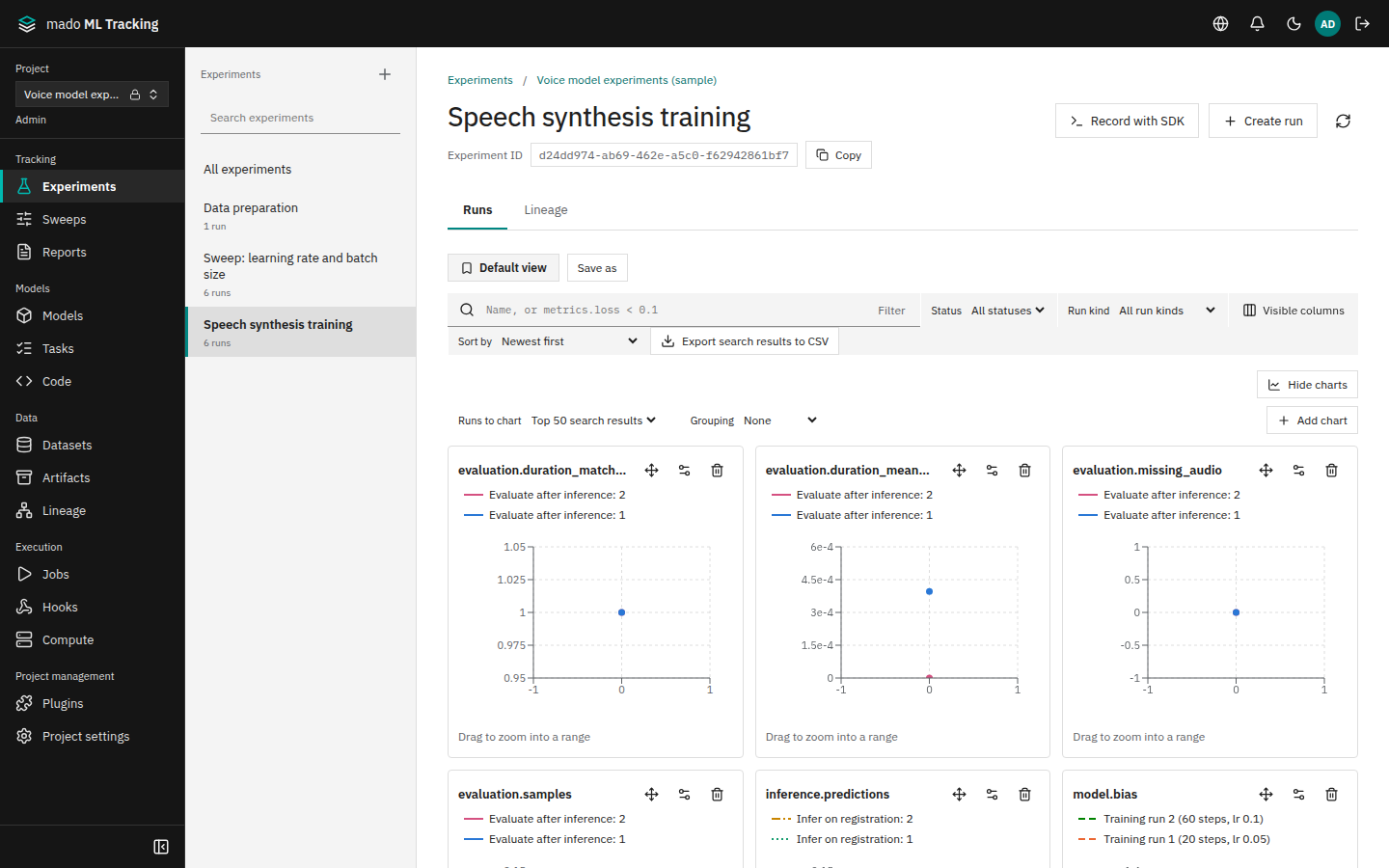
Recorded metrics are drawn as line charts by step on these pages:
| Page | What it shows |
|---|---|
| The Run list under Experiments, with Show charts | Search-result Runs overlaid, plus result analysis |
| A Run's Metrics tab | That Run's metrics |
| A Run's System metrics tab | CPU, memory, disk, network, and GPU (System metrics) |
| The Details tab of the comparison page | The selected Runs overlaid |
When it helps
- Overlaying the loss of runs with different learning rates to compare how fast they converge
- Smoothing a noisy loss to see its trend
- Summarizing dozens of trials as the mean and range per batch size
- Sharing a layout with only the charts you care about
Read a chart
- Click a legend item to hide or show that line; Show all brings hidden lines back. Hovering a legend item highlights its line
- Drag across the chart to zoom into that range; Reset zoom returns to the full range
- Hover a line to see the values of each Run at that position
- Lines differ in both color and line style (solid, dashed, dotted, dash-dot). Colors and styles are assigned over all the Runs on the page, so a Run has the same color and style in every chart, even where another Run did not log that chart's metric. Up to eight Runs get colors and styles in an order that keeps them easy to tell apart, and the legend shows the same style. With nine or more Runs, only the color differs. In a chart of several metrics, the color tells the Run and the line style tells the metric (a chart of a single Run gives each metric its own color)
- With the keyboard, Tab to the chart and use ← and → to move the position whose values are shown (Home and End jump to the ends). + zooms in around that position and - zooms out. Esc hides the values. Keys pressed with Ctrl, Cmd, or Alt are left to the browser (page zoom, back and forward). A screen reader reads each line's latest value with its minimum and maximum
- Resumed Runs show a Resume marker (Run resume)
Long series are downsampled on the server before drawing. Each series has at most 1,000 points, fewer when many lines are overlaid. Downsampling draws the mean of each interval and keeps its minimum and maximum, so short spikes remain visible with Show range (min–max). Zooming in fetches finer data for that range. NaN and infinite values are not drawn.
Configure a chart
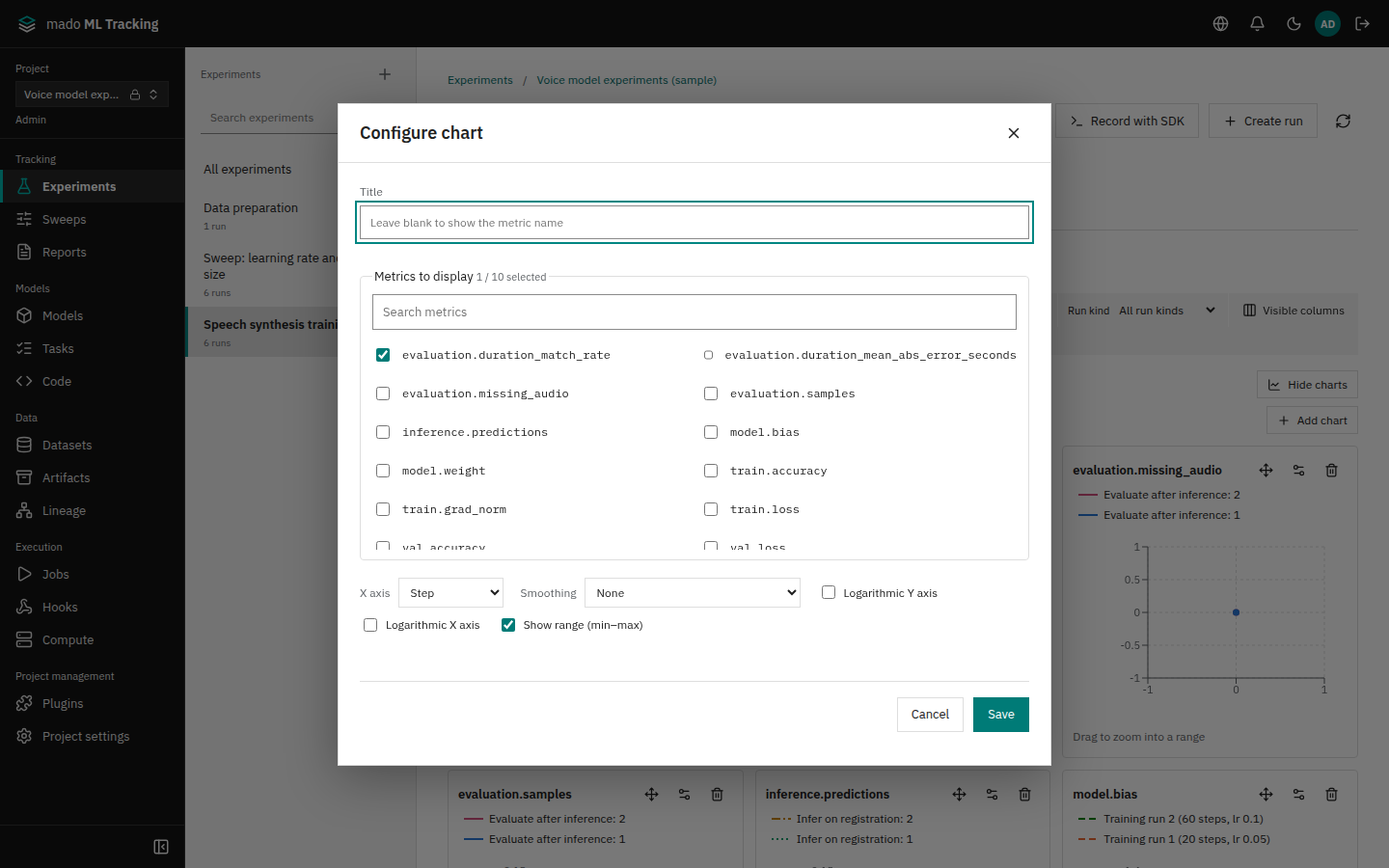
The Configure chart button at the top right of a chart changes the following:
| Item | Values |
|---|---|
| Title | The metric names when left empty |
| Metrics to display | Up to 10 per chart, with a search box to filter names |
| X axis | Step, Elapsed time (seconds since the Run started), Time (wall time), or Metrics |
| Smoothing | None, EMA (exponential moving average), Gaussian, or Moving average, with a Smoothing strength from 0 to 1 |
| Logarithmic Y axis, Logarithmic X axis | Values of 0 or below cannot be placed on a log axis; they are skipped and their count is shown below the chart |
| Show range (min–max) | Draws the minimum and maximum of each downsampled interval as a band |
| Show unsmoothed lines | Draws the original line faintly behind a smoothed one |
With a metric as the x-axis, the value chosen in X-axis metric becomes the horizontal axis, for example val_loss against epoch. Points without an x value at the same step are skipped.
As in W&B, smoothing works on the order of points. EMA strength is capped at 0.999 so the line still follows new values. At strength 1, Gaussian smoothing spans about 60 points on each side and the running average covers the last 100 points.
Runs to draw and grouping
Above the charts in the Run list you choose:
- Runs to chart: the top 50 search results, or the Runs selected in the list
- Grouping: None, Tag, Param, or Experiment
With grouping, Runs are grouped by the value of the chosen key, and every chart draws each group's mean line with a band from the minimum to the maximum across Runs. Legend entries get (average). Each Run is averaged per interval first and then averaged across Runs, so a Run with many points does not dominate.
- Runs without the value go to the
(none)group - Up to 50 groups and 1,000 Runs
Arrange chart panels
Charts sit on a 12-column grid.
- Add chart creates a chart
- The Layout button at the top right of a chart moves it up, down, left, or right, sets its width (1/3, 1/2, full), or makes it taller with Increase height
- Delete chart removes the chart
- Reset to default layout restores the default layout
The layout is saved in this browser per Project and page. To use the same layout in another browser or with other members, save a saved view in the Run list; it includes the chart panel layout and grouping.