Large file uploads
Sending a multi-gigabyte checkpoint or audio file in a single request means starting over whenever the connection drops. mado ML Tracking splits large files into fixed-size parts, and after an interruption it skips the parts the server already has and continues.
The browser, the Python SDK, and the worker do this automatically based on file size. The MLflow SDK can do the same with MLflow multipart upload.
When to use it
- You want to register checkpoints or audio corpora of tens of gigabytes from the browser.
- You do not want to start over when the network drops while training outputs are being sent.
- You want to upload a whole folder and keep its structure.
- You want to send large files with MLflow SDK
log_artifact.
How files are sent
| Sender | Split files of | Part size | Parallel requests |
|---|---|---|---|
| Browser | 8 MiB or more | 16 MiB | 3 in total |
| Python SDK, worker | 64 MiB or more | 16 MiB | 4 per file |
| MLflow SDK | 500 MiB or more by default | 10 MiB by default | As configured in the SDK |
A file can have at most 10,000 parts. The browser and the Python SDK increase the part size automatically for files that would need more. One Artifact can be up to 200 GiB by default.
When all parts have arrived, the API computes the SHA-256 and size of the whole file before registering the Artifact. If the SHA-256 computed before sending does not match, the Artifact is not registered. For large files this check can take tens of minutes.
An unfinished upload expires 7 days after it started. Expired uploads and their parts are removed automatically.
WARNING
If Use multipart uploads (otherwise limited to 5GiB per file) is off for the storage, uploads cannot be split. See Storage settings.
Upload from the browser
- In the Run's Artifacts tab, click Upload artifact. For files that do not belong to a Run, use the upload on the Models or Code page.
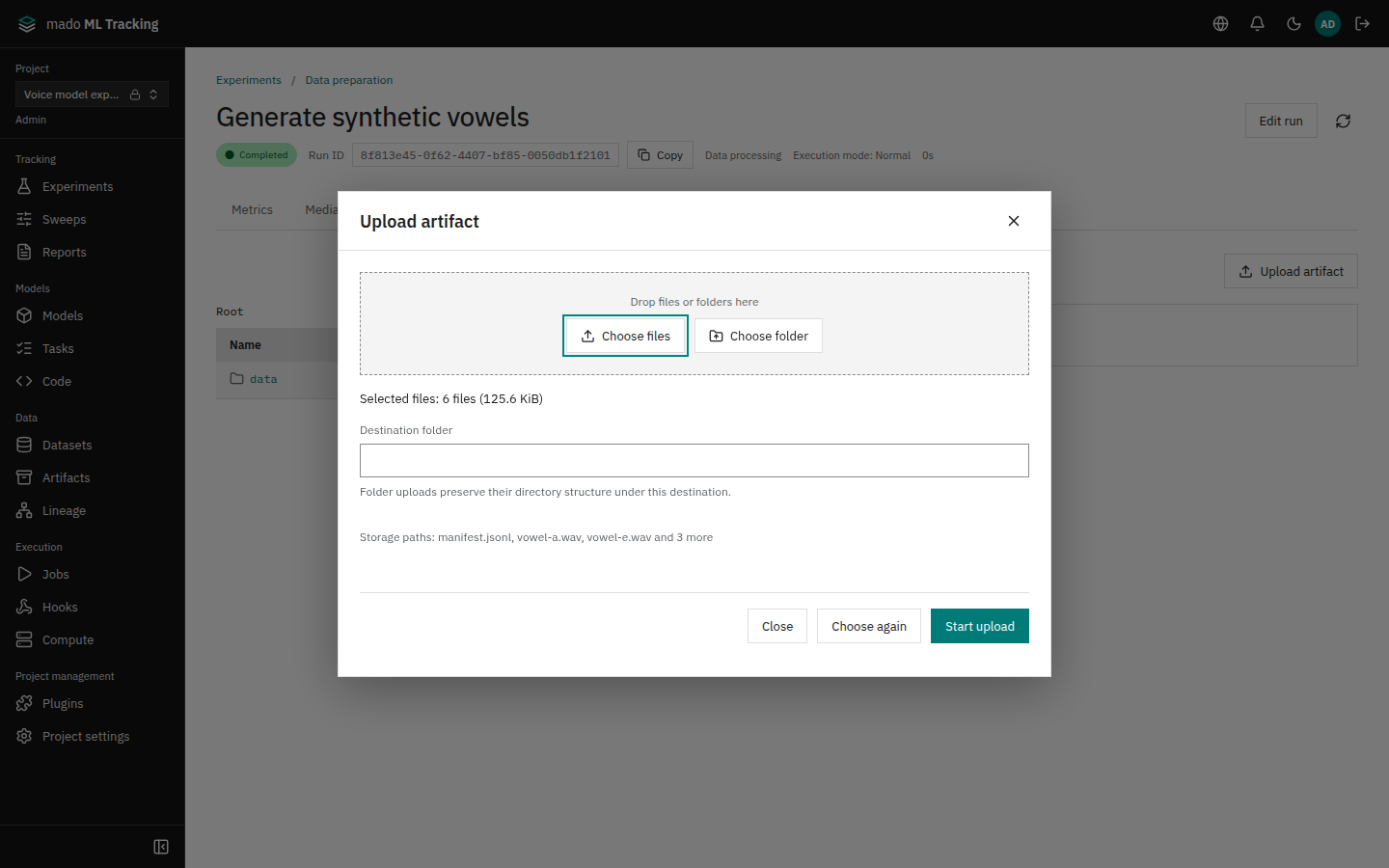
- Click Choose files or Choose folder, or drop files or folders on the dialog.
- For one file, enter Storage path. For several files, enter Destination folder. When a folder is open in the Artifacts tab, the dialog starts in it. A chosen folder keeps its structure, including the chosen folder's own name, under the destination folder. For several files, the first three saved paths are shown under the field.
- Click Start upload.
For one file, when a file is already stored at the same saved path, the dialog says that sending it adds a new version and the current one stays under previous versions in Details. When the content is the same too (checked for files up to 64 MiB), it adds that the file does not need to be sent.
Upload progress shows the state, speed, and remaining time of each file (such as 1m 5s remaining).
| Action | What it does |
|---|---|
| Pause | Stops sending new parts. Not shown for files under 8 MiB |
| Resume | Continues a paused or failed file where it stopped |
| Cancel | Cancels the upload and deletes the parts the server received |
| Retry failed files | Sends all failed files again |
A failed part is retried up to 5 times, waiting from 1 second up to 30 seconds between tries. While retrying, the row shows "Connection lost. Retrying (attempt 2 of 5)" instead of the speed and time left. When all five tries lose the connection, the file stops with "The connection was lost. Check your network, then press “Resume” to continue where it stopped."; click Resume once the network is back. When a file finishes, artifact://<Artifact ID> is shown; copy it to use when registering a model version, for example.
The dialog cannot be closed while sending. Pause or cancel first.
Continue after a reload
The server keeps the received parts even if you reload or close the tab.
- Open Upload artifact on the same Run.
- Incomplete uploads lists each upload with the amount already sent and its expiry. Uploads started in this browser also show the original file name.
- Click Continue upload on the row and choose the same file.
The upload keeps its earlier saved path, so you do not type it again. Choosing the same file with Choose files also switches the saved path to the earlier one and continues.
The file is recognized by the content (SHA-256) of the parts already sent. A copy with another name or modification time continues if its content is the same; a file of another size or content is never continued. Click Discard to delete an upload you do not want to continue.
When an upload cannot continue, its row shows why and what to do next.
| Shown | What to do |
|---|---|
| Expired | Start over sends the file again from the first byte to the same saved path |
| No longer on the server (discarded, or removed after expiry) | Start over sends the file again to the same saved path |
| Permission lost | Ask a Project administrator for Editor or higher. If access returns before the expiry, the upload continues |
| Different size or content | Choose the same file again |
When a dataset's Create from a folder stopped midway, open it again: the upload is listed under Incomplete folder uploads. See Datasets for continuing or discarding it.
Upload from the Python SDK
log_artifact and log_artifacts split files of 64 MiB or more automatically.
import mado_tracking

with mado_tracking.start_run(
    project_id="<Project ID>", experiment_id="<Experiment ID>", name="training",
) as run:
    run.log_artifact("checkpoints/model.pt", path="checkpoints/model.pt")
    run.log_artifacts("outputs/audio", path="audio")
If an upload stops, run the same code again with the same file. The SDK records uploads in progress under ~/.cache/mado-tracking/uploads/ (or under XDG_CACHE_HOME when it is set). On the next run it asks the server which parts it has and sends only the missing ones. If the file changed during the upload, the SDK raises an error; run it again to send the new content.
Connection failures and HTTP 408, 429, 500, 502, 503, and 504 are retried up to 4 times, waiting from 0.25 seconds up to 5 seconds.
See Python SDK for the API URL and token settings.
Worker outputs
The worker saves files written by a Job as Artifacts of the Run. Files of 64 MiB or more are sent in parts, the same way as the Python SDK. If the worker restarts, it skips the parts already received.
If collecting outputs from the GPU machine stalls for 300 seconds, the worker fetches only the files it has not confirmed yet. If the worker process crashes, it may resend files saved in the last second, which adds one more version of an Artifact with the same content.
MLflow SDK multipart upload
The official MLflow 3 SDK can split large files with MLflow multipart upload. When a part fails, the SDK resends only that part.
- MLflow SDK 3.17 and later reads the server settings and uses multipart upload automatically.
- MLflow SDK 3.0–3.16 needs
MLFLOW_ENABLE_PROXY_MULTIPART_UPLOAD=true.
export MLFLOW_TRACKING_URI=https://mmt.example.com
export MLFLOW_ENABLE_PROXY_MULTIPART_UPLOAD=true
export MLFLOW_MULTIPART_UPLOAD_CHUNK_SIZE=33554432   # 32 MiB
export MLFLOW_HTTP_REQUEST_TIMEOUT=600| Environment variable | Meaning |
|---|---|
MLFLOW_MULTIPART_UPLOAD_MINIMUM_FILE_SIZE | Files of this size or more are split. The SDK default is 500 MiB |
MLFLOW_MULTIPART_UPLOAD_CHUNK_SIZE | Part size. The default is 10 MiB; use at least 5 MiB. For a 200 GiB file, use at least 21 MiB |
MLFLOW_HTTP_REQUEST_TIMEOUT | Seconds the SDK waits for a response. The default is 120 |
After the last part, the SDK waits until the API has checked and registered the whole file. The API waits up to 100 seconds by default and then returns 503. The check continues anyway, and the Artifact appears in the list when it finishes. For files of tens of gigabytes, increase MLFLOW_HTTP_REQUEST_TIMEOUT and the API setting MMT_UPLOAD_FINALIZE_WAIT_MS.
See Log from the MLflow 3 SDK for connection and token settings.
Use the API directly
Without an SDK, call the API in this order. Send every request with the same credentials that created the upload.
| Step | API |
|---|---|
| Create the upload | POST /api/projects/<Project ID>/artifact-uploads (path, runId, expectedSize, expectedSha256, partSize) |
| Send a part | PUT /api/projects/<Project ID>/artifact-uploads/<upload ID>/parts/<number>. The X-Part-SHA256 header checks the part |
| Check received parts | GET /api/projects/<Project ID>/artifact-uploads/<upload ID> |
| Complete | POST /api/projects/<Project ID>/artifact-uploads/<upload ID>/complete |
| Abort | DELETE /api/projects/<Project ID>/artifact-uploads/<upload ID> |
partSize is 5 MiB to 5 GiB, 16 MiB by default. Every part except the last must be exactly partSize, and the last part must be exactly the remaining bytes. After complete, the status becomes verifying and then completed when the check finishes. The registered Artifact has the same ID as the upload.