Compute targets
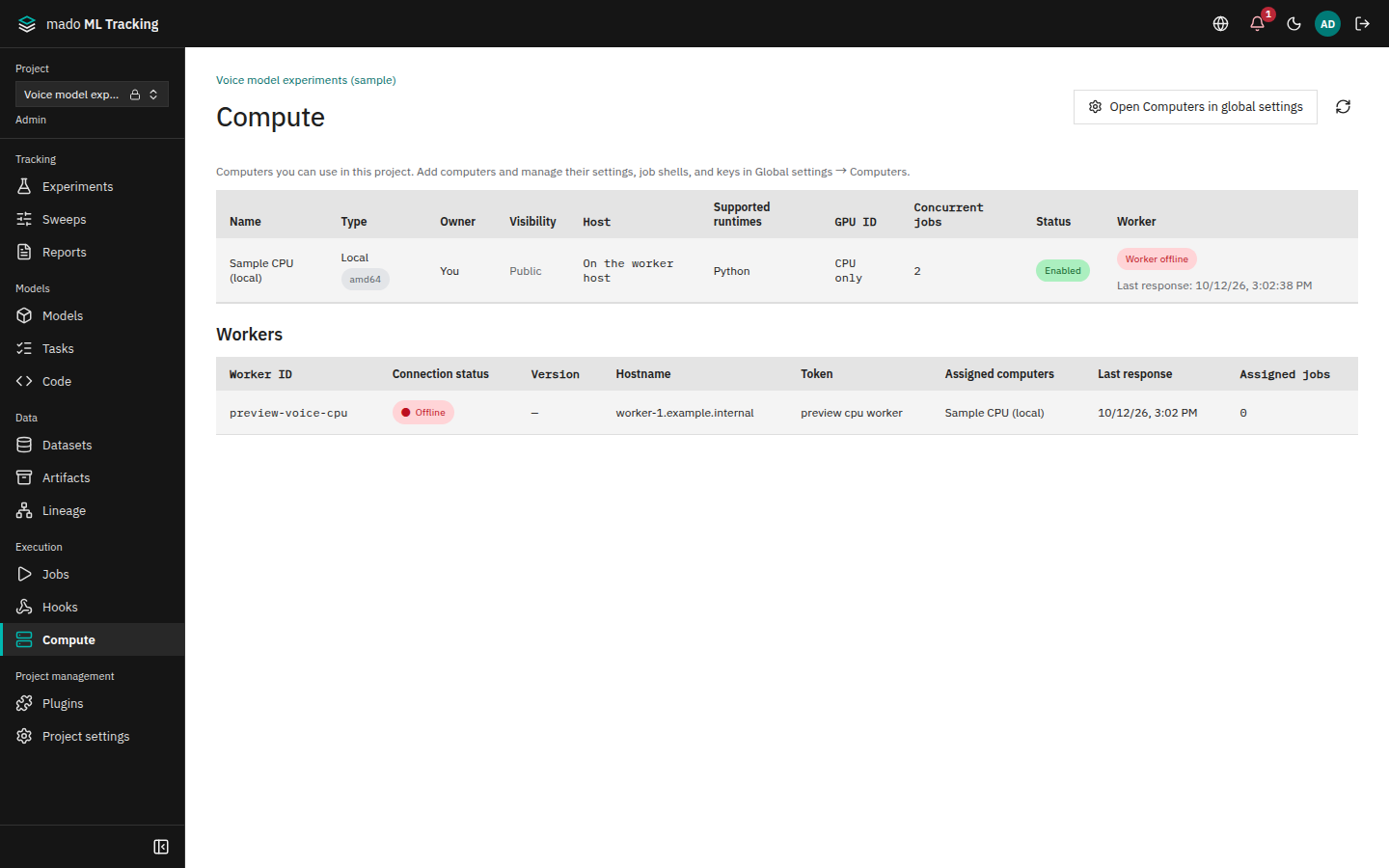
A Compute target is a machine that runs Jobs: the SSH and Local kinds of computer. It registers the SSH destination, available GPUs, supported runtimes (Python, Docker, Singularity, Apptainer), and a working directory. The worker connects to the target and runs Jobs; the API server never connects to targets.
Targets are added under Computers in Global settings, and their visibility (Public or Private) decides whose Jobs run on them. See Computers and visibility for visibility and owners.
API server ← worker (holds the SSH key and known_hosts) → Compute target (GPU machine)When to use it
- Run Task and automation Jobs on GPU machines in your lab or company
- Reserve GPUs one by one so that Jobs do not compete for the same GPU
- Run code with dependencies packed into a Docker image or SIF file
- Check SSH, Python, Docker, and GPUs in one step before the first Job
Prepare the target
The example uses an Ubuntu GPU machine. Open a terminal on the target and run the following.
Install Python and Git
The target needs Python 3.11 or later for the supervisor the worker sends. The Python runtime creates a venv per Job and installs dependencies.
sudo apt-get update
sudo apt-get install -y python3 python3-venv python3-pip git
python3 --version
If python3 --version is older than 3.11, install Python 3.11 or later separately and enter its path as the target's Python executable.
For Docker
sudo apt-get install -y docker.io
sudo usermod -aG docker "$USER"   # add the SSH user to the docker group
The group change takes effect at the next login. Log in again over SSH and check that docker version shows the Server version.
- The worker starts containers with
--network host. Inside the container,127.0.0.1is the target itself. - Read-only mounts require Linux kernel 5.12 or later. Check with
uname -r. - Rootless Docker and user namespace remapping have not been tested.
To use GPUs with Docker, install the NVIDIA Container Toolkit in addition to the NVIDIA driver.
curl -fsSL https://nvidia.github.io/libnvidia-container/gpgkey \
  | sudo gpg --dearmor -o /usr/share/keyrings/nvidia-container-toolkit-keyring.gpg
curl -s -L https://nvidia.github.io/libnvidia-container/stable/deb/nvidia-container-toolkit.list \
  | sed 's#deb https://#deb [signed-by=/usr/share/keyrings/nvidia-container-toolkit-keyring.gpg] https://#g' \
  | sudo tee /etc/apt/sources.list.d/nvidia-container-toolkit.list
sudo apt-get update
sudo apt-get install -y nvidia-container-toolkit
sudo nvidia-ctk runtime configure --runtime=docker
sudo systemctl restart docker
For Apptainer
sudo add-apt-repository -y ppa:apptainer/ppa
sudo apt-get update
sudo apt-get install -y apptainer
apptainer --version
Singularity and Apptainer need exec with --cleanenv, --containall, --no-home, --no-mount, --no-eval, --pwd, and --nv for GPUs. Older versions fail the connection check.
Allow SSH from the worker
The SSH private key and known_hosts live on the worker machine; the target registration only stores their paths. Open a terminal on the worker machine and run the following, replacing gpu-host-1.example.internal and mmt with the target's host name and SSH user.
ssh-keygen -t ed25519 -f ~/.ssh/mmt_worker_ed25519 -N ''
chmod 600 ~/.ssh/mmt_worker_ed25519
ssh-copy-id -i ~/.ssh/mmt_worker_ed25519.pub mmt@gpu-host-1.example.internal
ssh-keyscan -p 22 gpu-host-1.example.internal > ~/.ssh/mmt_known_hosts
ssh-keygen -lf ~/.ssh/mmt_known_hosts
Compare the fingerprint from the last command with the output of ssh-keygen -lf /etc/ssh/ssh_host_ed25519_key.pub on the target. The worker never accepts unknown or changed host keys (StrictHostKeyChecking=yes).
Keys and known_hosts files in ~/.ssh are offered as candidates for the key and known_hosts paths when you register the target. To keep them elsewhere, set the worker's MMT_WORKER_SSH_DIR to that directory (Report SSH key candidates).
Register the target
Only global administrators can add SSH and Local targets. Whoever adds a target becomes its owner, and the owner and global administrators can change it. Researchers can add only external computers (sites) themselves (External computers (sites)).
The Add computer dialog has two steps.
- Connection: enter the destination and choose the worker that checks it. Check connection and continue has that worker log in to the target and look around.
- Settings after connecting: opens with Python, the CPU architecture, runtimes, GPUs, and concurrent Jobs filled in from the check. Choose a working directory, adjust the values, and save.
Start a worker first (Install and run the worker). Step 1 offers only workers that are online.
Step 1: Connection
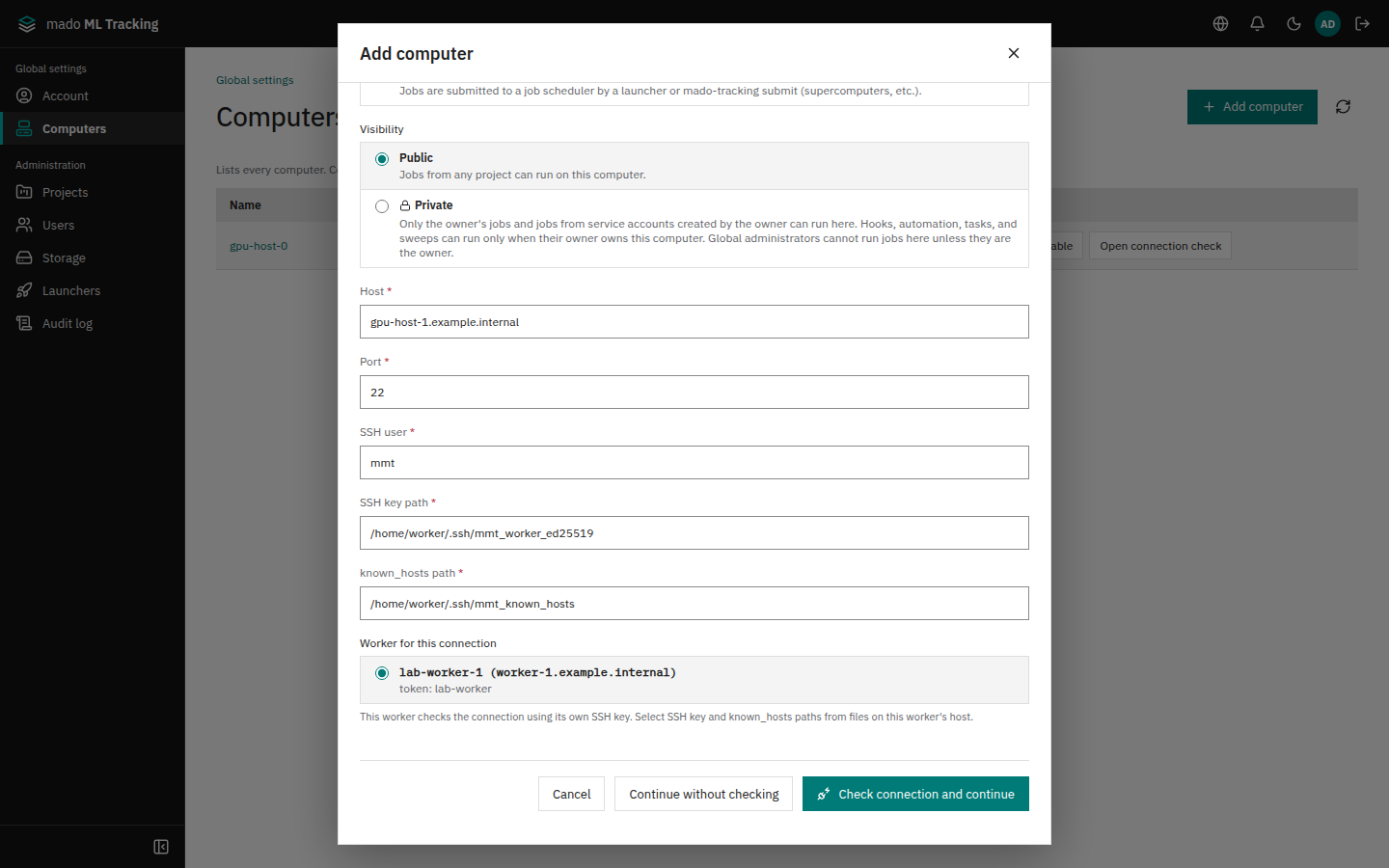
- Click Global settings in the user menu at the top right, and open Computers in the sidebar (
/settings/computers). - Press Add computer.
- Fill in the fields.
| Field | Example | Meaning |
|---|---|---|
| Name | gpu-host-1 | Shown on screen and in Task choices |
| Type | SSH | Normally SSH (the default). Local (development only) appears only in development mode. Choosing Site switches to the one-screen form for sites (External computers (sites)) |
| Visibility | Public | With Private (the default), only Jobs of the owner and of the Service Accounts the owner created run. Choose Public to run Jobs from any Project (Visibility) |
| Host, Port | gpu-host-1.example.internal, 22 | SSH destination of the target |
| SSH user | mmt | User to connect as |
| SSH key path | /home/worker/.ssh/mmt_worker_ed25519 | Path of the private key on the worker machine. Files on the chosen worker's machine are offered as candidates |
| known_hosts path | /home/worker/.ssh/mmt_known_hosts | Path of known_hosts on the worker machine, with candidates as for the key |
| Worker for this connection | lab-worker-1 | The worker that checks the connection. When only one worker is online, it is already chosen |
- Press Check connection and continue. The computer is registered, disabled, and the chosen worker is asked to check it.
- The dialog shows "Waiting for the worker to start checking…" and then "The worker is checking the connection…". When the worker gets into the target, step 2 opens by itself.
A Local computer has no SSH fields from Host to the known_hosts path. The chosen worker checks by starting commands on its own host.
Candidates for the key and known_hosts paths
- The candidates are the files the chosen worker found directly in
~/.sshandMMT_WORKER_SSH_DIRon its machine. The worker reports only the paths, never the contents of keys or known_hosts (Report SSH key candidates). - Typing narrows the candidates. You can also type a path that is not offered.
- No candidates appear until a worker is chosen.
The worker used for the connection
- Only workers that are online (answered within the last 120 seconds) and report SSH key candidates are listed. The computer does not need to be in the worker's
MMT_WORKER_TARGET_IDS. - Reporting key candidates and reading directories in step 2 are done only by new versions of the worker. If a running worker is not listed, update it with
mado-tracking-worker upgrade(Upgrade). Older workers still process Jobs and pick up checks of the targets they handle. - With no worker online, the dialog says "No online worker can check the connection." and Check connection and continue is disabled. Start a worker and press Refresh workers, or go on by hand with Continue without checking.
- Only global administrators can choose a worker.
When the connection cannot be checked
Step 1 stays open and shows the reason.
| Message | Cause and fix |
|---|---|
| The selected worker did not claim the check | The worker did not pick up the check within 5 minutes. Check that the worker is running |
| No result received from the worker | The worker stopped during the check. Check the worker log |
| Could not verify connection | The result of each item is shown. If SSH connection is Failed, follow the Resolution column, correct the connection fields, and press Check connection and continue again (When the check does not finish) |
To go on without fixing the connection, press Continue without checking. Step 2 then opens without candidates, so type the working directory and the Python executable yourself.
With either button, the computer is already registered, disabled, once step 1 is done. It stays in the list if you close the dialog, and you can finish it later with Edit computer.
Step 2: Settings after connecting
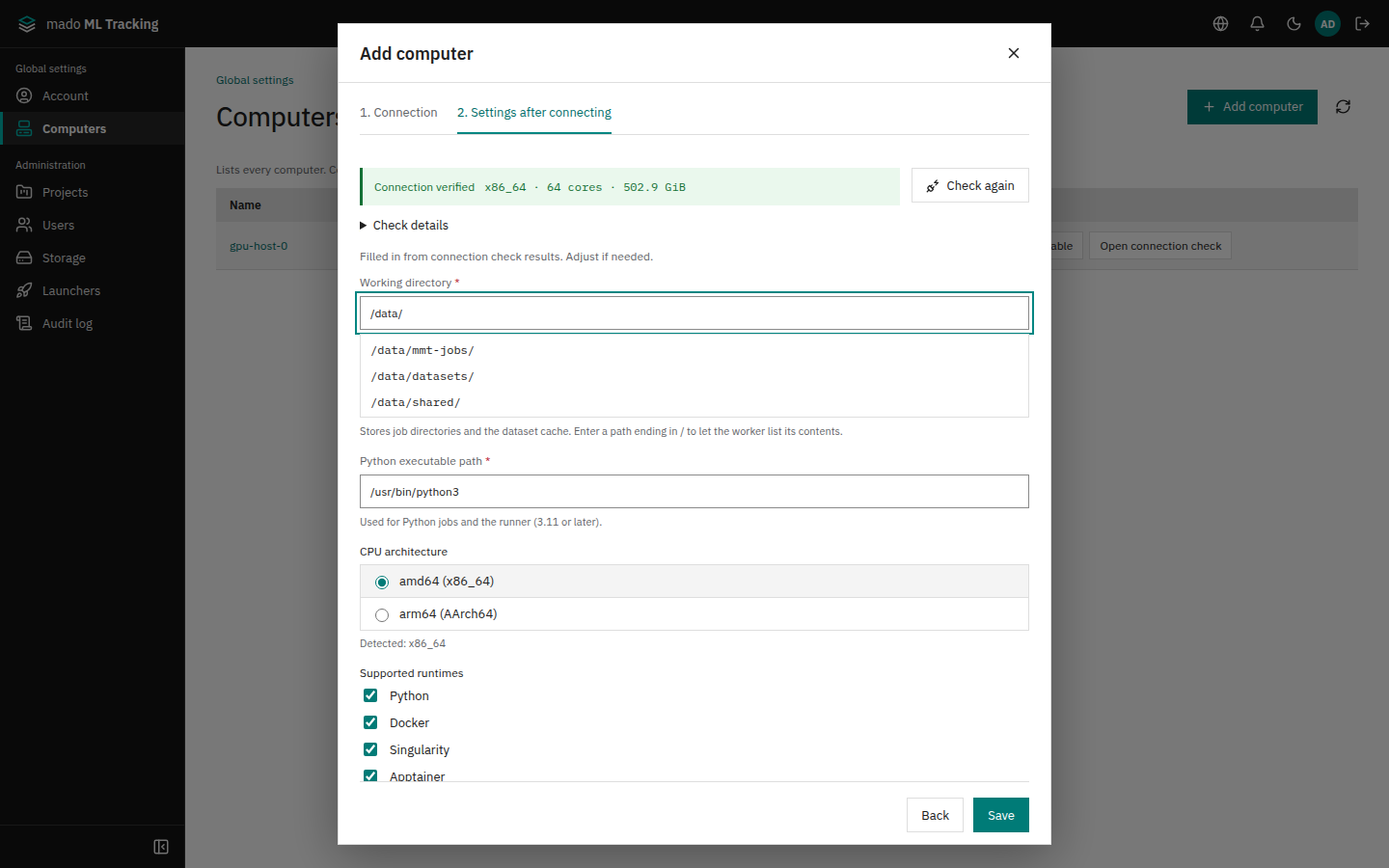
The check result is shown at the top: Connection verified, with the CPU architecture, cores, and memory. Open Check details to see the result of each item.
| Field | Example | Meaning |
|---|---|---|
| Working directory | /data/mmt-jobs | Where Job files and the dataset cache go on the target. The SSH user must be able to write here. Not filled in automatically: choose a candidate or type it |
| Python executable path | /usr/bin/python3 | Python 3.11 or later on the target. A Python 3.11 or later found by the check is filled in |
| CPU architecture | amd64 | Filled in from the check (x86_64 is amd64, aarch64 is arm64). Choose again if the check reported an unknown value |
| Supported runtimes | Python, Docker | Runtimes this target can run. The ones that worked in the check are selected |
| GPUs (detected) | 0, 1 | GPUs found by the check, all checked |
| GPU IDs (one per line) | 01 | GPU numbers Jobs may use. The checked GPUs are filled in. Empty for a CPU-only target |
| Concurrent jobs | 2 | Maximum Jobs running at once. Defaults to the number of selected GPUs (1 without GPUs) |
| Dataset transfer | Relay through worker | How input datasets are fetched (below) |
| Dataset cache limit (GiB) | 100 | Limit of the dataset cache on the target |
| Enabled | On | When enabled, Jobs start running on this computer |
Every value can be changed. Save saves these settings and enables the computer when Enabled is on; the target's details open below the list. Back returns to step 1.
Saving with Enabled off keeps the computer disabled. The working directory and Python executable may then be empty; both are required to enable it.
Completing the working directory and Python paths
- The working directory offers the places the check found (the home directory, mounts such as
/data, whichever of/work,/scratch, and similar exist, and directories directly under the home directory), with whether each is writable and its free space. The Python executable offers the Pythons the check found, with their versions. Both narrow as you type. - For a place not offered, type a path ending in
/, such as/data/. The worker reads that directory and its entries become candidates; the Python executable also offers executable files. Hidden directories appear once you type the.. - The worker takes a few seconds to pick up the read. Meanwhile "The worker is listing directories…" is shown. If it cannot be read, the reason appears under the field, such as "This directory does not exist", "Cannot read this directory (permission denied)", or "The worker could not connect".
- Directories read are remembered only while the dialog is open. Only names and kinds are read, never file contents.
Choosing GPUs
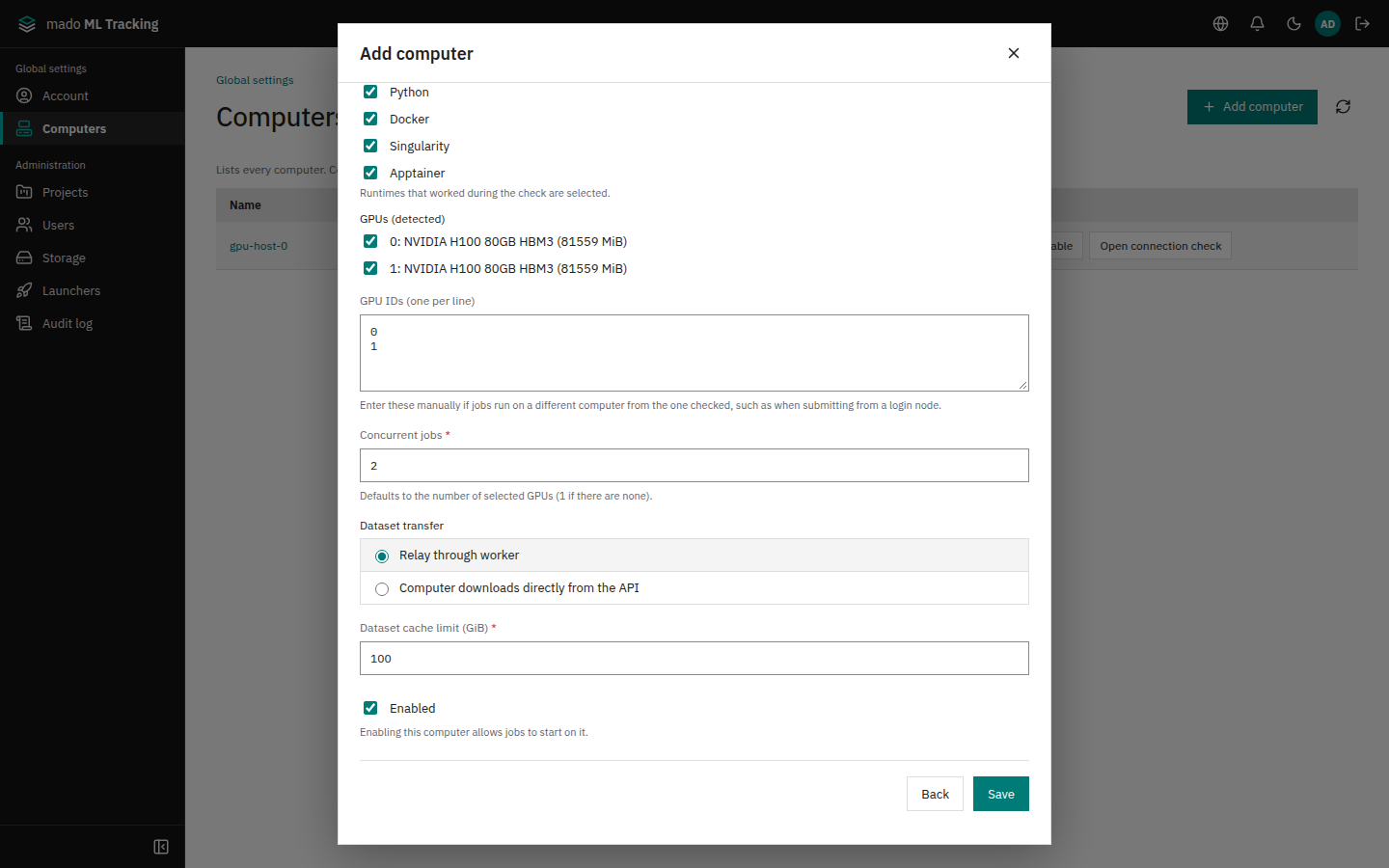
GPUs found by the check are listed with checkboxes. Clear the ones Jobs must not use. The checked GPUs fill GPU IDs (one per line), and Concurrent jobs follows the number of selected GPUs until you change it yourself.
When the machine that was checked is not the one Jobs run on, such as when you connect to a login node to submit jobs, the listed GPUs may not be those of the machine that runs the Jobs. Then type the GPU numbers of that machine in GPU IDs (one per line).
Connection details such as the destination and key paths are shown only to the owner and global administrators.
GPU assignment
When a Task or automation rule selects GPU IDs, those GPUs are reserved in the app for the Job and not given to other Jobs. Without GPU IDs the Job runs on CPU only.
- Docker receives only the reserved GPUs with
--gpus device=...; CUDA numbers inside the container start from0. - Singularity and Apptainer use
--nvandCUDA_VISIBLE_DEVICESto limit which GPUs CUDA sees. This does not isolate the devices themselves. - Reservations only apply between Jobs of this app. They do not stop people using the GPU over SSH or another scheduler. On shared machines, register GPUs and a working directory dedicated to this app.
- GPUs of Jobs whose state cannot be confirmed are not released automatically.
Input dataset transfer
| Setting | Behavior | Suitable when |
|---|---|---|
| Relay through worker (default) | The worker downloads from the API and sends one tar to the target | The GPU machine cannot reach the API server |
| Computer downloads directly from the API | The target downloads with the Job-scoped token | The target reaches the API and relaying is slow |
Downloaded datasets are cached in .mmt-cache/datasets/ under the working directory and reused by later Jobs. When the cache exceeds the limit, the least recently used entries are removed, except those used by running Jobs. See Datasets for dataset versions.
Change or disable a target
In the list under Computers in Global settings, press Edit computer. The owner and global administrators can change a target. While queued or running Jobs reference the target, the destination, runtimes, GPUs, and dataset settings cannot be changed; save after the Jobs end.
For SSH and Local, the editor shows the two steps of adding as the tabs Connection and Settings after connecting. Save saves the changes on both tabs together.
- Check again has the worker chosen in Worker for this connection check the connection again and refreshes the candidates for the working directory, Python, CPU architecture, and GPUs. Values already entered do not change.
- If you changed the connection fields, Check again saves only the connection settings before the check ("Unsaved connection changes will be saved before checking.").
- Worker for this connection starts with the worker used for the last check, if it is online.
- The working directory and Python executable complete as in step 2 of adding.
Pressing Disable in the list, or clearing Enabled in the editor, removes the target from new assignments. The worker keeps managing running Jobs.
Check the connection
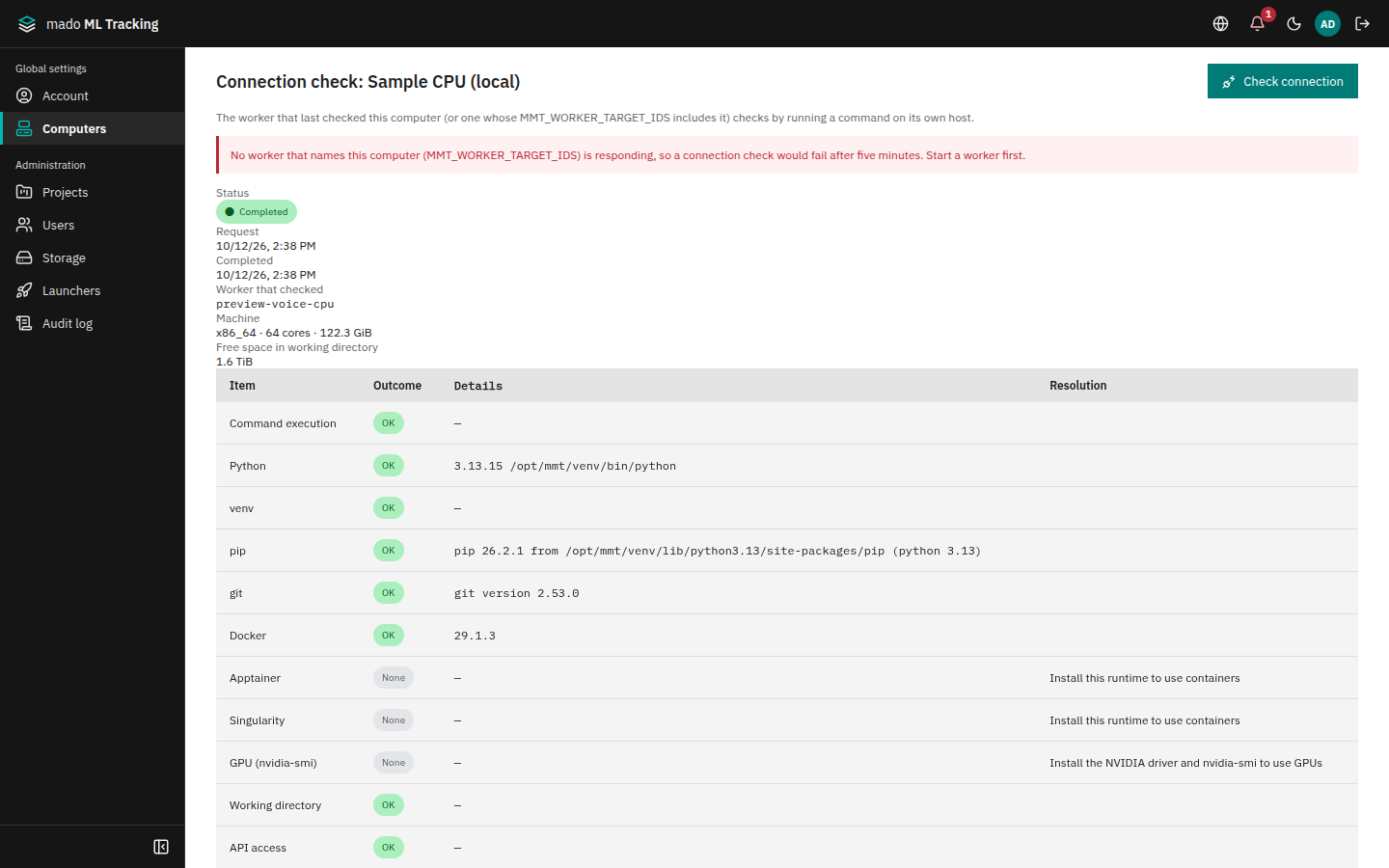
Besides Check connection and continue in step 1 of adding and Check again in the editor, you can check a target from its details under Computers in Global settings, for example after changing its settings or when Jobs fail. The worker runs the check with its own SSH key; the API server never connects to targets. The owner and global administrators can run checks.
- In the list under Computers in Global settings, press Open connection check on the target's row. The target's details and the Connection check panel open below the list.
- Press Check connection at the top right of the panel. The status changes when a worker picks up the check.
- Read the result of each item. Failing items show a fix in the Resolution column.
Check connection in the details asks the worker used for the last check again. For a target whose last check named no worker, the worker that handles the target (with the target's ID in MMT_WORKER_TARGET_IDS) checks it.
| Item | What is checked |
|---|---|
| SSH connection | The key and known_hosts work |
| Python | The Python executable is 3.11 or later. Before one is entered (step 1 of adding), a Python 3.11 or later found on the target is used |
| venv, pip | A per-Job venv can be created and packages installed |
| git | Git sources can be fetched |
| Docker | The CLI exists and the daemon is reachable; permission problems and a stopped daemon are reported separately |
| Apptainer, Singularity | The CLI exists and supports the required options |
| GPU (nvidia-smi) | Index, name, and memory of GPUs reported by nvidia-smi |
| Working directory | Writable by the SSH user, and free space. Before one is entered (step 1 of adding), it is Not checked |
| API access | The target reaches the API server |
For a Local target, the first item is Command execution instead of SSH connection.
OK means usable, Failed means Jobs will fail as is, None means an optional tool such as a runtime or Git is not installed, and Not checked means the item was not checked.
For the candidates of step 2, the check also looks at the machine (CPU architecture, cores, memory, home directory), Pythons, and working directory candidates. The Machine row of the details shows the CPU architecture, cores, and memory.
GPUs and runtimes found by the check are offered in Suggested settings in the details. The target's GPU IDs and runtimes change only when you select candidates and press Save selected settings. You can also change them in the editor.
The check leaves nothing on the target, not even the working directory.
When the check does not finish
| Message | Cause and fix |
|---|---|
| The chosen worker did not pick up the check, or no worker claimed the check within 5 minutes | The worker asked to check is not running. Check that it is online under Workers on a Project's Compute page. For a check that named no worker, also check that the target ID is in the worker's MMT_WORKER_TARGET_IDS (--target-ids of install) |
| No result arrived from the worker | The worker stopped during the check. Check the worker log |
| SSH connection is Failed (key permissions) | The key or known_hosts is missing on the worker machine, or the key is not mode 600. Run mado-tracking-worker doctor on the worker machine |
| SSH connection is Failed (cannot connect) | Check the host, port, and SSH user, that the public key is in the target's ~/.ssh/authorized_keys, and that known_hosts has the target's host key |
| API access is Failed | The target cannot reach the worker's MMT_API_URL, which Jobs need for logging. Check the route and URL |
A worker without MMT_WORKER_TARGET_IDS still picks up checks and directory reads when it is chosen in Worker for this connection. Checks that name no worker (asked from older screens or the API) are picked up only by workers whose MMT_WORKER_TARGET_IDS includes the target.
Workers
A Project's Compute page shows the computers you can use in the Project (read only) and Workers. Workers shows each worker connected to the Project with its status, version, host name, last response, and number of Jobs. A worker without a response for 120 seconds is shown as Offline. See Install and run the worker.
Permissions
| Action | Required role |
|---|---|
| See every target under Computers in Global settings | Anyone signed in (for ones you cannot use, only the name, kind, owner, visibility, and state) |
| View a Project's Compute page and its workers | viewer or higher |
| Add SSH and Local targets | Global administrator |
| Change a target or its visibility, enable or disable it, run connection checks | Owner or global administrator |
| Choose a worker in Worker for this connection when adding or editing (including key candidates and directory reads) | Global administrator |
| Run Jobs on a target | Public: everyone. Private: the owner and the Service Accounts the owner created |
| Register or change external computers (sites) | Anyone can add one; the owner or a global administrator changes it (External computers (sites)) |