Tasks and code versions
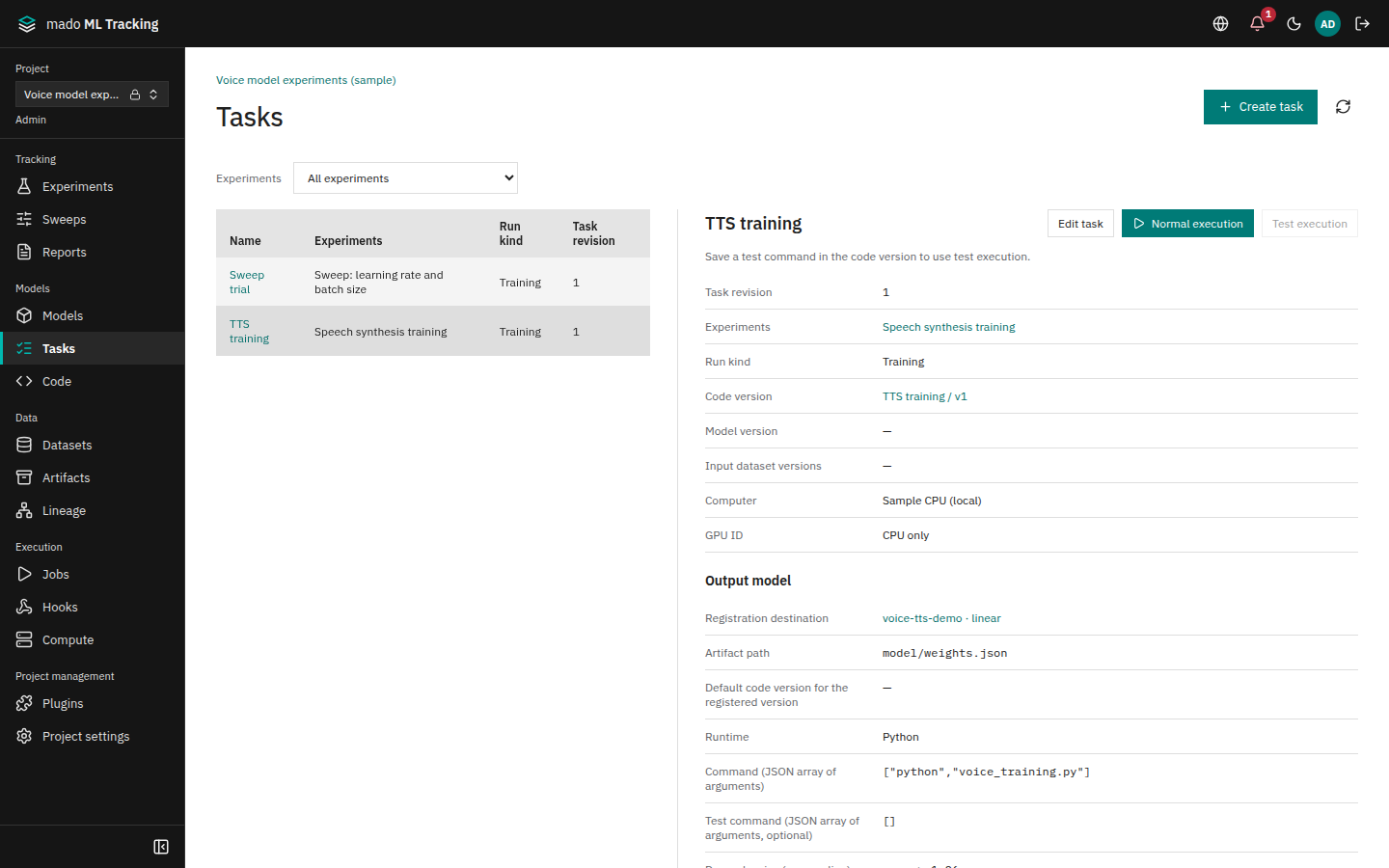
A Task stores what to run: which code, with which model and data, and where. Tasks live under an Experiment, and you launch normal and test runs from them. The code is pinned as a code version, so after you edit the code you can still see exactly what each past Job ran.
When to use it
- Launch the same training many times with different parameters
- Check that the code works with a short test command before the real training
- Edit a Git repository to try something without pushing to it
- Register the output weights as a model version automatically when training succeeds
Overview
- Prepare a computer (Compute target) to run on: add one under Computers in the global settings, or pick one you can use. See Computers and visibility and Compute targets.
- Register code in Code and create a version.
- Create a Task in Tasks, select the Experiment, code version, and computer, and save.
- Check with Test execution, then launch with Normal execution.
- Check metrics, logs, the exit status, and Artifacts in the Run.
Jobs are executed by a worker. Without a worker for the target, the Job stays queued. See Install and run the worker, and The Jobs page for how to find why a Job does not start.
Register a code version
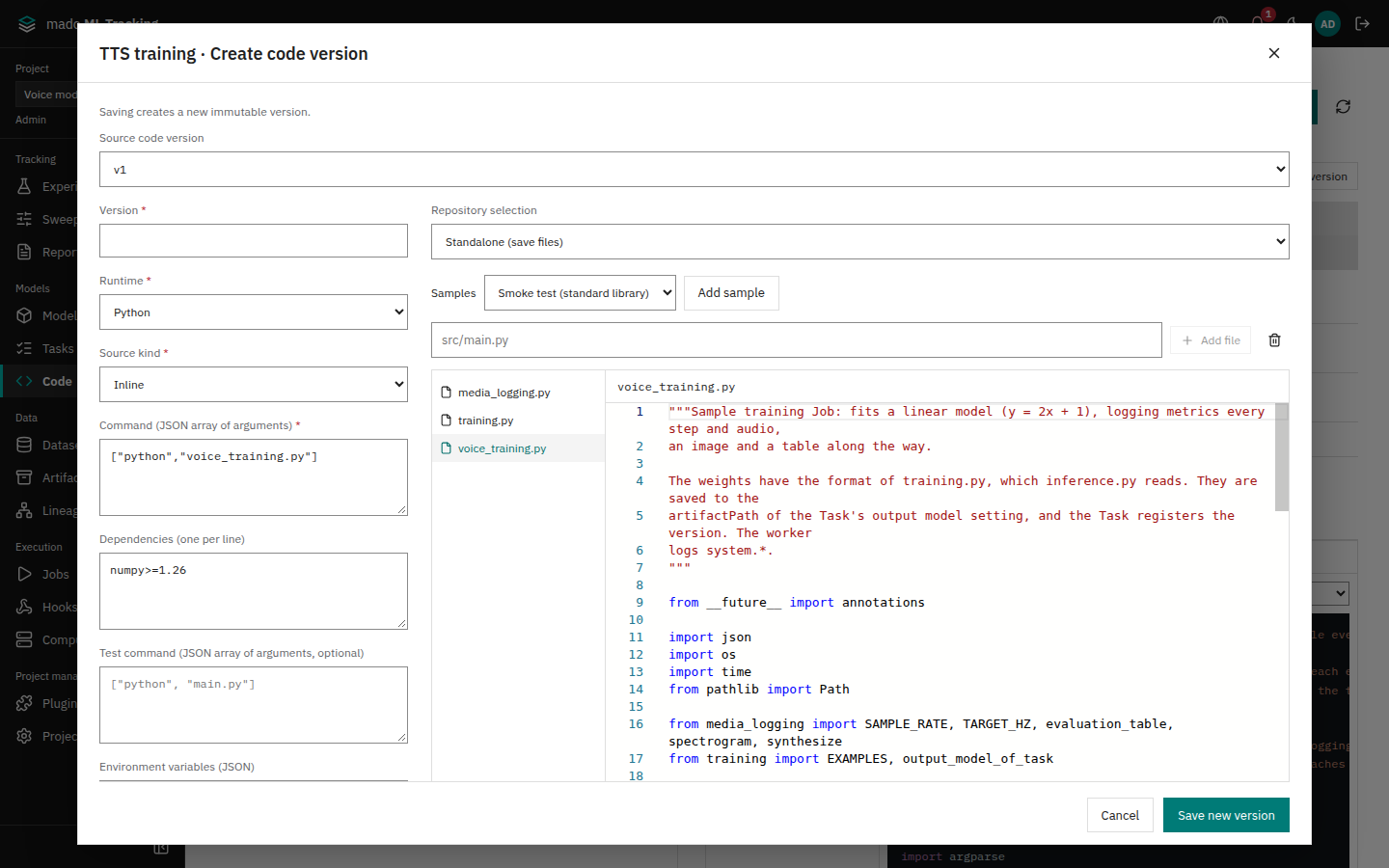
In Code, press Register code to create the code entry, then Create version. A version cannot be changed after saving. Saving an edit creates a new version.
| Field | Meaning |
|---|---|
| Version | The version name, for example v1 |
| Runtime | Python, Docker, Singularity, or Apptainer |
| Source kind | Git, Inline (files stored in the app), Artifact (a stored ZIP or TAR), or code inside the container |
| Command (JSON array of arguments) | The command of a normal run, for example ["python", "train.py"] |
| Test command (JSON array of arguments, optional) | The command of a test run, for example ["python", "train.py", "--steps", "2"] |
| Dependencies (one per line) | Packages installed into the per-Job venv for Python, for example numpy>=1.26 |
| Environment variables (JSON) | Environment variables for the code. Do not put credentials here |
| Supported model families (one per line) | Model families this code can run, for example linear |
| Supported run kinds | Check every kind that applies: training, fine-tuning, inference, evaluation, data processing |
Commands do not go through a shell. Each element of the JSON array is passed as one argument, up to 100 arguments of up to 4000 characters each.
A saved version can be read by selecting it in Code, viewers included. Files shows the file list beside the chosen file, colored by its format as in Artifact previews. For a Git version it shows the repository and commit and the files changed or deleted on top of them. How this code version is used lists the Models whose family it supports and the Tasks and automation rules that chose it.
Start from a sample
Select a sample in Samples and press Add sample to load files and normal and test commands: a standard-library smoke test, Mado SDK metrics, MLflow 3 metrics, CPU inference, and CPU training.
The CPU training sample only saves weights to the Run Artifact model/weights.json. Registration is done by the Task output model setting described below.
Use a repository
Choose Git as the source format and enter Git URL and Commit. The commit must be a full 40- or 64-character hash; branch and tag names are not accepted. The URL must be HTTPS or SSH without credentials.
Press Load Git files to load the pinned commit into the editor. Saving creates a version that overlays the changed files and deleted paths on the pinned commit. Nothing is pushed to the original repository. Binary or large files that were not loaded are listed under Excluded paths and are fetched from the original commit at run time.
Training and inference code in the same repository can be registered as separate code versions with different commands. To use another repository for inference only, choose Another repository in Repository selection.
Store standalone code
Choose Standalone (save files) in Repository selection to store files in the app. Enter a relative path such as src/main.py, press Add file, and write the content in the editor (Monaco Editor). Closing the dialog with unsaved changes asks before discarding them.
Run in a container
| Runtime | What to specify |
|---|---|
| Docker | Docker image (fixed digest), for example registry.example.com/team/infer@sha256:<64-digit digest>. A tag alone such as image:latest is rejected |
| Singularity, Apptainer | SIF artifact. Selecting a stored SIF file fills in its SHA256 |
- When the code is inside the image, choose code inside the container as the source format.
- An added Git, Inline, or Artifact source is mounted read-only at
/mmt/source. - The working directory inside the container must be an absolute path, for example
/app. - Containers do not use the dependency list. Put what you need into the image.
The Compute target must list the runtime (Compute targets). Paths and environment variables inside the container are listed in Install and run the worker.
Create a Task
- In Tasks, press Create task.
- Fill in the fields and press Save.
| Field | Meaning |
|---|---|
| Name | For example voice synthesis training |
| Experiments | The Experiment that records the Runs |
| Run kind | Training, fine-tuning, inference, evaluation, data processing |
| Model version | The input model version (the base of a fine-tuning, the version to run inference with). Optional |
| Code version | Only code versions that support the run kind and model family can be selected |
| Input dataset versions | Dataset versions the worker fetches before running. Optional |
| Computer | Only computers you can use and that support the code version's runtime can be selected. A Private computer can be used only by its owner and the Service Accounts the owner created. A Sweep created from this Task offers only such computers too (Sweeps) |
| GPU ID | GPUs registered on the computer. Without a GPU the Job runs on CPU only |
| Parameters, tags | JSON, for example {"epochs": 8} |
- Select the new Task and check that the saved settings are shown on the right.
Each save increments Task revision. If someone else updated the Task in the meantime, saving is rejected; check the latest settings and save again.
Normal and test runs
Press Normal execution or Test execution on the Task. To change parameters for this launch, enter only the changed values in Parameter overrides (JSON).
| Command | Model registration | |
|---|---|---|
| Normal run | The code version's command | Registered on success if an output model is set |
| Test run | The code version's test command | Never |
A test run requires a test command in the code version.
The Task revision, code version, source, runtime, command, dependencies, and environment at launch are stored in the Run's Execution snapshot. Editing the Task or code afterwards does not change that Run.
The worker saves the source before execution as a ZIP and a manifest in the Run Artifacts, even for failed test runs. The manifest shows the Git commit and the SHA-256 of each file.
Execution history shows the latest 50 runs; Older executions and Latest execution page through it.
To run a failed Job again, use Rerun as a new run in Jobs and click Rerun in the confirmation. It creates a new Run with the previous code version, mode, Task revision, and parameters, and keeps the original Run. Jobs that reached their maximum attempts can be retried too. The Job's creator and Project Admins can retry it (The Jobs page). To try edited code, change the Task's code version and launch again.
Register a model when training succeeds
Training and fine-tuning Tasks can register the weights of a successful Run as a model version, without registration code in the training script.
- Open Edit task and check Register model version on success under Output model.
- In Registration destination, choose Existing model or Create new model.
- Existing model: select it in Destination model.
- New model: enter Model name and Model family. The family must be one the Task's code version supports. An existing model with the same name is reused.
- Enter the path of the weights file the training code saved in Artifact path, for example
model/weights.json. It must match the file path exactly. - Optionally select Default code version for the registered version and press Save.
- Press Normal execution; the confirmation shows the destination model.
If the training code writes files to MMT_OUTPUTS_DIR instead of using the SDK, their Artifact paths start with container/. For example MMT_OUTPUTS_DIR/model/weights.bin becomes container/model/weights.bin.
Versions are numbered automatically. Tasks created with the Python SDK or the API can also set a version name template using {runId}, {runName}, and {taskRevision}.
The output model setting is copied to the Run at launch; editing the Task afterwards does not change where that Run registers. The result is shown in Output model versions on the Run page.
| Run result | Registration |
|---|---|
| Finished | Registers a version. Automation rules for the model's family then run inference and evaluation |
| Finished, and the training code already registered to the same model | The Task does not register again. There is one version and one set of downstream runs |
| Finished, but the Artifact is missing or the creator lost access | Registration fails with a reason. The Run stays finished |
| Failed, canceled, or a test run | Not registered |
Change Compute targets and the Mado integration
Compute targets are added under Computers in the global settings, and their owner and global administrators change their settings. Only global administrators add SSH and Local targets; anyone can add a site (Computers and visibility). The Mado integration is built in, so there is nothing to add. Only global administrators save its connection settings and enable or disable it under Integrations in the Project (Mado integration).
Next steps
- Automation after registration runs inference and evaluation for registered versions.
- Resume training continues a stopped training from a checkpoint.