Datasets
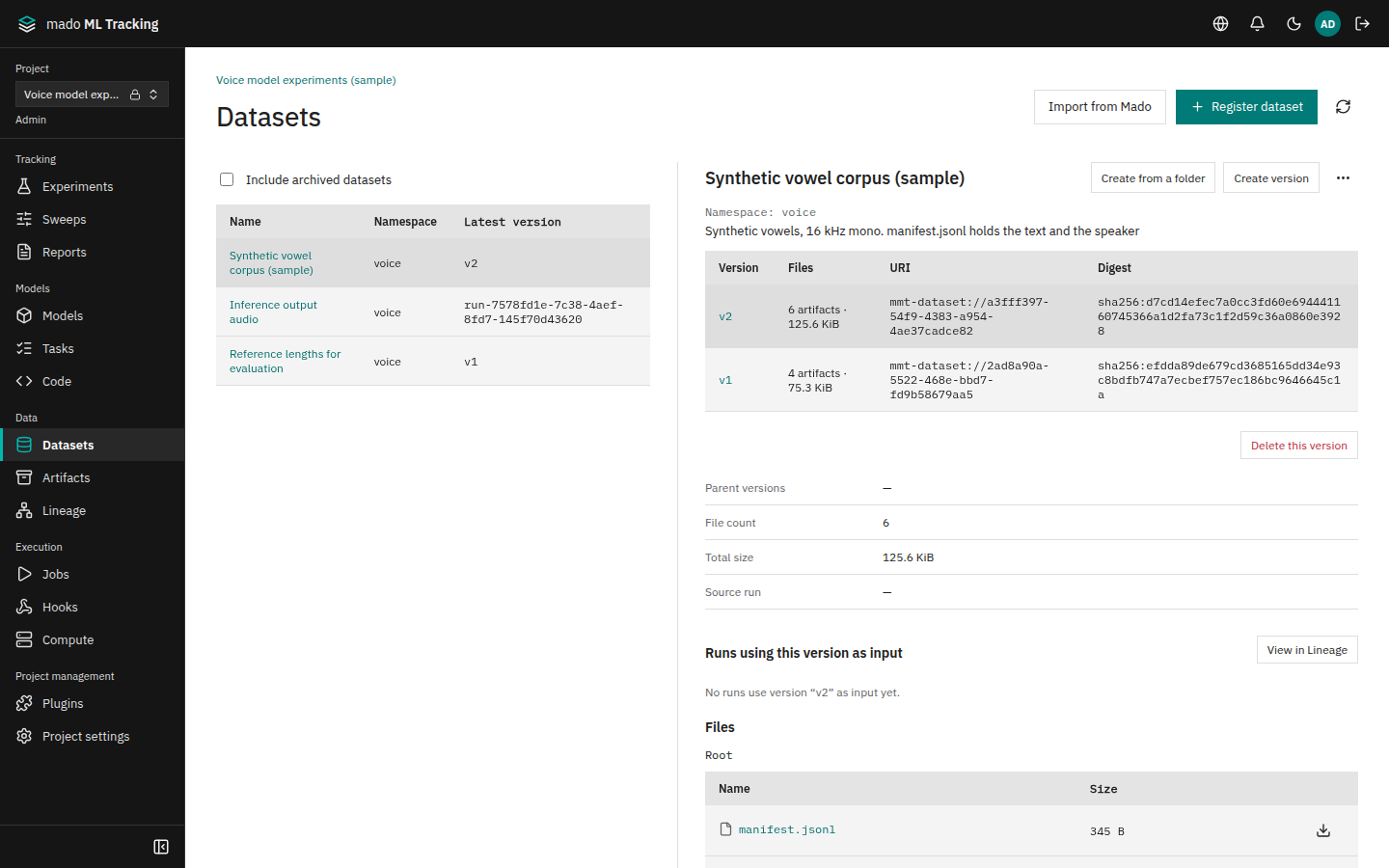
A dataset is a collection of data used for training or evaluation. Each time the contents change you create a new version, and each Run records which version it used. Versions cannot be changed after they are created, so you can repeat training or evaluation with exactly the same version later.
The contents of a version are either files saved in mado ML Tracking as Artifacts, or a URI that points to an external location. When a version is a Run input, the worker prepares its contents on the GPU machine before the code starts.
When to use it
- You want to register a local audio corpus folder as a version as is.
- You want to keep inference outputs as a version that the next evaluation can use as input.
- You want to trace in Lineage which data a model version was trained on.
- You want to send training data to a GPU machine that cannot reach the API directly.
- You want to use dataset versions managed in Mado as experiment inputs.
Kinds of versions
| Kind | Contents | Created by |
|---|---|---|
| Artifact-backed version | A list of saved Artifacts. The version list shows N artifacts · size | Folder upload, Python SDK, Run outputs |
| Reference version | A URI (s3://, https://, file://, and so on) and a digest. The version list shows Reference (URI) | Create version, MLflow log_input, import from Mado |
An Artifact-backed version has a digest (sha256:<hex>) computed from the path, SHA-256, and size of each file. Uploading the same contents again gives the same digest. Its URI is mmt-dataset://<version ID>.
One version can contain up to 100,000 files.
Register a dataset
- Open Datasets in the sidebar.
- Click Register dataset.
- Enter Name (required), Namespace, and Description, and save.
A namespace groups datasets, for example voice. Register dataset is shown to editors and above.
Selecting a dataset shows its namespace and description under its name. Change the description later with ⋯ → Edit description next to the name (editor or higher). The name cannot be changed, because SDKs and MLflow find a dataset by its name.
Create a version from a folder
The browser uploads the contents of a folder as Artifacts and creates the version once every file is saved.
- Select a dataset and click Create from a folder.
- Click Choose folder or drop a folder.
- Optionally fill in:
- Version (leave blank to auto-number): integers such as
1and2are used when empty - Parent versions: the version this one was derived from. The dataset's latest version is checked from the start; uncheck it to create a version without a parent. A long list can be filtered with the box above it
- Metadata (JSON): for example
{"language": "ja", "sampleRate": 16000}
- Version (leave blank to auto-number): integers such as
- Click Upload and create version.
Files are sent the same way as in Large file uploads. Progress is one bar for the whole folder (files, bytes, and time left) and rows only for files that are sending, paused, or failed; waiting and finished files are counted. Rows are named by the file's path inside the dataset.
If some files fail, the version is not created. Click Resend remaining files or Create version without remaining files. If only creating the version fails, click Retry version creation; files are not uploaded again.
Selecting a version shows File count, Total size, and the file list. Select a file to preview it, just like an Artifact.
A folder upload that stopped
An upload that stopped before its version (a reload, a dropped connection, or a closed dialog) is listed under Incomplete folder uploads the next time Create from a folder is opened. Each row shows when it started, how many files are stored and their size, and the large file you were still sending.
- Continue: choose the same folder with the row's Continue upload, or with Choose folder above. When files with the same paths and sizes are found, the dialog says it continues the upload that started at that time, and the button becomes Continue upload and create version. On start, the stored files are compared with yours by SHA-256 and the same ones are used as they are; the half-sent large file continues from the parts the server has. While the files are compared, Stop comparing stops and goes back to before the start (nothing has been sent yet). Click Start new upload to send the folder separately instead
- Discard: click Discard and confirm. Stored files that no version uses are deleted and the half-sent uploads are canceled. Only Project admins can delete stored files; editors see "Only project administrators can delete stored files. Continue the upload to use them as they are." instead of the button (an upload with only half-sent files can be discarded by editors too). Files a model version, code version, or checkpoint uses are kept; the dialog says how many and why, with a button that lists them in Artifacts. While such files remain, the row stays in the list
In the Artifacts list, stored files of such an upload are shown as Dataset <name> with Incomplete upload.
Create a version with the Python SDK
Pass a folder to files of register_dataset to upload its contents and create a version. Without dataset_id, a new dataset is created with name.
from mado_tracking import Client

with Client() as client:
    version = client.register_dataset(
        "<Project ID>",
        name="speech-corpus",
        namespace="voice",
        files="data/speech",
        metadata={"language": "ja"},
    )
To add a version to an existing dataset, use upload_dataset_directory.
from mado_tracking import Client
from mado_tracking.dataset_upload import upload_dataset_directory

with Client() as client:
    version = upload_dataset_directory(
        client, "<Project ID>", "<Dataset ID>", "corpus/",
        version=None,                 # None numbers the version automatically
        metadata={"language": "ja"},
        schema={"sampleRate": 16000},
    )
For each file, the SDK looks for a saved Artifact with the same SHA-256 and size and reuses it instead of uploading. If most files match the previous version, only the changed files are sent. After an interruption, running it again sends only the files not yet saved.
When you use files, do not pass uri, digest, source_run_id, parent_dataset_version_ids, or external_ref.
Create a version that references a URI
To create a version that points to an external location without saving files, select the dataset, click Create version, and fill in:
| Field | Value | Example |
|---|---|---|
| Version | Version name (required) | 2026-10 |
| URI | Location of the data (required): s3:// (a bucket and key, or a folder), https:// (one file), or file:// (a path on the computer the Job runs on) | s3://corpus/speech/2026-10/ |
| Digest | SHA-256 of the contents (required), written as sha256: and 64 lowercase hex digits. sha256: may be left out, so the 64 digits sha256sum prints can be pasted as they are. The digest is stored as entered. Uppercase, a different length, or another algorithm (such as sha512:) is refused with "digestは sha256:<64桁の小文字16進数>(sha256:は省略可)の形で指定してください" (specify the digest as sha256: and 64 lowercase hex digits; sha256: may be left out) | sha256:<64 hex digits>, or the 64 digits from sha256sum |
| Parent versions | The version this one was derived from | |
| Source run | The Run that produced this version | |
| Schema (JSON), Metadata (JSON) | Any JSON | {"columns": ["audio", "text"]} |
Create a version from Run outputs
Files written by an inference or preprocessing Run can become a version that the next Run uses as input. A version created from Run outputs records its source Run and is connected in Lineage by a Data output edge.
- In code run by a Task, declare outputs in
datasetsof/mmt/outputs/result.json(version 2). After saving the output files, the worker registers a version with an integer number. A Run can declare up to 64 datasets. - In the Python SDK,
run.register_output_dataset(version=, uri=, digest=)registers a reference version. The Run's input versions become its parents. The digest takes the same form as on the screen:sha256:and 64 lowercase hex digits (sha256:is optional). - Through the API,
POST /api/projects/<Project ID>/datasets/<Dataset ID>/versionswithcontentset to{"kind": "artifacts", "fromRunArtifacts": {"runId": "<Run ID>", "prefix": "outputs/audio"}}creates a version from the Run's Artifacts underprefix.
See Tasks and code versions for result.json. To pass inference outputs to an evaluation Run automatically, see Automation.
See which Runs used a version
Selecting a version shows Runs using this version as input under its details; a Run's name opens that Run. View in Lineage opens Lineage with only two steps before and after the version (parent versions, the Runs that used it, the models those Runs made). Show full graph returns to the whole graph.
Use a version as a Run input
Choose input dataset versions when running a Task or in an automation rule. Before starting the code, the worker prepares the contents in the work directory of the GPU machine and verifies them.
| Version | What the worker does |
|---|---|
| Artifact-backed | Fetches the files and checks the digest and the SHA-256 and size of each file |
file:// reference | Uses the path on the machine as is, without copying |
https:// reference | Downloads one file without authentication. Checks SHA-256 when the digest is one |
s3:// reference | Downloads using the machine's AWS_ACCESS_KEY_ID, AWS_SECRET_ACCESS_KEY, AWS_ENDPOINT_URL_S3, and related variables |
urn: or mmt-artifact: reference | Does not download anything |
If the contents cannot be prepared (download failure, verification mismatch, unsupported URI), the Job fails without starting the code. The reason appears in the Run Logs.
The code finds the contents through the MMT_INPUT_DATASET_DIRS environment variable (JSON mapping version IDs to directories). The directories are read-only.
import json, os, pathlib

for version_id, directory in json.loads(os.environ.get("MMT_INPUT_DATASET_DIRS", "{}")).items():
    for wav in sorted(pathlib.Path(directory).rglob("*.wav")):
        ...
In Docker, Singularity, and Apptainer, the contents are at /mmt/datasets/<version ID>.
Transfer and cache
Set Dataset transfer and Dataset cache limit (GiB) when editing a computer.
| Dataset transfer | What it does |
|---|---|
| Relay through worker (default) | The worker fetches from the API and sends everything to the GPU machine. Works even when the GPU machine cannot reach the API. The worker needs free space for one version temporarily |
| Computer downloads directly from the API | The GPU machine fetches from the API with a Job-scoped token. The GPU machine must be able to reach the API |
Fetched contents are cached in <work directory>/.mmt-cache/datasets/ on the machine. The next Job that uses the same version reuses the cache. When the cache exceeds its limit (100 GiB by default), the least recently used entries are removed. Versions used by running Jobs are never removed. A version larger than the limit makes the Job fail.
See Compute targets.
Use datasets from Mado
Once a global administrator has configured and enabled the Mado integration for the Project, you can import dataset versions managed in Mado. The integration starts disabled; while it is disabled, Import from Mado and View in Mado are not shown.
- Click Import from Mado on the Datasets page. The Integrations page opens.
- Click Check connection. Searching becomes available once the check succeeds.
- Enter a name in Search datasets and click Search.
- Click Import in the row of the version to import.
An imported version is a reference version that keeps its name, namespace, and version from Mado. Importing the same version again does not add a new version. Import from Mado is shown to Project admins. Selecting an imported version shows View in Mado, which opens that version in Mado. Mado applies the person's own login and permissions.
While the integration is enabled, a Run's input and output versions are sent to Mado when the Run starts and finishes, so Mado's dataset lineage shows which experiments used them. To configure and enable the integration, see Mado integration.
Datasets you no longer use
Datasets cannot be deleted. A version can be deleted while nothing uses it: to remove one registered with a mistyped URI, select it, click Delete this version, and confirm with Delete (Editor or higher). While a Run input or output, a child version, or a Task, automation rule, or hook input uses it, the deletion is refused with what uses it, for example "このバージョンは使われているため削除できません(Runの入力 1件)" (in use: 1 Run input). Deleting a version leaves the data at its URI and its Artifacts. The API is DELETE /api/projects/<Project ID>/datasets/<Dataset ID>/versions/<version ID>.
To retire a dataset, click ⋯ → Archive next to its name and confirm (editor or higher). New Runs, Tasks, automation rules, and hooks can no longer take versions of an archived dataset as input; existing Runs and versions stay. The archived dataset stays open with a notice saying it was archived. Archived datasets are hidden from the list (except the one open) unless Include archived datasets is checked. Bring one back with ⋯ → Unarchive. The API is PATCH /api/projects/<Project ID>/datasets/<Dataset ID> with {"archived": true} (or false).
Artifacts referenced by a version cannot be deleted while the version exists.
Related pages
Add sources to an existing version
Use this when verified processing records reveal a missing parent. The existing version ID, location, hash and references from training runs are preserved.
- Open the version in Datasets and choose Add parent versions.
- Select the verified parent versions and enter a reason and comparison evidence as JSON.
- After saving, inspect Parents and Parent addition history. The sources also appear in Lineage and the model's training lineage.
Evidence can include saved configurations, references, SHA-256 hashes and counts. Leave unknown producer details and times unknown. Changes to datasets actually used during training belong in the run's Training data history.
Parents must be in the same project and cannot create a cycle. Resending a parent preserves its original reason, evidence, author and timestamp. Added parents and versions with correction history are protected from deletion. Project editors need registry:write when using an API token.
client.add_dataset_version_parents(
    project_id, dataset_id, feature_version_id,
    parent_dataset_version_ids=[processed_audio_version_id],
    reason="A saved processing configuration confirmed the missing parent",
    evidence={"recipe": "reference-to-saved-config", "archive_count": 32},
)