Shared reports
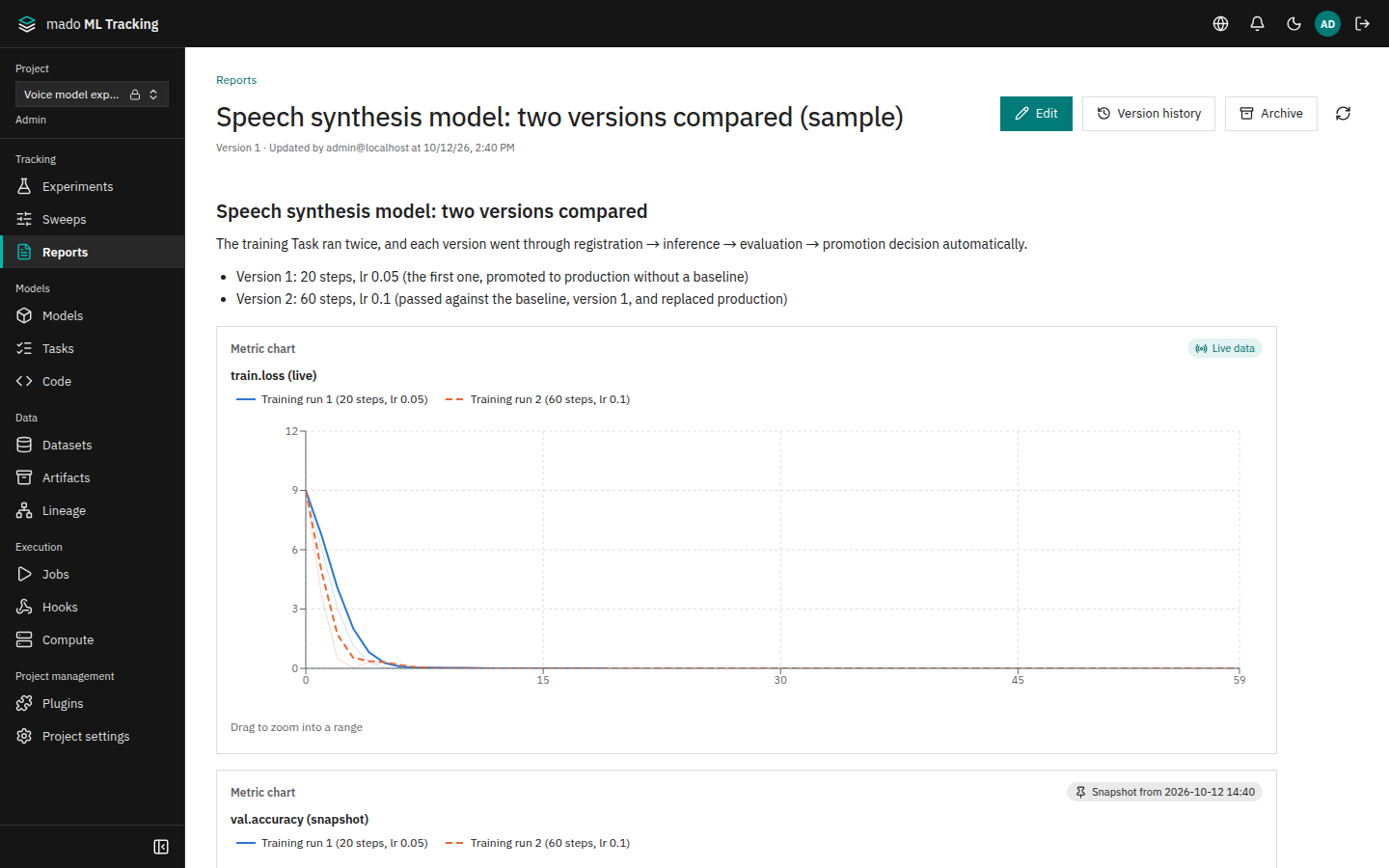
A shared report is a page of Markdown text with embedded metric charts, media comparisons, and more. Use it to summarize experiment results and share them with Project members. Every save creates a new version, and all earlier versions stay in the history.
For each embedded block you choose whether it shows the latest data every time or data fixed at the time of saving.
When to use it
- You want to record a comparison of two model versions with their training curves and generated audio side by side.
- You want to share Sweep results with parallel coordinates and parameter importance.
- You want charts that do not change as experiments continue, fixed at a point in time.
- You want to see who changed what and when in the version history.
Create a report
- Open Reports in the sidebar and click Create report.
- Enter a title and click Create. The editor opens.
- Add blocks with Add text or Embed chart or table.
- Optionally describe the change in Change description.
- Click Save.
Create report is shown to editors and above. Click Add here between two blocks to add text or a chart at that position. Reorder blocks with Move up and Move down, and remove them with Delete. Text blocks use Markdown.
While editing, Stop editing and Save stay at the bottom of the screen, so a long report can be saved from anywhere. When the title is empty or an embed is missing a setting, a note next to Save says so. The comment section is hidden while editing and comes back when you save or stop editing; a comment you were writing is kept.
What you can embed
| Type | Shows | Main settings |
|---|---|---|
| Text | Markdown text | Up to 100,000 characters per block |
| Metric chart | Line chart of metrics | Chart settings (metrics, x-axis, smoothing, and so on) |
| Parallel coordinates | How parameters relate to a metric | Parameters for the axes, metric |
| Parameter importance | Which parameters affect the result | Target metric |
| Scatter plot | Relationship between two values | X axis, Y axis, color |
| Run list | A table of Runs | Columns, number of rows (up to 500) |
| Media comparison | A grid of audio or images by Run and step | Media key, steps to compare (up to 20 Runs) |
| Media table | A table logged in a Run | Run, table |
Choose the Runs
For every chart or table except the media comparison and the media table, set Target runs in one of these ways:
| Option | What it uses |
|---|---|
| Selected runs | Runs you pick directly, up to 200 |
| Saved view | Runs matching a saved view. Only saved views shared with the Project can be chosen |
| Search expression | An MLflow search expression, for example metrics.val_loss < 0.5 |
| Sweep | Trials of a Sweep |
Media comparison
A media comparison takes Runs picked directly (up to 20), a Media key, and Steps to compare.
- Choosing a key ticks the latest step that every Run recorded, as the Media tab of the comparison page does (Compare across Runs)
- Only recorded steps are listed. A step that only some Runs recorded shows how many did, such as
1/2 Run. With no step ticked, each Run's latest step is shown in one column - It shows media logged with a step, such as with
log_audioorlog_image. When the chosen Runs have none, the dialog says so. It also names the chosen Runs that did not record the key - Artifacts that inference Runs saved, such as audio files, cannot be embedded here. Compare them on the Artifacts tab of the comparison page, which lines up files with the same path
Latest data or fixed data
Data to display decides how a block is drawn.
| Option | Behavior |
|---|---|
| Live data | Drawn with the current data each time someone opens the report, using that viewer's permissions. Runs the viewer cannot see are not shown |
| Snapshot on save | The data at the time of saving is stored with the version and used to draw the block. New Runs or later changes do not affect it |
Fixed blocks show the capture time, for example Snapshot from 2026-10-08 22:48. Blocks unchanged since the previous version keep the previous version's fixed data. To capture the latest data again, turn on Recreate snapshot on save in the editor and save.
Fixed media comparisons point to Artifacts. Artifacts never change, so the audio itself stays as it was when saved.
Version history
The top of a report shows the current version number, who updated it, and when (for example Version 4 · Updated by admin@localhost at 10/8/26, 11:25 PM).
- Click Version history. Each version shows who saved it, when, and the change description.
- Click Show on an earlier version to open it read-only. Show latest version returns.
- Click Changes from previous to see what changed from the version before: the title, and blocks added, edited, removed, or reordered. It does not show which words of a text changed.
- Click Copy URL to copy a URL that points to that version.
- To go back to an earlier version, click Restore this version and confirm in the Restore version dialog.
Restoring creates a new version with that version's content. No version is removed from the history, and the fixed data of the restored version is reused as is.
Concurrent edits
If someone saved a newer version first, your changes are not saved and a message explains why. Click Load latest version, then edit again. Loading the latest version discards unsaved changes on screen.
Sharing and permissions
Project members open reports from Reports. Sending the URL (/projects/<Project ID>/reports/<Report ID>) lets members of the same Project open the same report. ?revision=<version number> in the URL points to that version; Copy URL in the version history copies such a URL.
There are no public links for people outside the Project and no embedding in other sites.
| Action | Who can do it |
|---|---|
| View, read comments | Viewers and above |
| Create, edit, restore versions, comment | Editors and above |
| Archive, unarchive | The creator or a Project admin |
Reports cannot be deleted. Use Archive for reports you no longer need. Archived reports are hidden from the list (shown with Include archived reports) and can no longer be edited or commented on. Their content and history remain, and you can unarchive them later.
Limits
- Up to 200 blocks per report
- Titles up to 300 characters
- Fixed data up to 5 MiB per block and 50 MiB per version by default (
MMT_REPORT_SNAPSHOT_MAX_BYTES) - Fixed metric charts up to 200 Runs; parallel coordinates, importance, and scatter plots up to 5,000 Runs