Quickstart
Create your first Project and experiment, then record training Runs with the Python SDK and the official MLflow 3 SDK. The last section shows how to register a model and have inference and evaluation run automatically.
This page assumes that the server is running as described in Install. Replace https://tracking.example.com below with your MMT_PUBLIC_URL.
1. Create a Project
Open MMT_PUBLIC_URL in a browser and sign in. The first sign-in of the initial administrator asks for a new password.
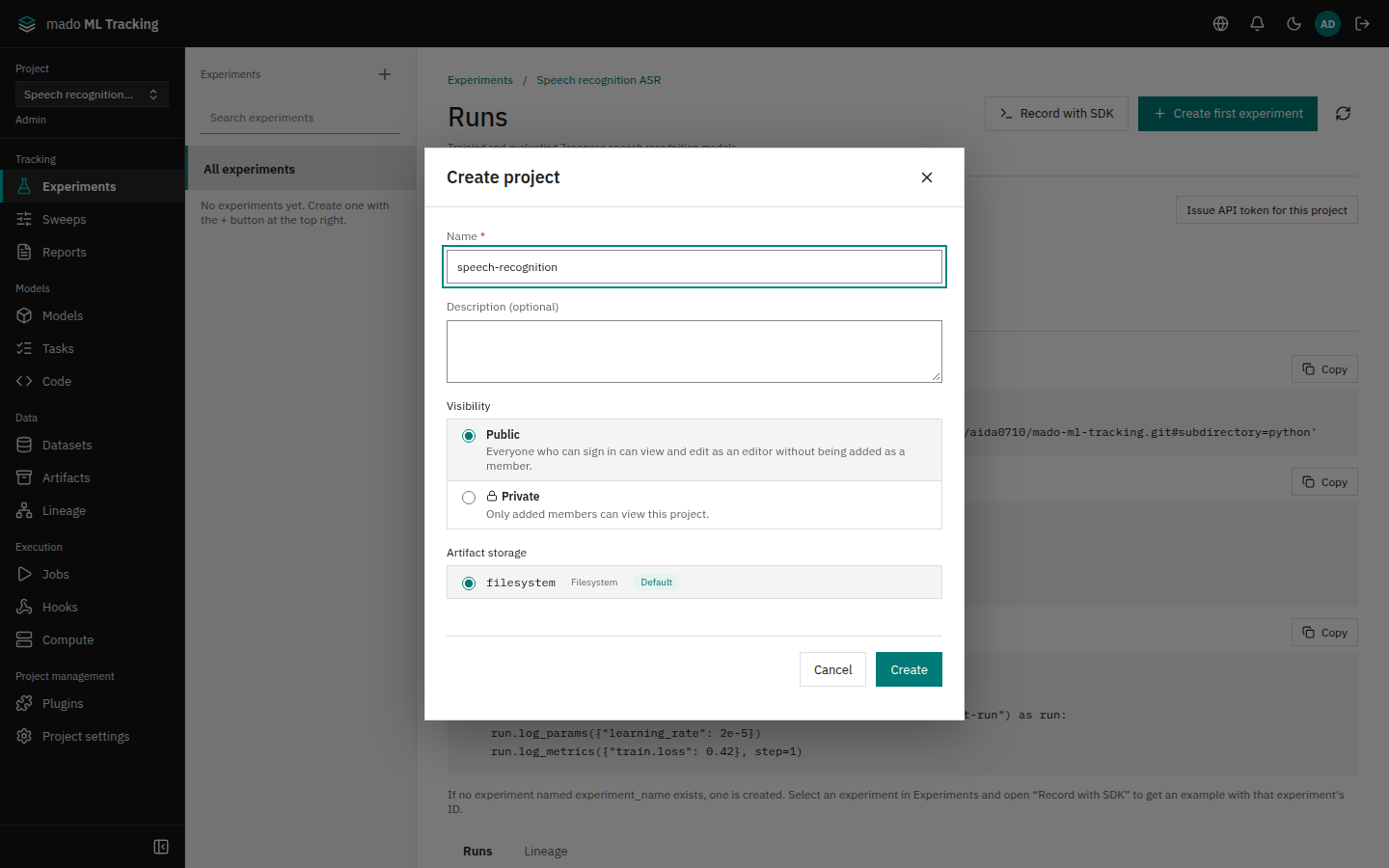
When you are not a member of any Project yet, the Projects page appears (someone else's Public Projects are only listed there and never opened by themselves). Press Create project, enter the following values, and press Create. If other Projects already exist, press the Project name at the top of the sidebar to open the switcher, and press Create project at the bottom.
| Field | Example value |
|---|---|
| Name | speech-recognition |
| Description (optional) | May be left empty |
| Visibility | Keep the default Public (everyone who can sign in can use it). Choose Private to limit it to members |
| Artifact storage | Keep the default (the storage a global administrator set) |
The Project is ready when its Experiments page opens. The creator becomes an Admin of the Project. For switching Projects and visibility, see Create and manage Projects.
2. Create an experiment
In a Project without experiments, the Experiments page shows Create first experiment at the top right. Press it, enter whisper-small-finetune as the name, and press Save. Later experiments are created with Create experiment (the + button) at the right end of the Experiments heading of the experiment list on the left.
The new experiment is selected, and its Experiment ID appears below the name with Copy. For an experiment without Runs, the Connect from SDK or MLflow 3 guide is already open: it lists the environment variables and code examples with the IDs of this Project and experiment, each with Copy. After closing it, Record with SDK beside the heading opens it again.
Create run beside the heading creates a Run on the screen to run as a Job with a code version. It is not for recording from training code: the SDKs and MLflow create the Run when they start recording.
3. Issue an API token
The SDKs record with an API token instead of your sign-in password.
- In Connect from SDK or MLflow 3, opened with Record with SDK on the experiment page or in Project settings, press Issue API token for this project.
- Enter a name that tells its purpose, such as
laptop-sdk. - The purpose Record from SDK or MLflow 3 is chosen, and the scopes
read,runs:write,registry:write, andartifacts:writeare checked. Keep them. - Choose the expiry and press Save.
Issue API token under My API tokens in the Project settings, or on Account, opens the same dialog, also starting from the recording purpose.
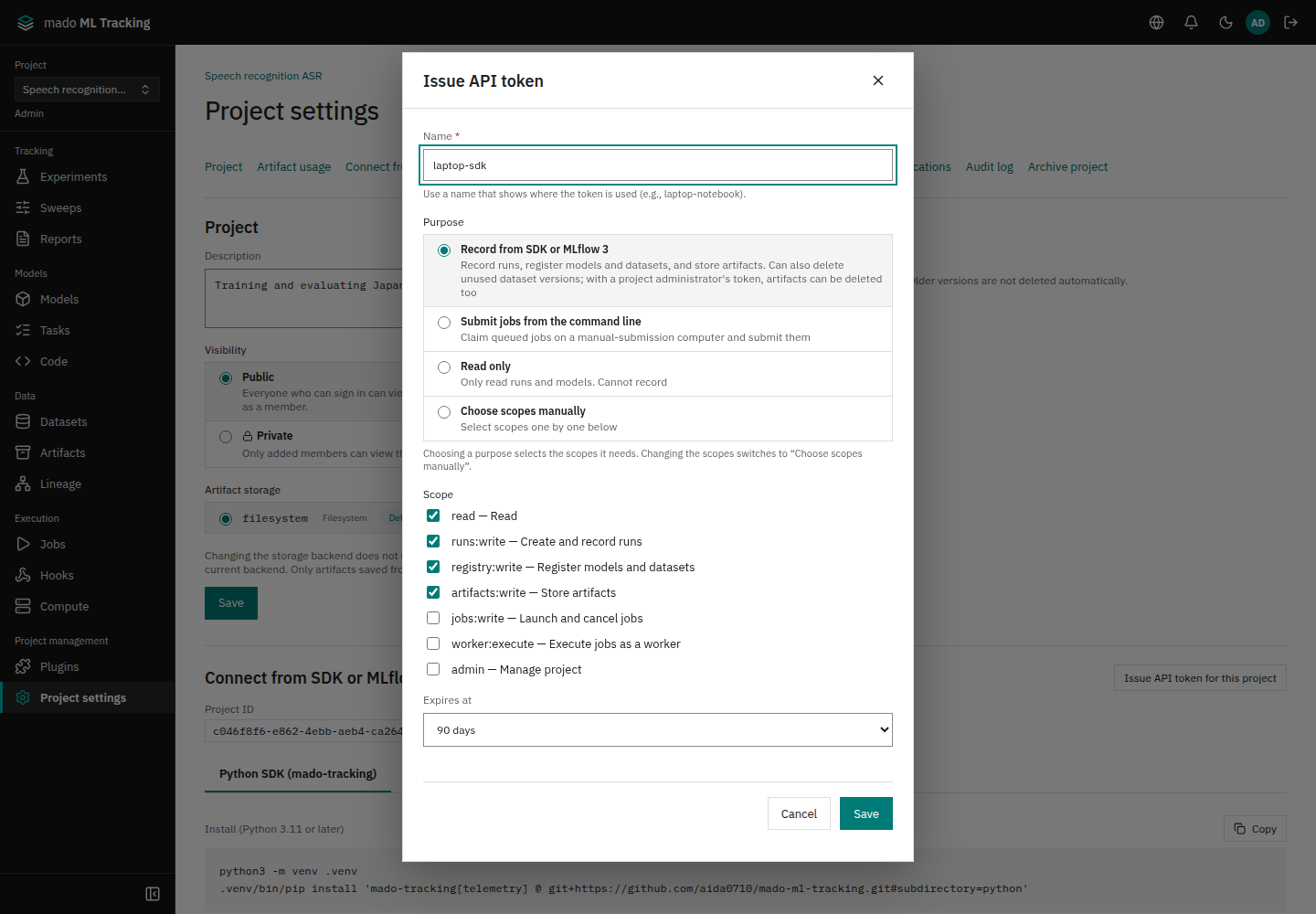
The token value is shown only once. Copy it with Copy token before closing the dialog and store it somewhere safe, such as a password manager. The token works only for the Project it was issued in.
The Configuration example in the same dialog holds the environment variables of steps 4 and 5 without the token. Copy it with Copy example and paste it into a terminal; it asks for API token:, where you paste the token you copied.
4. Record with the Python SDK
In a terminal on the machine that records, create a virtual environment with Python 3.11 or later and install the SDK. On Ubuntu, install python3-venv and git first.
sudo apt install -y python3-venv git
python3 -m venv ~/.venvs/mmt
~/.venvs/mmt/bin/pip install 'mado-tracking @ git+https://github.com/aida0710/mado-ml-tracking.git#subdirectory=python'
Set the endpoint and the token as environment variables. Enter the token without echoing it, and keep it out of source code and shell history.
export MMT_API_URL=https://tracking.example.com
export MMT_PROJECT_ID=<Project ID>
export MMT_EXPERIMENT_ID=<experiment ID>
printf 'API token: '; read -r -s MMT_API_TOKEN; echo
export MMT_API_TOKEN
Environment variables (enter the token when running) under Record with SDK on the experiment page holds exactly this, with the URL and both IDs filled in. Copy it with Copy and paste it.
Save the following as train_sdk.py. start_run uses MMT_PROJECT_ID and MMT_EXPERIMENT_ID.
import math

from mado_tracking import start_run

with start_run(name="lr-1e-4") as run:
    run.log_params({"learning_rate": 1e-4, "batch_size": 16})
    for step in range(50):
        loss = 2.0 * math.exp(-step / 15) + 0.1
        run.log_metrics({"train.loss": loss}, step=step)
print("Run:", run.id)~/.venvs/mmt/bin/python train_sdk.pyThe Run is recorded when Run: <Run ID> appears. Leaving the with block finishes the Run; leaving it with an exception marks the Run as failed.
You can also choose the experiment by name instead of its ID. Pass it as start_run(experiment_name="whisper-small-finetune", name="lr-1e-4") to record into the experiment of that name, created when it does not exist yet (like MLflow's set_experiment).
For more on the SDK (system metrics, resuming a Run, recording offline and sending later), see Python SDK.
5. Record with the MLflow 3 SDK
If your training code already records with MLflow, changing the endpoint is enough to record to the same Project. The MLflow 3 tab of Connect from SDK or MLflow 3, in Project settings or under Record with SDK on the experiment page, shows the Project's MLFLOW_TRACKING_URI and an example configuration.
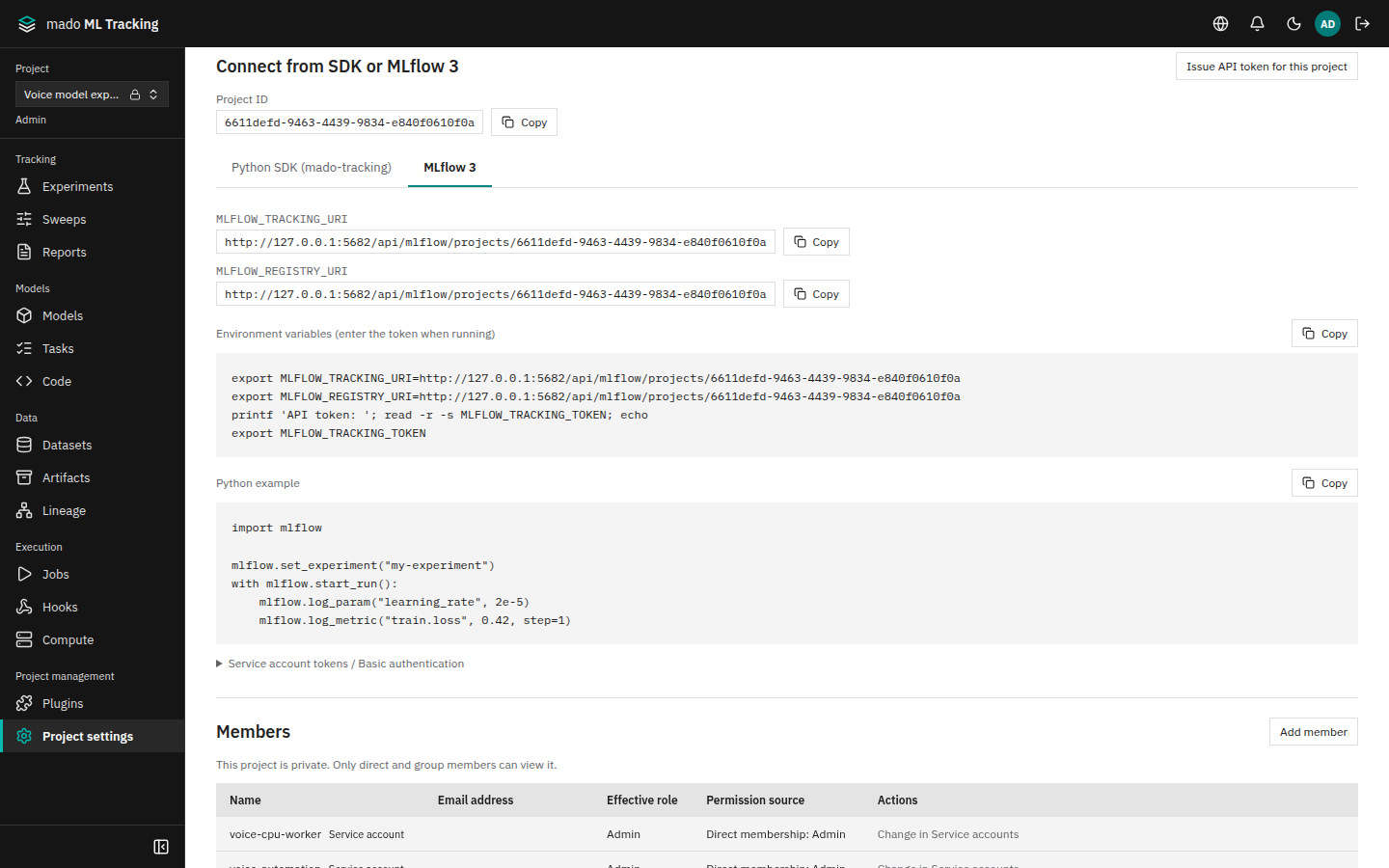
~/.venvs/mmt/bin/pip install 'mlflow>=3,<4'
export MLFLOW_TRACKING_URI=https://tracking.example.com/api/mlflow/projects/<Project ID>
export MLFLOW_REGISTRY_URI="$MLFLOW_TRACKING_URI"
printf 'API token: '; read -r -s MLFLOW_TRACKING_TOKEN; echo
export MLFLOW_TRACKING_TOKEN
You can use the token issued in step 3. Save the following as train_mlflow.py and run it.
import math

import mlflow

mlflow.set_experiment("whisper-small-finetune")
with mlflow.start_run(run_name="lr-5e-5"):
    mlflow.log_params({"learning_rate": 5e-5, "batch_size": 16})
    for step in range(50):
mlflow.log_metric("train.loss", 1.8 * math.exp(-step / 20) + 0.15, step=step)~/.venvs/mmt/bin/python train_mlflow.pyset_experiment uses an existing experiment with the same name, so the Run goes to the experiment from step 4. The View run ... link the SDK prints at the end opens the Run's page in this app.
For the supported MLflow features, see Record from the MLflow 3 SDK.
6. Check on screen
Select the experiment in Experiments to list the recorded Runs with the latest train.loss, the params, and the creator.
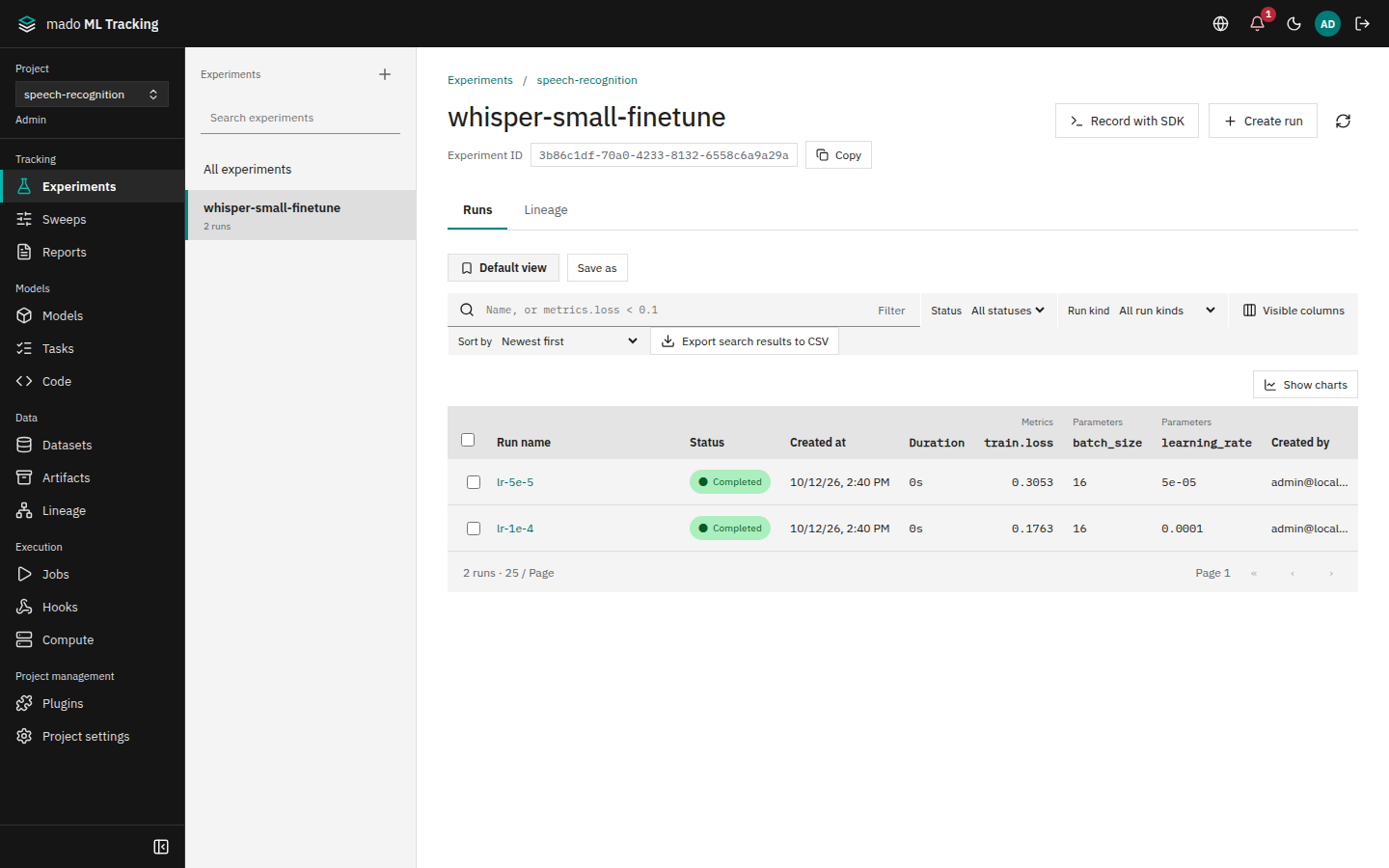
Press Show charts to chart the metrics of the listed Runs. The train.loss of the two Runs is overlaid, and the parallel coordinates below the charts show how params relate to results. A value logged once (such as a final evaluation) shows as a dot instead of a line.
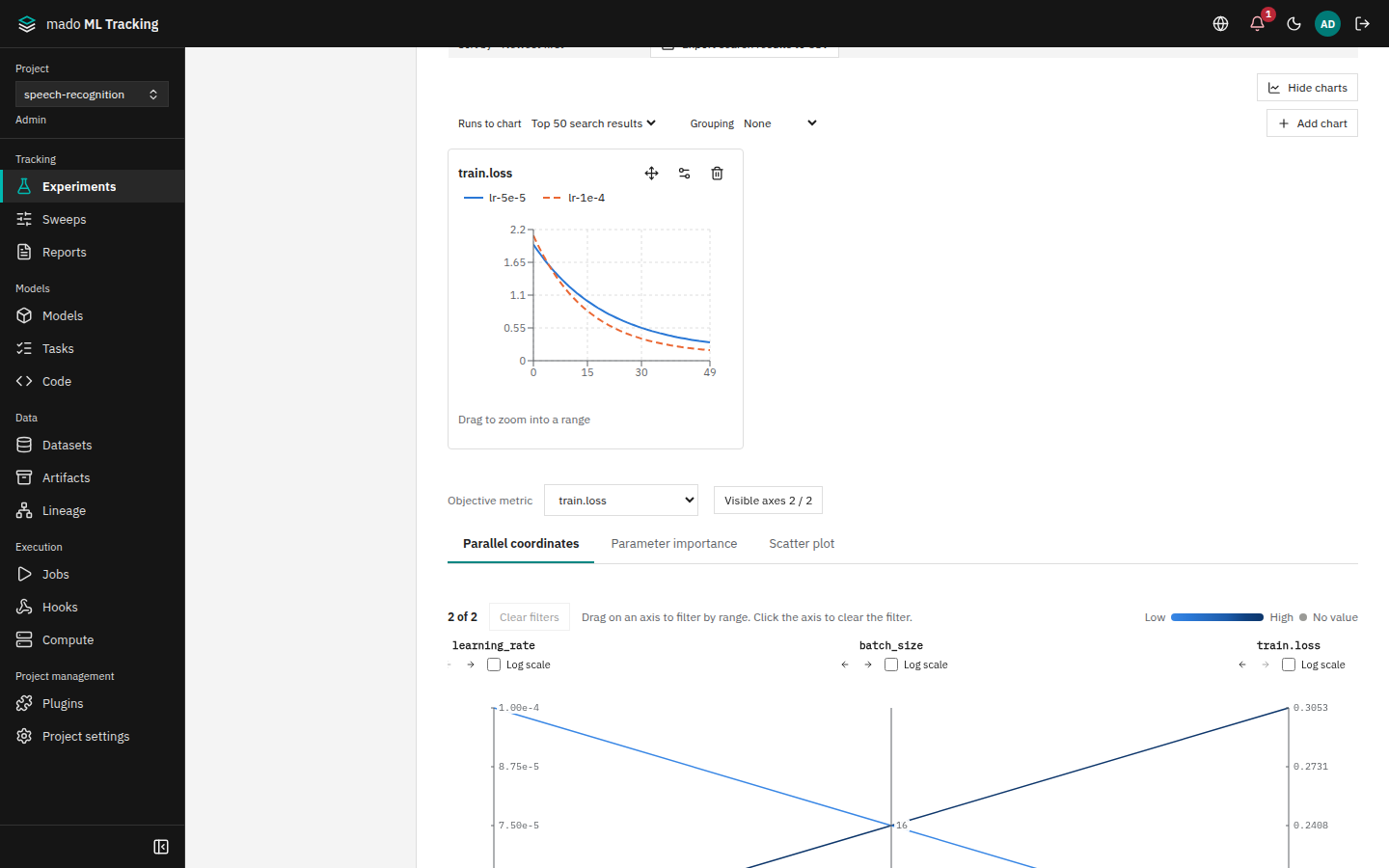
Click a Run name to open its details and switch between metrics, Artifacts, logs, and system metrics with the tabs. See Metric charts for chart controls and Compare Runs for comparisons.
7. Try registration through automatic evaluation
When a model version is registered, the automation rules that match its model family queue inference and evaluation Jobs, and a worker runs them. The shortest way to try it is as follows.
Prepare a worker and the code to run
- Install a worker on a host with GPUs (a CPU-only host also works) and register it as a compute target under Computers in Global settings. See Install a worker and Compute targets. Only global administrators can add SSH and Local targets. With the default, Private, only the Jobs of the person who added it run, so make it Public if someone else creates the automation rules (Computers and visibility).
- Register the inference and evaluation code as code versions in Code, with the run kind (inference, evaluation) and the supported model family (for example
whisper). See Tasks and code versions. CPU-only inference and evaluation examples (inference.py,evaluation.py) are inshare/mado-tracking/examples/of the virtual environment where you installed the SDK (~/.venvs/mmt/share/mado-tracking/examples/in step 4). - Register the reference data for the evaluation as a dataset version (Datasets).
Create automation rules
Under Automation rules in Models, press Create automation rule and create two rules, one for inference and one for evaluation.
| Field | Inference rule | Evaluation rule |
|---|---|---|
| Name | infer-on-register | evaluate-after-inference |
| Trigger | Model registration | Upstream rule success, Upstream rule: infer-on-register |
| Target model families | whisper | whisper |
| Run kind | Inference | Evaluation |
| Experiments | whisper-small-finetune | whisper-small-finetune |
| Code version | The inference code version | The evaluation code version |
| Computer | The one registered in preparation step 1 | The same one |
| Input dataset versions | None | The reference data from preparation step 3 |
The evaluation rule receives the outputs of the inference Run as upstream outputs. After creation, a rule can only be enabled or disabled. To change its settings, create a new rule.
Register a model version
When registering from the MLflow 3 SDK, set the model family with the mmt.model_family tag of the registered model.
import mlflow
import mlflow.pyfunc


class EchoModel(mlflow.pyfunc.PythonModel):
    def predict(self, context, model_input):
        return model_input


client = mlflow.MlflowClient()
client.create_registered_model("whisper-small-ja", tags={"mmt.model_family": "whisper"})
mlflow.set_experiment("whisper-small-finetune")
with mlflow.start_run(run_name="lr-5e-5 (model)"):
    recorded = mlflow.pyfunc.log_model(name="model", python_model=EchoModel())
version = mlflow.register_model(recorded.model_uri, "whisper-small-ja")
print("version", version.version)
The version is registered when version 1 appears. Version numbers are assigned automatically from 1. The Models list also shows whisper-small-ja with the model family whisper.
Check the results
Select the version in Models and press Open version details. Automation lists the inference as the first stage and the evaluation as the second. When the Jobs finish, Evaluation results shows the metrics of the evaluation Run.
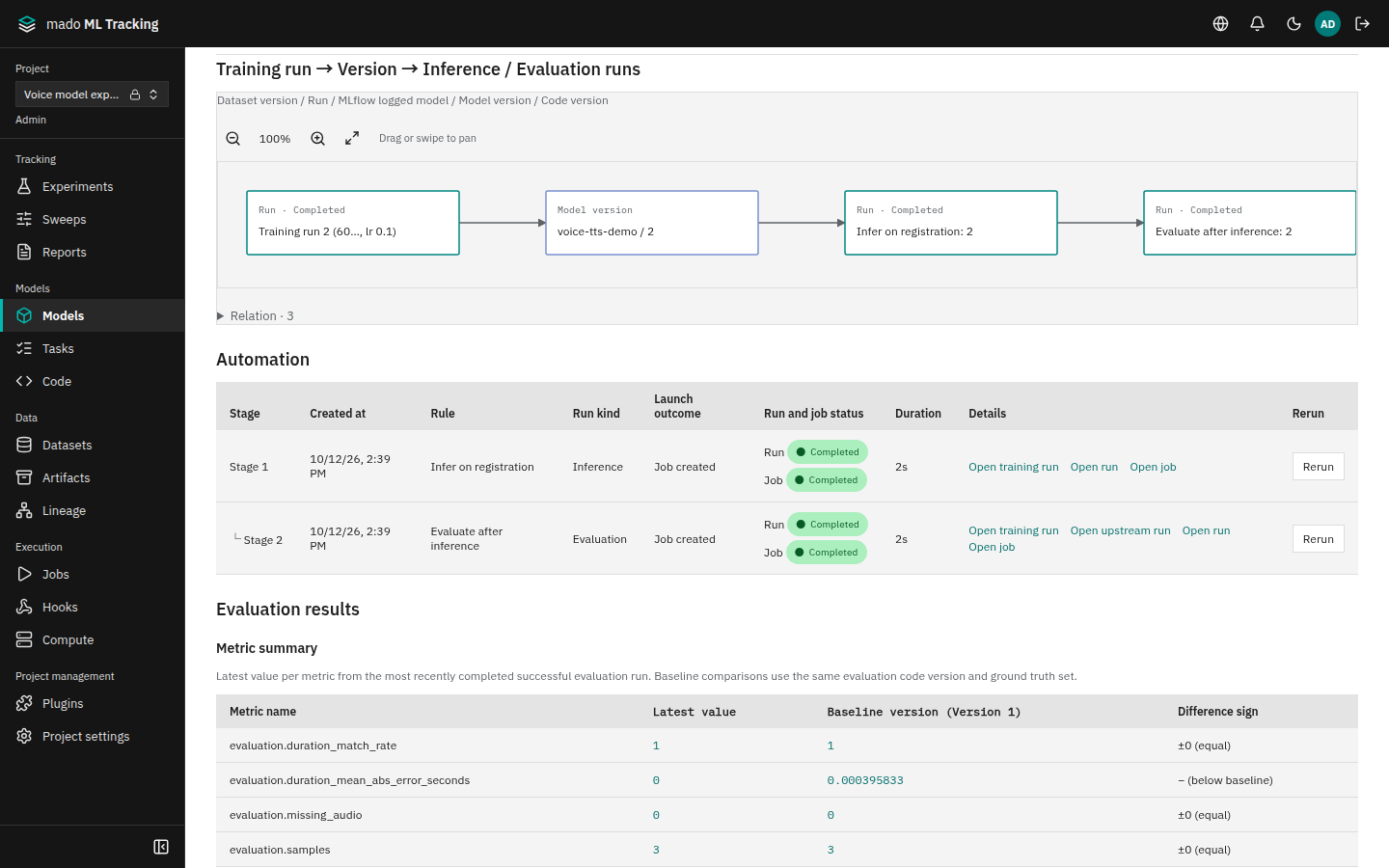
If a Job could not start, the reason appears in Launch outcome and Job error. To move an alias such as production based on the evaluation, see Evaluation and promotion. For automation settings in detail, see Automatic inference and evaluation.