Storage settings
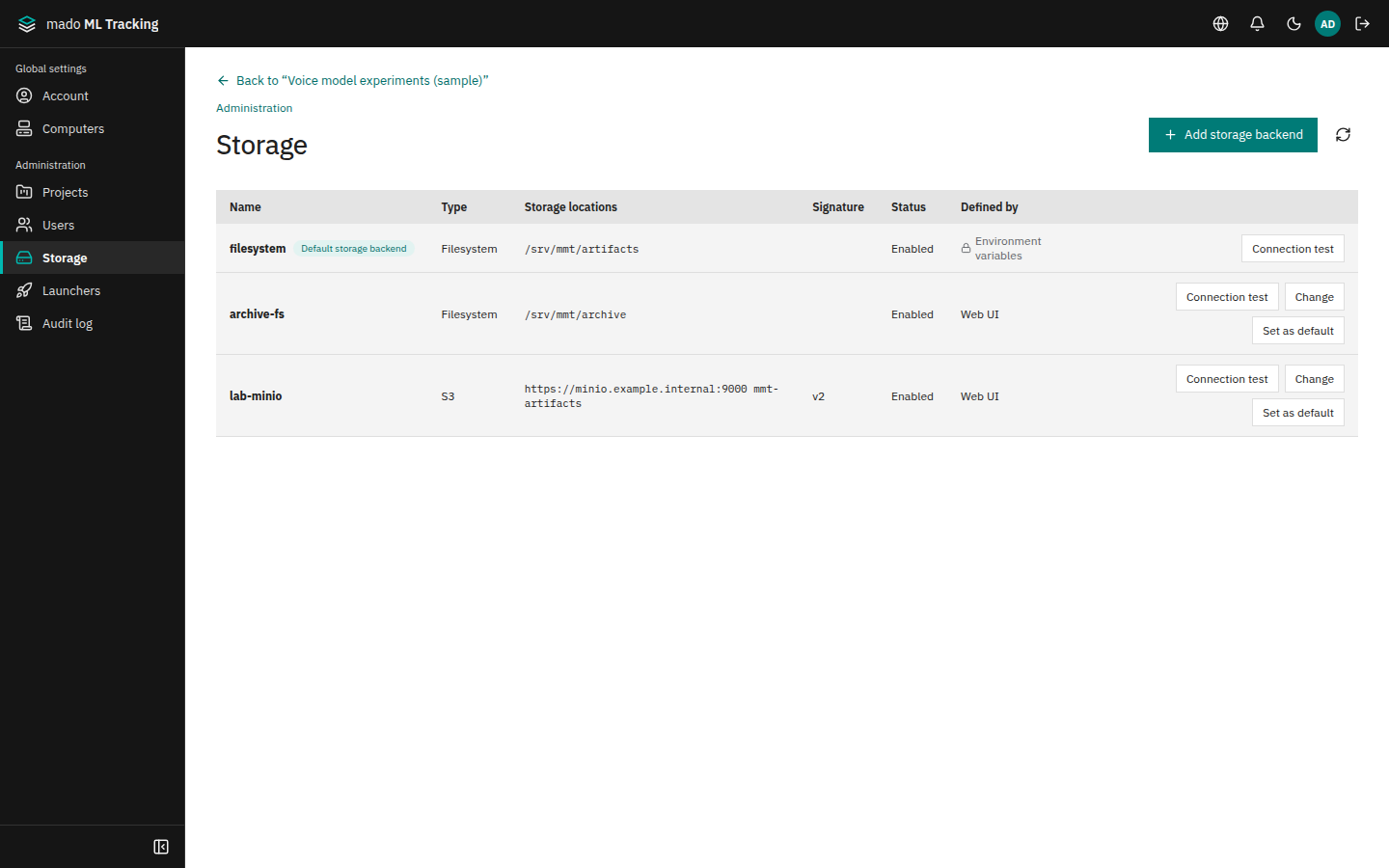
Global administrators manage Artifact storage under Administration → Storage. There are two kinds: a file system (Filesystem) and S3-compatible storage (S3). S3 works with AWS, S3-compatible services such as MinIO, and older services that do not accept Signature Version 4 (signature v2).
Each Project chooses which storage to use. Changing the storage does not move existing Artifacts; they are still read from the storage they were saved to.
When to use it
- You want to keep model weights and audio data on your own S3-compatible storage.
- You want separate buckets or prefixes per purpose and choose one per Project.
- You need to keep using storage that only accepts Signature Version 2.
- Your storage uses a certificate signed by an internal CA.
Storage kinds
| Kind | Where files go | Configured by |
|---|---|---|
| Filesystem | A directory on the API server | ARTIFACT_FILESYSTEM_ROOT, or the UI |
| S3 | A bucket on S3-compatible storage | S3_* environment variables, or the UI |
Each storage is identified by a name: lowercase letters, digits, and hyphens, up to 63 characters. The name cannot be changed later.
Storage defined by environment variables appears as filesystem (always present) and s3 (when S3_BUCKET is set). Rows whose Defined by column shows Environment variables are read-only in the UI; edit .env and restart the API instead. See Environment variables.
Add storage
To add S3-compatible storage:
- Open Global settings from the user menu, then Storage under Administration in the sidebar.
- Click Add storage backend.
- Set Type to S3 and fill in the fields below. Signing, TLS verification, the CA certificate, checksums, and multipart are under Advanced settings (signature, TLS, checksum, multipart); most storage keeps their defaults.
- Click Create. Saving runs a connection test right away and shows the result below the list (see Connection test).
| Field | Value | Example |
|---|---|---|
| Name | Lowercase letters, digits, and hyphens | lab-minio |
| Endpoint URL (blank for AWS) | A URL starting with http:// or https://, without credentials or a query | https://minio.example.internal:9000 |
| Region | AWS region. The default is fine for S3-compatible storage | us-east-1 |
| Bucket | Bucket name | mmt-artifacts |
| Prefix (optional) | Folder inside the bucket. Leading and trailing / are removed | tracking |
| Use path-style access | Turn on for storage such as MinIO that cannot put the bucket name in the host name | On |
| Signature | Signature Version 4 (default) or Signature Version 2 | Signature Version 4 |
| Verify TLS certificates | On by default. Turn it off only in test environments | On |
| CA certificate (PEM, optional) | Paste the CA certificate when the storage uses an internal CA | |
| Checksum behavior | WHEN_REQUIRED (default) or WHEN_SUPPORTED | WHEN_REQUIRED |
| Use multipart uploads (otherwise limited to 5GiB per file) | On by default | On |
| Multipart part size (MiB) | Size of each part when a large file is split. 5–512 MiB | 8 |
| Access key ID (optional) | Access key for the storage | |
| Secret access key | Secret key for the storage | |
| Enabled (existing artifacts remain readable when disabled) | Allow new Artifacts to be saved to this storage | On |
To add a file system, set Type to Filesystem and enter an absolute path on the API server in Root directory, for example /srv/mmt/artifacts. Paths containing .. are rejected. When you run several API servers, use a persistent volume that every server can see at the same path.
With Docker Compose the API server runs inside a container and does not see the host's directories as they are. Set MMT_FILESYSTEM_STORAGE_DIR in .env to a host directory and add compose.filesystem-storage.yml to COMPOSE_FILE; the directory then appears at the same path inside the container. Use a path under it as the root directory. See Installation for the steps.
Root directory suggestions
As you type in Root directory, directories on the API server are suggested.
- An empty field lists the directories directly under
/. The operating system's own directories there (/proc,/sys,/dev,/boot,/etc,/usr,/tmp, and so on) are not suggested, though a full path to one still works. Choose a place on a disk meant for data (/srv,/mnt,/home, and so on) - Ending with
/lists the directories inside it (for example/srv/mmt/) - A partial name lists the directories that start with it (for example
/srv/mmt/art) - Directories starting with
.appear only after you type. - Choose with ↑ and ↓, and enter with Enter or Tab. Esc closes only the suggestions
- Up to 50 directories are suggested. When there are more, "Only some suggestions are shown. Keep typing to narrow them down." appears
When the path does not exist yet, the field says "(path) does not exist on the server yet. It will be created during a connection test or the first save." When the path is a file, it says "(path) is not a directory. Specify another path."
The suggestions are the directories the API process can see. When the API runs in a container, they are paths inside the container. Directories that cannot be read are not suggested.
Storage you add appears with Web UI in the Defined by column. The kind cannot be changed after saving.
Credentials
The secret access key is encrypted in the API database and is never returned to the UI or API responses. When a key is set, the field shows "Configured (leave blank to keep unchanged)"; leaving it empty keeps the saved key. The CA certificate works the same way. Set both the access key ID and the secret access key, or leave both empty. When both are empty, the API uses the credentials available in its own environment (environment variables, instance roles, and so on).
To save secrets, the API needs the encryption key MMT_STORAGE_SECRET_KEY in its .env. Without it, storage with a secret cannot be saved. Generate a key in a terminal:
openssl rand -base64 32Put the output after MMT_STORAGE_SECRET_KEY= in .env and restart the API. If you run the preview worker, give it the same value.
WARNING
Changing MMT_STORAGE_SECRET_KEY makes saved secrets impossible to decrypt. Artifacts on that storage become unreadable and the API logs storage_backend_unavailable at startup. After changing the key, open Change for each storage and enter the secret access key again.
Signature v2
The AWS SDK only supports Signature Version 4, so mado ML Tracking implements Signature Version 2 itself. Choose Signature Version 2 only for storage that does not accept v4.
- Checksum behavior is hidden and requests use WHEN_REQUIRED.
- The region is not used for signing.
- The connection test and multipart upload work the same as with v4.
Storage without multipart support
For S3-compatible storage that does not implement the multipart upload API, turn off Use multipart uploads (otherwise limited to 5GiB per file). This has the following limits:
- One Artifact can be at most 5 GiB.
- The API writes the file to a temporary directory before sending it, so the API server needs the same amount of free temporary space.
- Resumable uploads described in Large file uploads and MLflow multipart uploads are not available.
Connection test
Adding or changing storage runs a connection test right after saving. To test again later:
- Click Connection test on the row.
- Connection test results shows OK or Failed for each step.
When it fails, fix the storage from Change settings below the result and test again (storage defined by environment variables cannot be changed on the screen). For "保存されたsecretを現在の鍵で読めません" (the stored secret cannot be read with the current key), check that the API server's MMT_STORAGE_SECRET_KEY has not changed since saving, or enter the Secret access key again from Change.
The test writes a 64-byte file under mmt-connection-test/<random ID>/ and checks these steps in order:
| Step | What it checks |
|---|---|
| Write | The file can be saved |
| Read | The whole file can be read back |
| Range read | Part of the file can be read with a Range request (used for audio and video seeking) |
| Delete | The file can be deleted and is no longer readable afterwards |
When every step passes, the result reads All stages succeeded. A failed step shows only the error name and HTTP status, never secrets or signatures. Steps after a failure are not run and show Failed. If the write succeeded, the delete step is always attempted.
You can also test disabled storage and storage defined by environment variables.
For S3, allow Put, Get, and Delete on the prefix, and creating, completing, and aborting multipart uploads. Add an AbortIncompleteMultipartUpload lifecycle rule to the bucket so interrupted multipart uploads do not remain.
Default storage
The default storage is preselected when someone creates a new Project.
- Click Set as default on the storage row.
- Click Set as default in the Change default storage backend dialog. This runs a connection test first and does not change the default when it fails (the result shows below the list).
The default storage is labeled Default storage backend. Changing the default does not change existing Projects. If no default is set, filesystem is the default.
Choose storage for a Project
Choose a Project's storage in Artifact storage when creating the Project. To change it later, select another storage in the Project section of Project settings and save. Only Project admins can change it.
After the change, only new Artifacts go to the new storage. Existing Artifacts stay where they are and are read from there.
Disable storage
To retire storage, open Change and turn off Enabled (existing artifacts remain readable when disabled).
- Existing Artifacts remain readable.
- Saving new Artifacts and starting new uploads is rejected. Uploads already in progress can finish.
- The storage is removed from the Project storage choices.
The default storage cannot be disabled. Make another storage the default first.
Existing Artifacts
Each Artifact records the name of the storage it was saved to. While any Artifact remains on a storage, its kind, bucket, endpoint URL, prefix, and root directory cannot be changed, because existing Artifacts would become unreadable. To move to a new location, add storage with a new name and switch the Project to it.
Keep the old storage readable while Artifacts remain on it. Back up the database and Artifact storage at the same point in time; restoring only the database does not bring back weights or audio files.
Changes take effect immediately in the API process that received them. When you run several API processes, restart the API to apply enable/disable and part size changes everywhere.