Artifacts
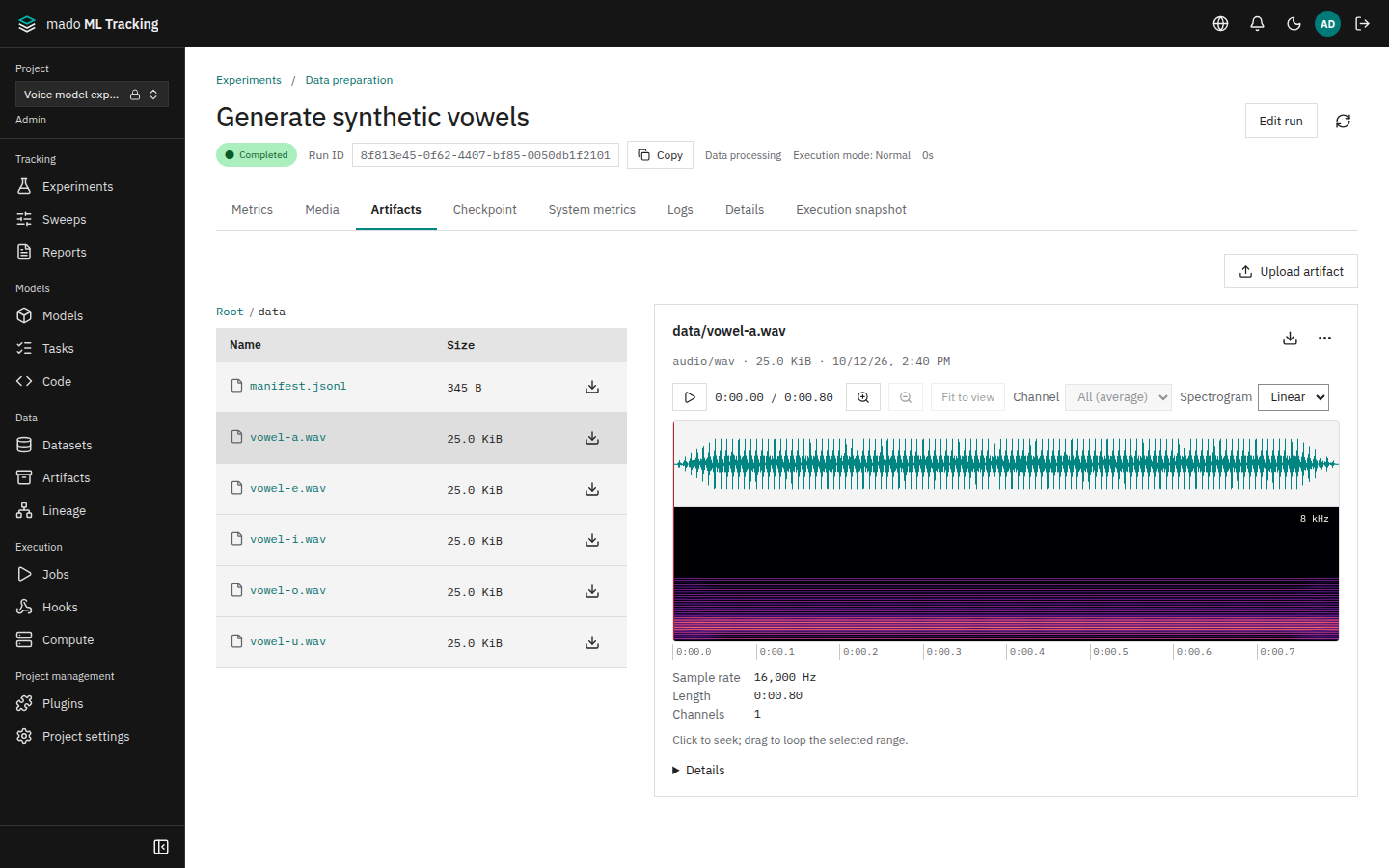
An Artifact is a file saved in a Project. Model weights, generated audio, evaluation results in jsonl, and dataset contents are all saved as Artifacts.
Artifacts are stored on the storage chosen for the Project (a file system or S3-compatible storage). The SDK and the worker read and write through the API, so you do not need to hand out storage credentials. See Storage settings.
When to use it
- You want to keep model weights and checkpoints linked to the Run that produced them.
- You want to listen to generated audio while looking at its waveform in the browser.
- You want to find audio anywhere in a Project by path or type.
- You want to delete large files you no longer need to free space.
Paths and versions
Artifacts are organized by path within a Run, such as data/vowel-a.wav or checkpoints/step-1000/model.pt. Saving to the same path in the same Run stores a new Artifact and makes the path show the new one. The earlier file is kept as a previous version and is not overwritten.
Some Artifacts do not belong to a Run: files of dataset versions created from a folder, and files uploaded from the Models or Code pages.
The SHA-256 and size of each file are recorded when it is saved. One Artifact can be up to 200 GiB by default (change it with MMT_ARTIFACT_MAX_BYTES).
Browse a Run's Artifacts
Open the Artifacts tab of a Run. The file list is on the left and the preview of the selected file is on the right.
- Use the breadcrumb starting at Root to move between folders.
- Folder rows show the number of files and total size, such as 6 files · 125.6 KiB.
- Folders come first, and numbers in names are compared as numbers (
step-9comes beforestep-19). - Files load 200 at a time. Click Load more for the rest.
- Click the download icon on a row to download the file.
The open folder is kept in the URL, so reloading or going back returns to the same folder.
The download icon at the top right of the preview downloads the open file. A file that a model version, dataset version, code version, or checkpoint uses shows Used by under the preview; each name links to the page of what uses it.
Open Details under the preview to see the Artifact ID, SHA-256, storage name, and previous versions of the same path (up to 100). Select a previous version to preview it, and click Return to the latest version to return.
When a Run has no files yet, the right side says so and how files are added.
Users who can edit see Upload artifact. See Large file uploads.
Search the whole Project
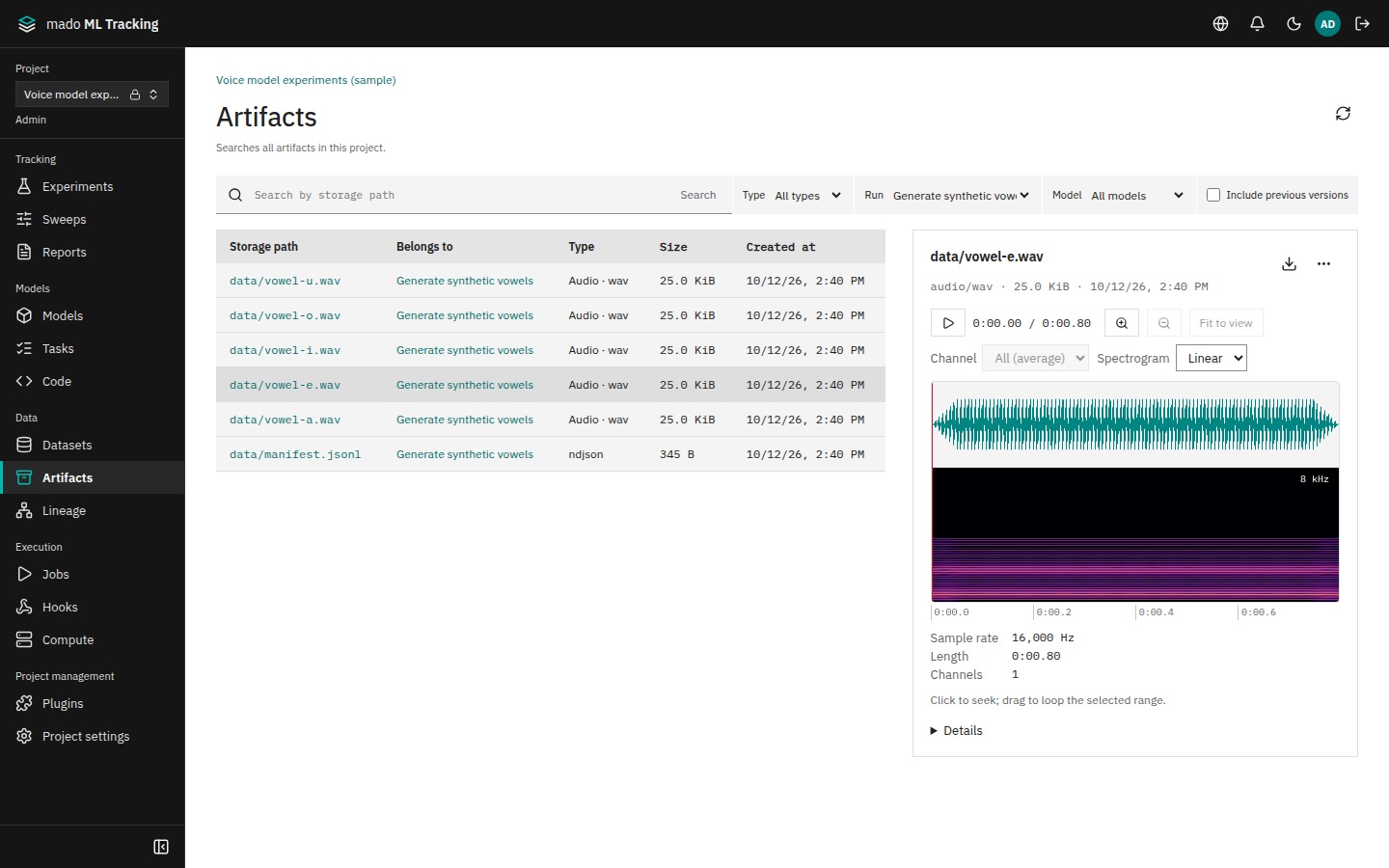
Open Artifacts in the sidebar to search every Artifact in the Project.
| Filter | Values |
|---|---|
| Search | Text contained in the saved path (up to 200 characters) |
| Type | All, audio, image, video, text, other files |
| Run | All Runs, or one of the recent Runs (up to 200) |
| Model | All models, or one model. After choosing a model you can also filter by Model version |
| Include previous versions | Include old versions that were replaced by newer files |
Results show the saved path, Belongs to, type, size, and creation time, 100 at a time. Filters are kept in the URL, so sharing the URL opens the same results.
- Belongs to: a Run's file links to its Run. A file without a Run links to the dataset versions, model versions, and code versions that use it. Files left by a stopped Create from a folder show
Dataset <name>with Incomplete upload; anything else shows No run - Type: written as Audio · wav or Text · csv; hover to see the media type
Select a file to see the same preview, download, used-by list, and details as in a Run's Artifacts tab. Project admins also get the ⋯ menu.
Preview formats
| Kind | Formats | Display |
|---|---|---|
| Text | text/plain, JSON | Up to 1 MiB. Larger files show their first 1 MiB, with a note saying so and Download above |
| Table | CSV, TSV, JSON Lines | Up to 16 MiB as a table. The header stays in view; click a column header to sort (again to reverse, a third time for the file's order). Over 1,000 rows, the first 1,000 are shown; sorting covers every row |
| Evaluation samples | Tables with an audio column, or reference and prediction columns | 50 rows per page. On a phone, one card per sample |
| Image | PNG, JPEG, WebP, AVIF, GIF | Fitted to the frame. Show actual size or a click on the image switches to the actual size, scrolling inside the frame |
| Audio | WAV, FLAC, MP3, Ogg, Opus, M4A (AAC), WebM | Waveform and spectrogram in the audio viewer |
| Video | MP4, WebM, QuickTime | Played in the browser player |
Format switches a table between Table and Auto (…), Text, and the other text formats. A file with no readable row opens as text. In CSV, a value in double quotes (") may hold commas and line breaks. TSV gives quotes no special meaning: each line is one row, split at tabs. CSV, TSV, and JSON Lines over 16 MiB are not drawn as a table; their first 1 MiB is shown as text.
Other formats show "Download this file to view it." with Download. HTML, SVG, and XML files are never previewed and are served as downloads.
When an upload has no MIME type, it is inferred from the extension (wav, flac, mp3, ogg, opus, m4a, aac, webm, mp4, mov, png, jpg, webp, avif, gif, csv, tsv, jsonl, txt, npy, parquet).
Evaluation results are easiest to read as jsonl with audio, reference, prediction, and score on each line. reference and prediction may also be numbers or booleans; they are shown as written, and differences are highlighted only when both are strings. Rows that cannot be read are listed under Unreadable rows with their line and reason.
Compare across Runs
The Artifacts tab of the Compare page shows the same path from several Runs side by side. Audio has Play from the same position, so you can switch Runs and keep listening from the same point. To compare audio and images per step, see Media logging.
Delete and clean up
Only Project admins can delete Artifacts.
- In the Run's Artifacts tab or Artifacts in the sidebar, open the file to delete.
- Choose Delete from the ⋯ (file actions) menu at the top right of the preview.
- Click Delete in the Delete artifact dialog.
The page says the file was deleted and the preview becomes empty. A deleted Artifact disappears from lists, search, and downloads immediately. If the same path has a previous version, that version is shown instead. There is no restore in the UI.
The file itself is not removed from storage right away. After a grace period (7 days by default, MMT_ARTIFACT_DELETE_GRACE_DAYS), the API removes it from storage during a cleanup that runs every 10 minutes. If you delete something by mistake, contact an administrator within the grace period; the file can still be copied out of storage.
Artifacts referenced by the following cannot be deleted: Delete in the ⋯ menu is disabled with "This file is in use and cannot be deleted." Open what uses it from Used by under the preview and remove the reference first.
- Weights of a registered model version (including files of models registered through MLflow)
- Code versions on the Code page (saved zip or tar archives, Singularity or Apptainer images)
- Files of a dataset version
- Checkpoints that are retained or were used to resume
Old versions are never deleted automatically.
MLflow SDK delete_artifacts follows the same rules. Through the API, call DELETE /api/projects/<Project ID>/artifacts/<Artifact ID>.
Check usage
Artifact usage at the top of Project settings shows usage per storage.
| Column | Meaning |
|---|---|
| Storage backend | Storage name |
| Count, Capacity | Number and total size of Artifacts that are not deleted, including previous versions |
| Pending deletion | Deleted Artifacts whose files have not been removed yet |
| Unreferenced older versions | Versions replaced by a newer one and not referenced by model versions, dataset versions, and so on. Candidates for deletion |