Media Logging and Listening
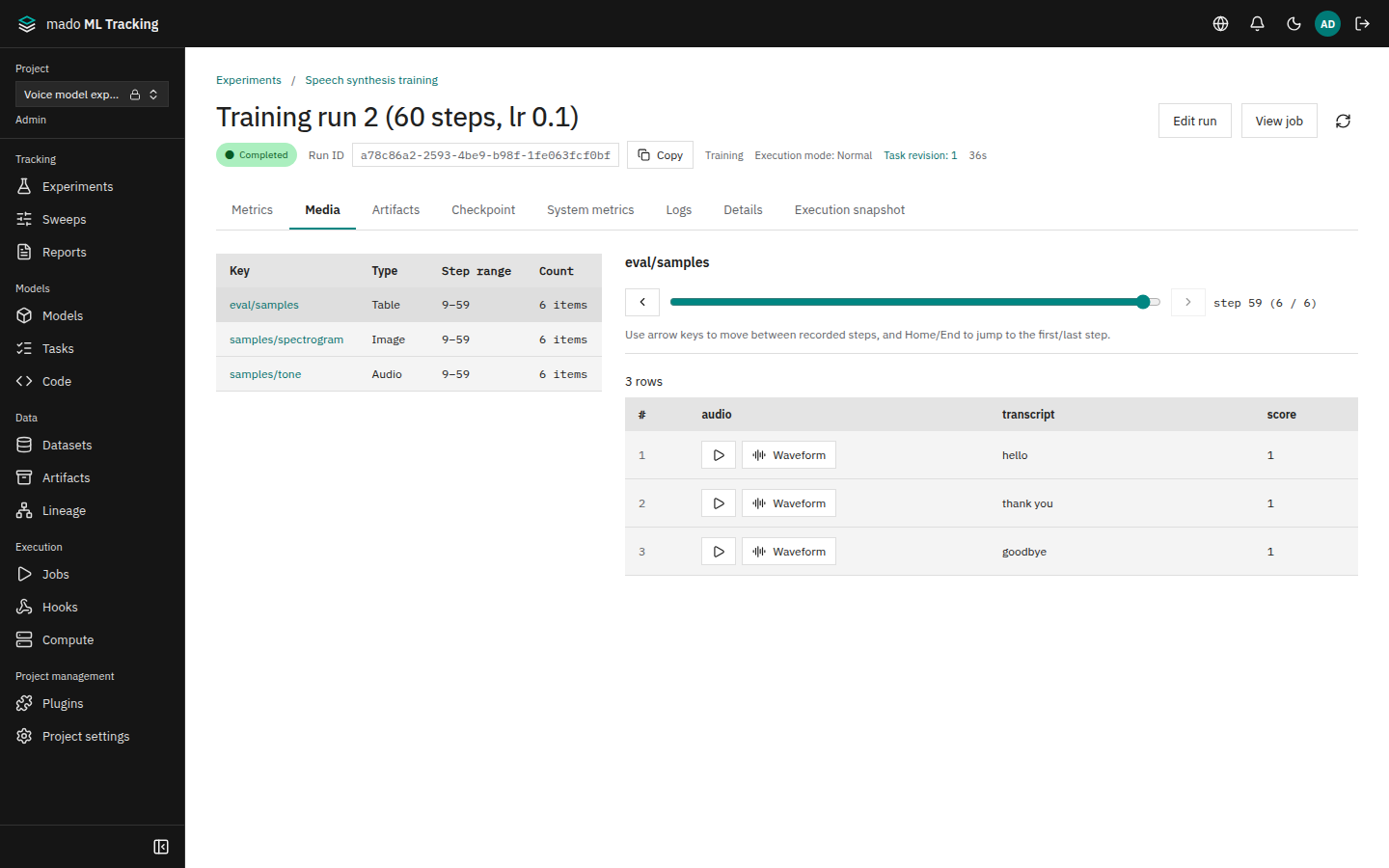
Audio and images generated during training can be recorded with their step. On a Run's Media tab, move through steps to hear and see the change; on the comparison page's Media tab, line up several Runs and steps side by side.
When it helps
- Hearing how the inference audio of a speech synthesis model changes every 100 steps
- Switching between two learning rates at the same step to compare generated audio
- Checking evaluation samples with audio, transcript, and score in one table
Record with the Python SDK
Install the media extra to pass numpy arrays or PIL images (Install). File paths and bytes work without it.
import mado_tracking
from mado_tracking import Audio, Table

with mado_tracking.start_run(name="tts") as run:
    for step in range(1, 1001):
        run.log_metrics({"loss": loss}, step=step)
        if step % 100:
            continue
        run.log_audio("inference/sample", waveform, sample_rate=16000, caption="prompt 1")
        run.log_image("inference/spectrogram", mel)
        run.log_table("evaluation/samples", Table(
            columns=["audio", "transcript", "score"],
            rows=[[Audio(wav, sample_rate=16000), text, score] for wav, text, score in samples],
        ))
Without step, media goes to the step last recorded with log_metrics.
| Function | Accepts |
|---|---|
log_audio(key, data, sample_rate=) | A file path, bytes (WAV, FLAC, MP3, OGG, M4A), or a numpy array. Arrays need sample_rate; floats in -1 to 1 become 16-bit PCM and values outside are clipped |
log_image(key, image) | A path, bytes, a numpy array (height × width, optionally × 3 or × 4; uint8 or floats in 0 to 1), or a PIL image |
log_video(key, data) | A path or bytes. Nothing is converted, so use mp4 (H.264) or webm for browser playback |
log_table(key, table) | Table(columns, rows), a pandas DataFrame, or MLflow's {columns, data}. Cells may hold Audio, Image, or Video |
- Keys are 1 to 250 characters.
/separates folders, which you can also browse in the Artifact list. Files are saved undermedia/<key>/step-<step>/ - To put another Run's file in a table cell, use
artifact_reference(run_id, path) - Offline recording (
mode="offline") works too;mado-tracking syncregisters the media after sending the files
Media recorded with MLflow
Images logged with MLflow's log_image(image, key=..., step=...) and tables logged with log_table also appear on the Media tab. MLflow has no per-step audio or video logging, so use the Python SDK to compare audio. See Record from MLflow 3.
View the Media tab of a Run
The left side lists each recorded key with its kind (audio, image, video, table), step range, and count. Select a key to show it on the right.
- The slider selects the step and stops only at steps that have records
- With the slider focused, arrow keys move to the previous or next step, and Home and End go to the first and last
- Audio cells in tables play in place with the play button, and the Waveform button opens the waveform and spectrogram
- With many records, only the first 10,000 are shown
The audio viewer zooms the waveform, loops a range, and switches between mel and linear spectrograms (Audio viewer).
Compare across Runs
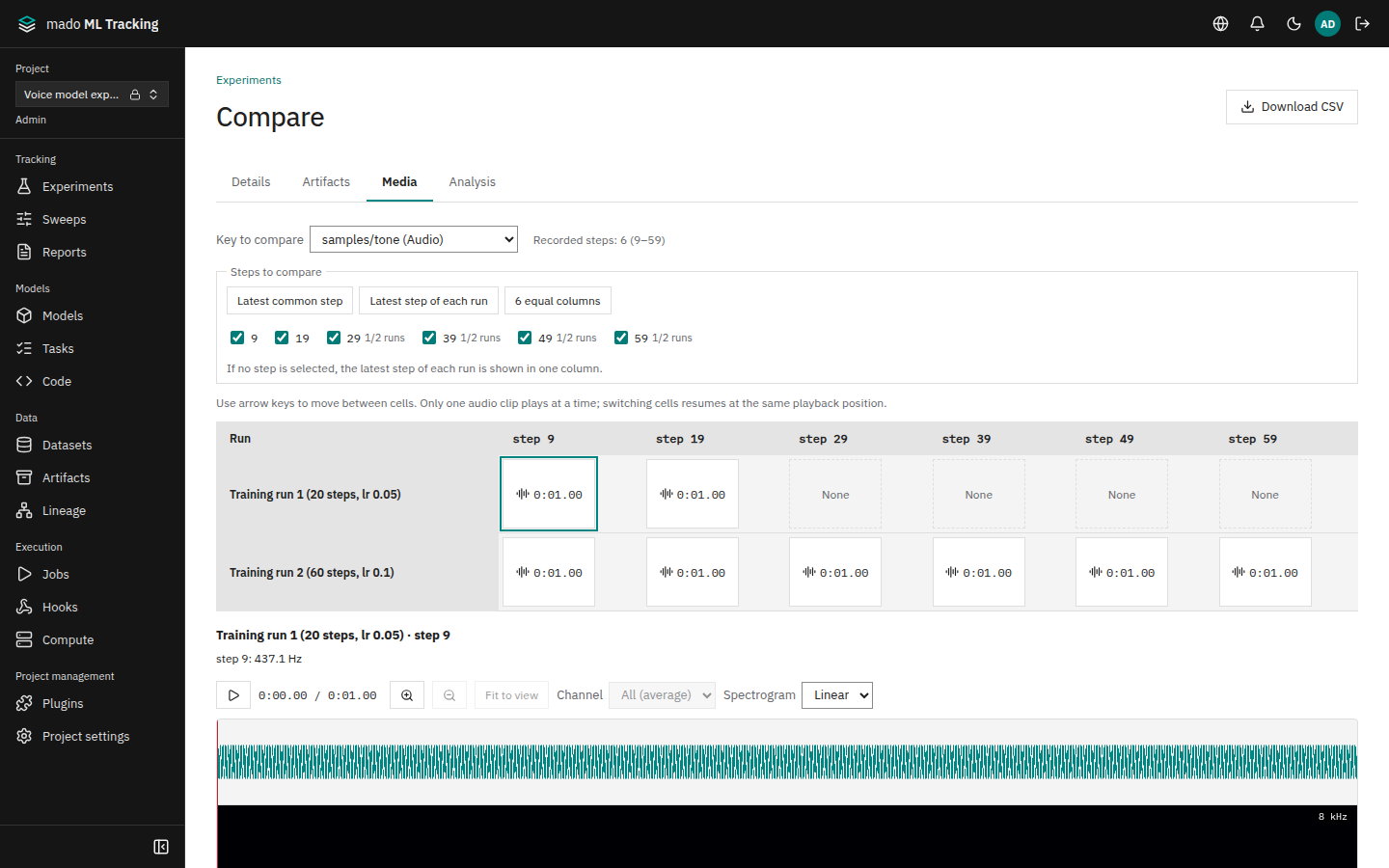
- Select the Runs under Experiments and choose Compare
- Open the Media tab
- Pick an audio or other key in Key to compare
- If needed, tick the steps to show under Steps to compare. Only recorded steps are listed, and a step that only some Runs recorded shows how many did, such as
1/2 runs
The tab opens on the latest step that every Run recorded, in one column, so Runs of different lengths (for example 20 and 60 steps) start without empty cells.
| Button | Steps shown |
|---|---|
| Latest common step | Goes back to the opening state |
| Latest step of each run | Puts each Run's last step in one column; each cell shows its Run's step |
| N equal columns | Picks up to 8 evenly spaced recorded steps |
When the Runs share no step, the tab opens like Latest step of each run and says so under the checkboxes. With no step ticked, each Run's latest step is shown as well.
You get a grid with Runs as rows and steps as columns. Cells without a record show None; they are not filled with a nearby step. When none of the chosen Runs has step media, the tab says so. Compare Artifacts that inference Runs saved, such as audio files, on the Artifacts tab, which lines up files with the same path.
- Select a cell to show it in full below the grid. Arrow keys move between cells
- Only one audio plays at a time. Moving to another cell while playing continues from the same position, so you can compare the same passage
- Up to the first 20 Runs and 50 steps
- If one step has several items for the key, the first is shown