Record and Find Runs
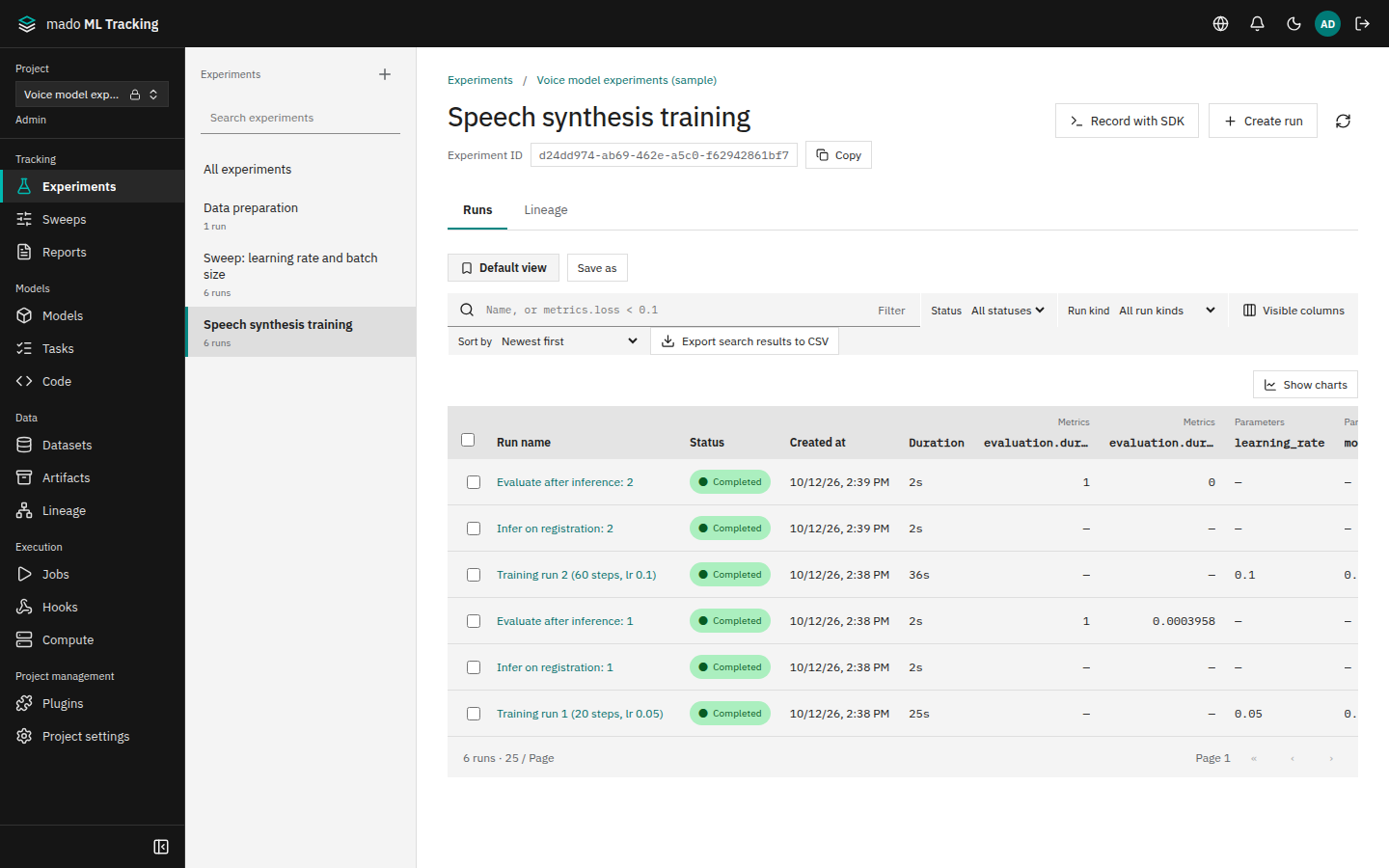
mado ML Tracking records each training or evaluation execution as a Run. A Run carries params (the conditions), metrics (numbers per step), tags (labels), logs, and Artifacts (files). Open Experiments in the sidebar to list, search, and compare Runs.
When it helps
- Lining up runs with different learning rates or batch sizes to see which condition worked best
- Finding every Run whose
val_lossis below a threshold, including experiments from months ago - Saving a filter and column layout you use often, so the whole team opens the same view
- Exporting search results as CSV for a spreadsheet
Projects, Experiments, and Runs
| Unit | What it is | Where to create it |
|---|---|---|
| Project | The unit of permissions and storage. Members and their roles (viewer, editor, admin) are set per Project | Create project in the Project switcher (Create and manage Projects) |
| Experiment | A group of Runs with one purpose, such as "speech synthesis training" | Create experiment (the + button) on the left of Experiments |
| Run | The record of one execution | Python SDK, MLflow 3 SDK, Tasks, Sweeps, automation rules, or Create run |
Every Run has a kind: training, fine-tuning, inference, evaluation, or data processing. The Run kind filter narrows the list by kind.
Viewing needs the viewer role or higher; recording and editing Runs needs editor or higher. See Permissions.
Params, metrics, and tags
| Item | What to record | Rules |
|---|---|---|
| params | Execution conditions such as the learning rate or number of epochs | A key cannot be changed to a different value once recorded. Use a new Run for new conditions |
| metrics | Values that change by step, such as loss or accuracy | Stored with the step and timestamp. The list shows the latest value |
| tags | Labels for finding Runs, such as the dataset or owner | Can be changed later |
The latest metric value is chosen by step and timestamp, not by arrival order.
Tags starting with mmt. and automation. are set by the system and cannot be added or removed by users. The Sweep trial number (mmt.sweepTrialIndex) is one of them.
Once a Run executed by a worker (a Run with a Job) has finished, metrics, params, and tags can no longer be added, so results cannot be rewritten afterwards. The description and comments can still be edited (Notes and Comments).
The Run list
Select All experiments or an Experiment on the left to list its Runs, newest first.
- Filter by Status and Run kind
- Sort by offers creation time, name, and ascending or descending order of any metric
- Visible columns chooses which params, metrics, and tags appear. Drag a column edge to resize it; focus a header and press Alt+←/→ to move it
- Selecting rows shows a selection bar above the table. With two or more Runs selected, Compare opens the comparison page. Editors can tag the selected Runs at once with Add tag
- Click a Run name to open its details (Metrics, Media, Artifacts, System metrics, Logs, and more)
Search the whole history
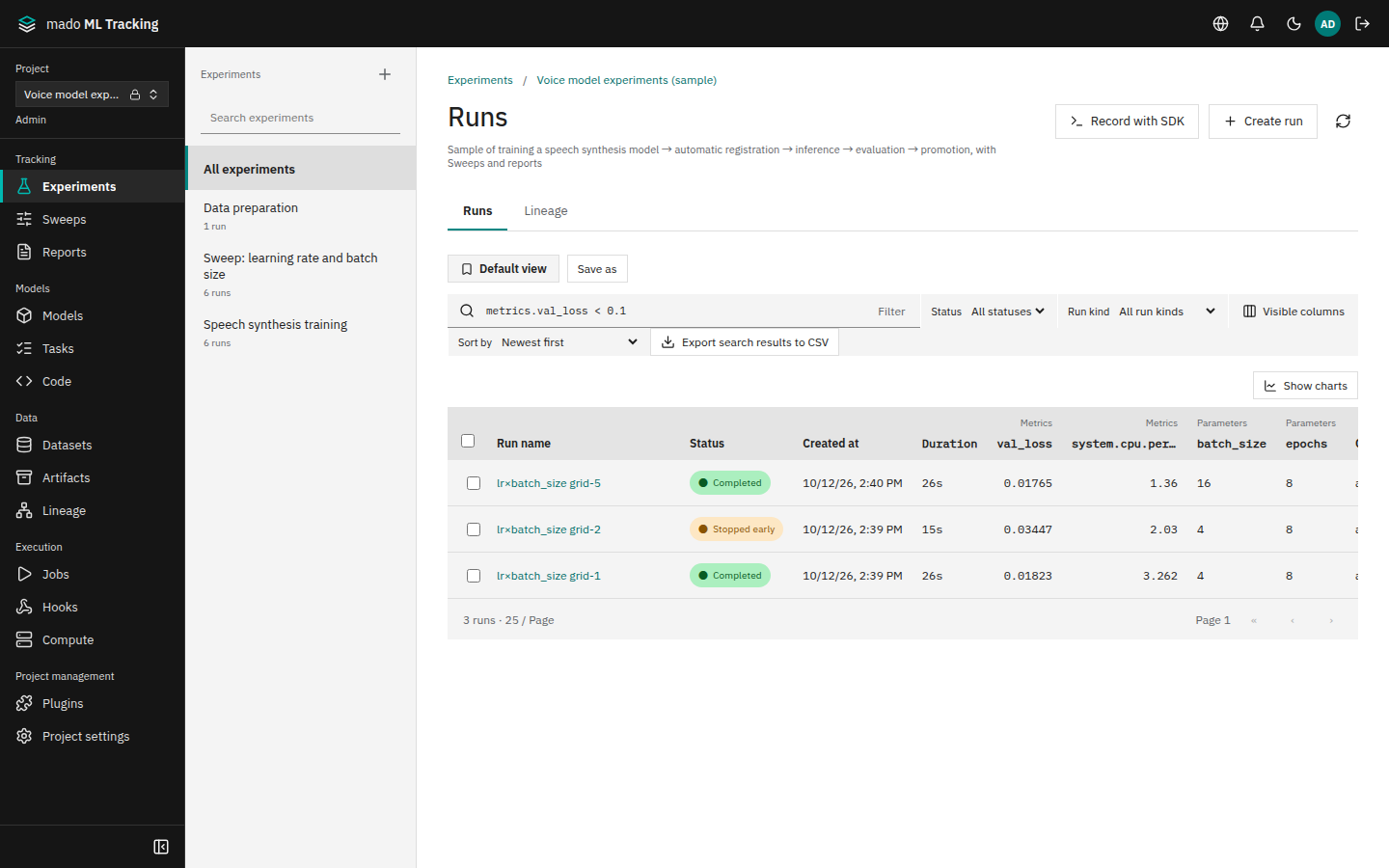
Type part of a Run name, or a filter in the same syntax as MLflow search_runs. The server searches the whole history, so old Runs that are not on the current page are found too.
metrics.val_loss < 0.1
params.batch_size = '32' AND metrics.accuracy >= 0.9
tags.dataset = 'training-v1' AND attributes.status = 'finished'- Join conditions with
AND.ORand parentheses are not supported - Params are compared as strings, so quote their values (
params.lr = '0.01') - Metrics are compared by each Run's latest value
- Status accepts both the native names (
finished,failed, ...) and MLflow names (FINISHED,FAILED, ...)
Search with All experiments selected to cover every Experiment in the Project. When a filter cannot be parsed, the message below the box tells you which character to check. Comparing params with >, or leaving a params value unquoted, shows the corrected filter (such as params.batch_size = '16'). A comparison without metrics., such as loss < 0.2, is searched as a Run name, and the box offers metrics.loss < 0.2 with Search with this expression.
Python uses the same filter syntax:
from mado_tracking import Client

with Client() as client:
    for run in client.search_runs(
        "PROJECT_ID",
        filter="metrics.val_loss < 0.1 AND params.lr = '0.01'",
        order_by=["metrics.val_loss ASC"],
    ):
        print(run["name"], run["latestMetrics"]["val_loss"])
Saved views
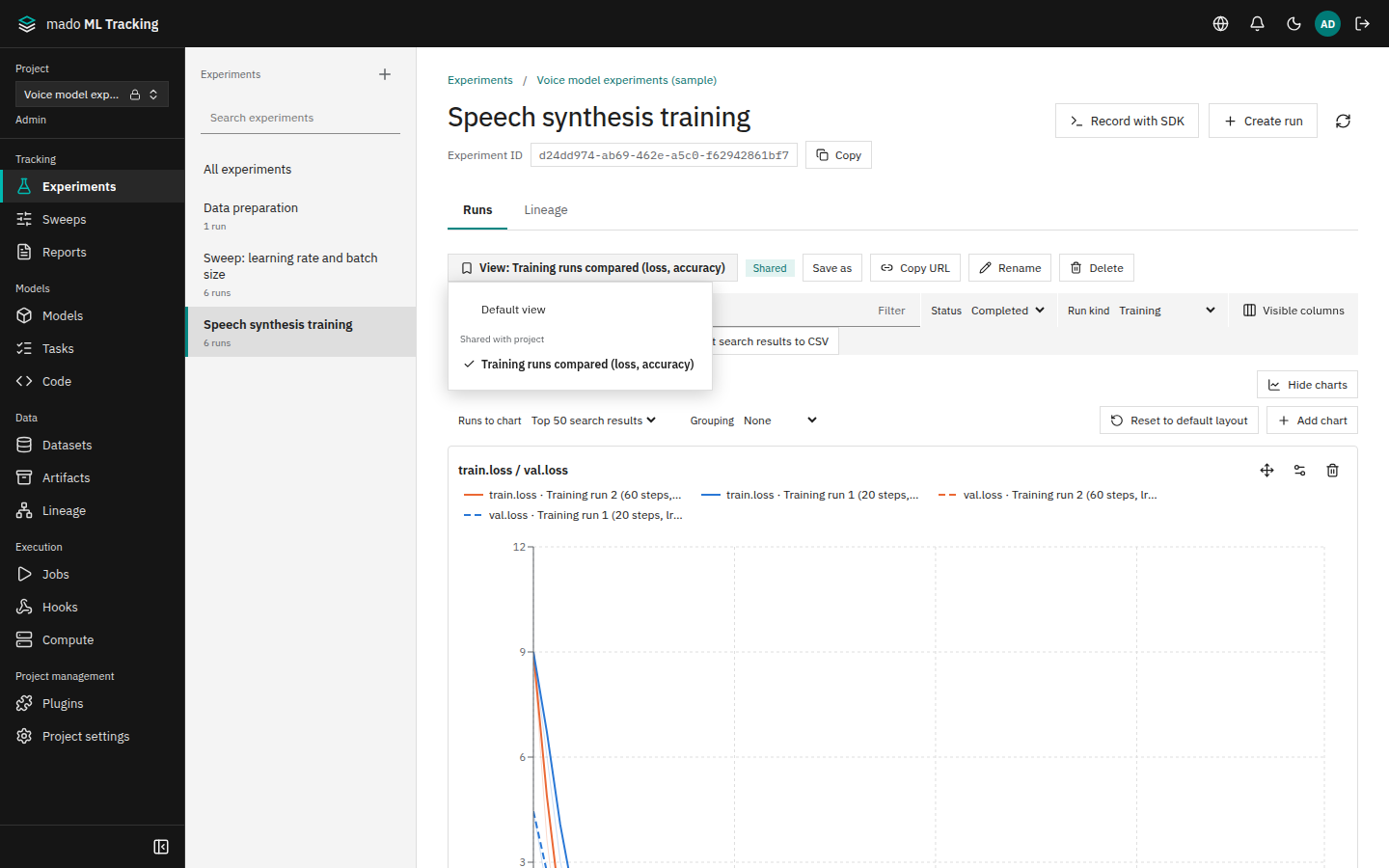
A saved view keeps the selected Experiments, filter, status and kind filters, sort order, columns and their widths, chart grouping, and the chart panel layout under a name. Open saved views from the menu at the top left of the list.
- Arrange the list the way you want
- Choose Save as
- Enter a name, choose who can see it (Visibility), and save
| Visibility | Who sees it | Who can create it |
|---|---|---|
| Only me | Only the owner. Other members see it neither in the menu nor by URL | viewer or higher |
| Shared with project | Every Project member | editor or higher |
After you change the display, the menu shows Unsaved changes. Save changes overwrites the view, Save as saves a new one, and Copy URL copies a URL that opens the view (?view=<ID>). A shared view can be renamed, changed, or deleted by its owner and by Project admins.
A view stores the conditions, not a list of Runs: every time you open it, the search runs again against the current Runs.
Export CSV
Export search results to CSV downloads every Run that matches the current search as one row each, not just the visible page.
- Columns are
id,name,experiment,kind,status,created,ended,modelVersion,datasetVersions, followed byparams.*,metrics.*, andtags.* - The file is UTF-8 with a BOM, so Excel opens it directly
- One export holds up to 50,000 rows (an administrator can change this). Extra rows are left out, and both the page and the end of the CSV say so
- Values starting with
=,+, and similar characters get a leading'so spreadsheets do not run them as formulas
Python saves the same CSV with export_runs_csv:
with Client() as client:
    client.export_runs_csv("PROJECT_ID", "runs.csv", filter="metrics.val_loss < 0.1")
For a CSV with items as rows and selected Runs as columns, use Download CSV on the comparison page.