Create and manage Projects
A Project groups experiments, models, datasets, and Artifacts. Member permissions and the Artifact storage are also set per Project.
| Operation | Who | Where |
|---|---|---|
| Create | Every user who is not disabled | Create project in the Project switcher. Global administrators can also use Administration → Projects |
| Change the description, visibility, or storage | Project Admins | Project in Project settings |
| Archive | Project Admins, global administrators | The bottom of Project settings, or Administration → Projects |
| Restore, delete permanently | Global administrators | Administration → Projects |
Switch Projects
Click the name of the current Project under Project at the top of the sidebar. On narrow screens it is below the top bar.
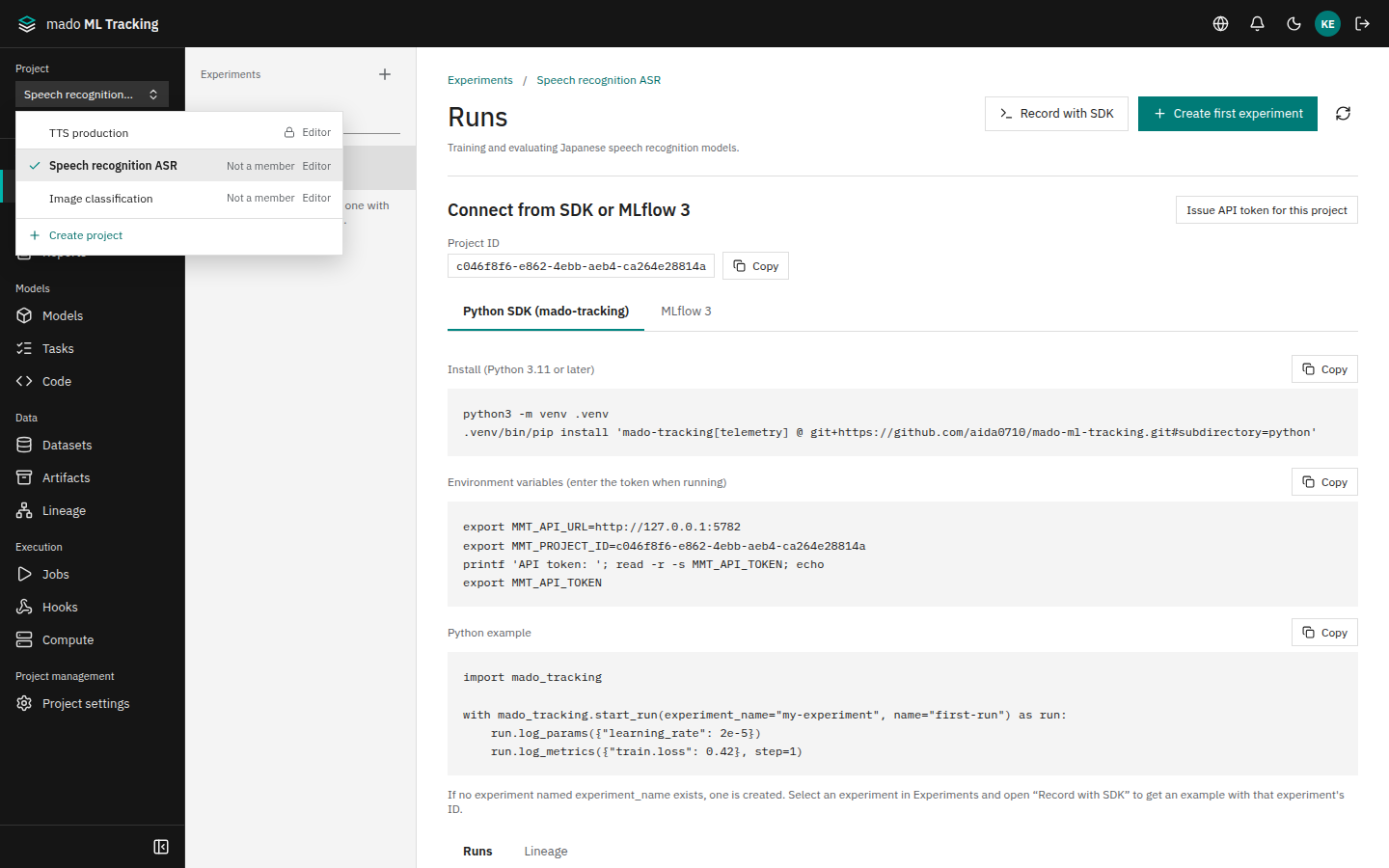
The list shows the Projects you can see: Public Projects and the Private Projects you are a member of. Each row shows the name and your role; Private Projects have a lock icon. The current Project is marked.
- Choose with ↑ and ↓ and open with Enter. Esc closes the list.
- With eight or more Projects, a filter box appears at the top.
- The Projects you are a member of (direct grant or group binding) come first. Below a line come those you can open only because they are Public or you are a global administrator, marked Not a member.
- When two or more Projects share a name, their creation date shows under the name.
- Create project at the bottom creates a new Project.
Create a Project
- Open the Project switcher and click Create project at the bottom. Global administrators can also use Create project under Administration → Projects.
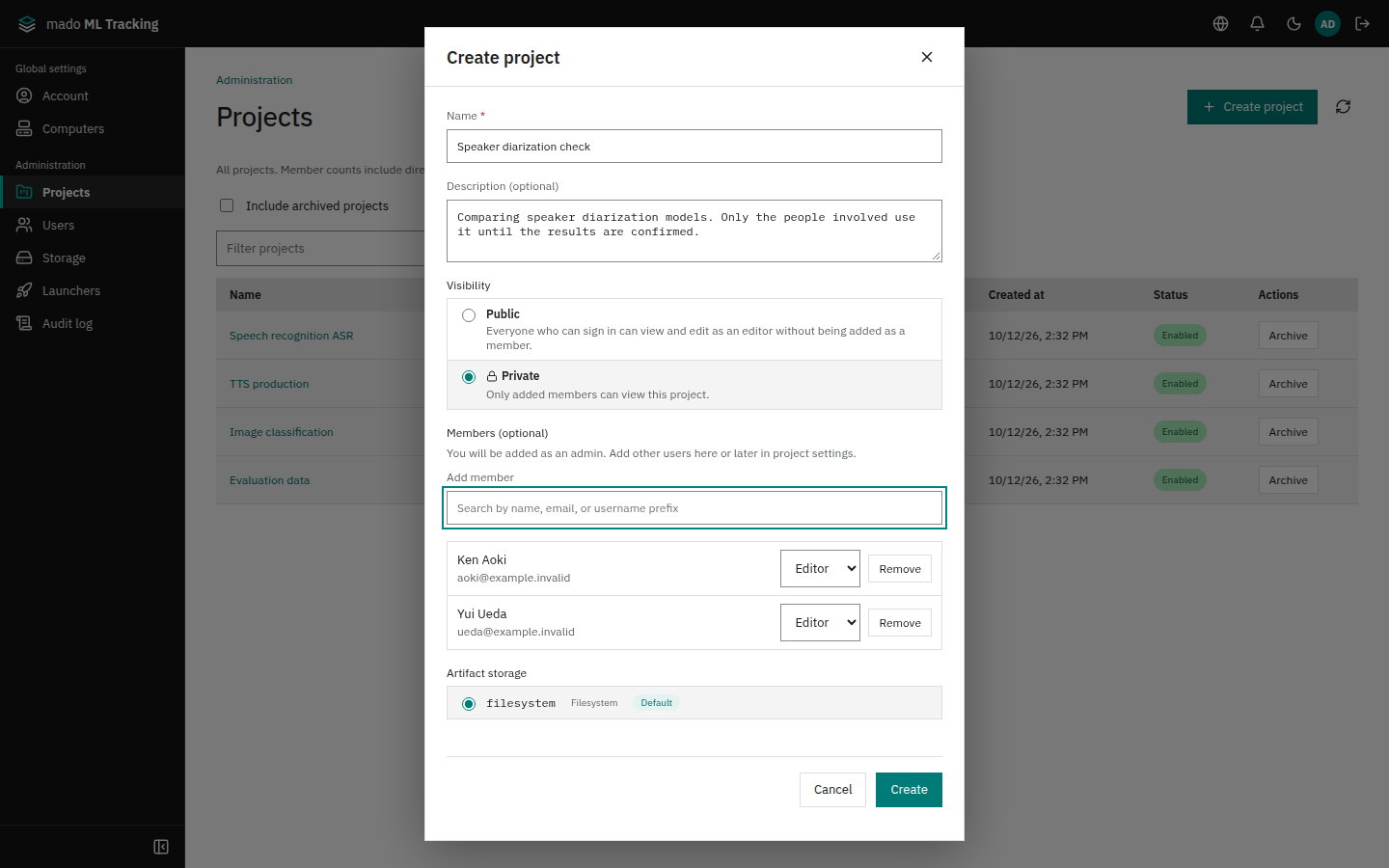
- Enter the following values.
- Click Create.
| Field | Value |
|---|---|
| Name | Required. For example, Speech recognition |
| Description (optional) | The purpose of the Project, for example |
| Visibility | Public (default) or Private. See the next section |
| Members (optional) | Shown only when Private is selected. Add members as described below |
| Artifact storage | The default storage is preselected (Storage settings) |
The new Project opens after it is created. The creator becomes an Admin of the Project.
If a Project you can see already has the name, "A project with this name already exists" appears under the name field. You can still create it, but a different name keeps the switcher easy to read.
For a Private Project that others will use, add them under Members (optional).
- In Add member, type the start of a name, email, or username and pick the user. SSO users appear only after their first login.
- Choose a role on each row. The default is Editor.
- To remove someone, click Remove on the row.
Only the accounts of active people are suggested; you, Service Accounts, and disabled users are not. You can also add members later under Members in Project settings (Permissions and roles).
The Project opened at login
At login (and when you click the app name or leave Global settings), the app opens a Project in this order:
- The Project last opened in this browser, if you can still open it
- The newest Project you are a member of (direct grant or group grant)
- Otherwise, the Projects page
Someone else's Public Project, or a Project a global administrator sees only as an administrator, is never entered until you open it yourself. This keeps a first-time user from recording into someone else's Project without noticing.
The Projects page lists Your projects and Projects open to non-members (Public); click a name to open it. Create the first Project with Create project. For a global administrator, Private Projects they are not a member of are under Administration → Projects.
Visibility (Public and Private)
| Visibility | Who can see it | Role |
|---|---|---|
| Public | Everyone who can sign in | Editor, without being added as a member |
| Private | Members only (direct grants and group grants) | The role granted to the member |
- Even in a Public Project, Admin is granted only to members (direct grants and group grants).
- In a Public Project, everyone who can sign in is Editor or higher. A member granted Viewer still works as an Editor. If some people should only view, make the Project Private.
- Public access is given only to the accounts of active people, not to Service Accounts or launchers.
- People who only use a Project through Public access are not listed under Members, and are not counted in Members under Administration → Projects.
A Project Admin changes the visibility in the Project section of Project settings: choose Visibility and click Save. A confirmation follows: making it Public says that everyone who can sign in will see and edit it as an Editor, and making it Private says that people who are not members will no longer see it. Check it and click Save changes.
The Artifact storage is changed in the same section. Existing Artifacts stay in the current storage; only Artifacts saved from then on go to the new one. Changing the storage is confirmed after Save as well.
Projects that existed before visibility was introduced become Private on upgrade. As before, only members can see them.
Global administrators
A global administrator signed in from a browser is treated as an Admin of every Project, including Private Projects they are not a member of. The Project switcher lists every Project that is not archived.
With an API token, even a global administrator needs a role in the Project (Permissions and roles).
Archive
Archiving removes a Project you no longer use from the lists. The data stays, and a global administrator can restore it later.
- At the bottom of Project settings, click Archive under Archive project; the contents at the top of the page link there. Global administrators can also use Archive on the row in Administration → Projects.
- Click Archive in the confirmation dialog. The dialog lists what stops: the number of API tokens limited to the Project, and Sweeps, hooks, automation, and automatic promotion.
An archived Project disappears from the Project switcher and nobody can open it. Runs, models, Artifacts, and other data remain. Archiving from Project settings leads to the Project list, which says the Project was archived (no other Project opens by itself).
Opening an archived Project's URL tells its members and global administrators that it is archived. Anyone else sees the same as for a Project that does not exist.
- A Project with queued or running Jobs cannot be archived (409
project_has_active_jobs). Wait for the Jobs in Jobs to finish, or stop them, and archive again. - While the Project is archived, API tokens limited to it (including those of workers and Service Accounts) return 401. A Run being recorded by the SDK can no longer record.
- Sweeps, hooks, automatic inference and evaluation, and automatic promotion stop too.
Restore
A global administrator restores a Project.
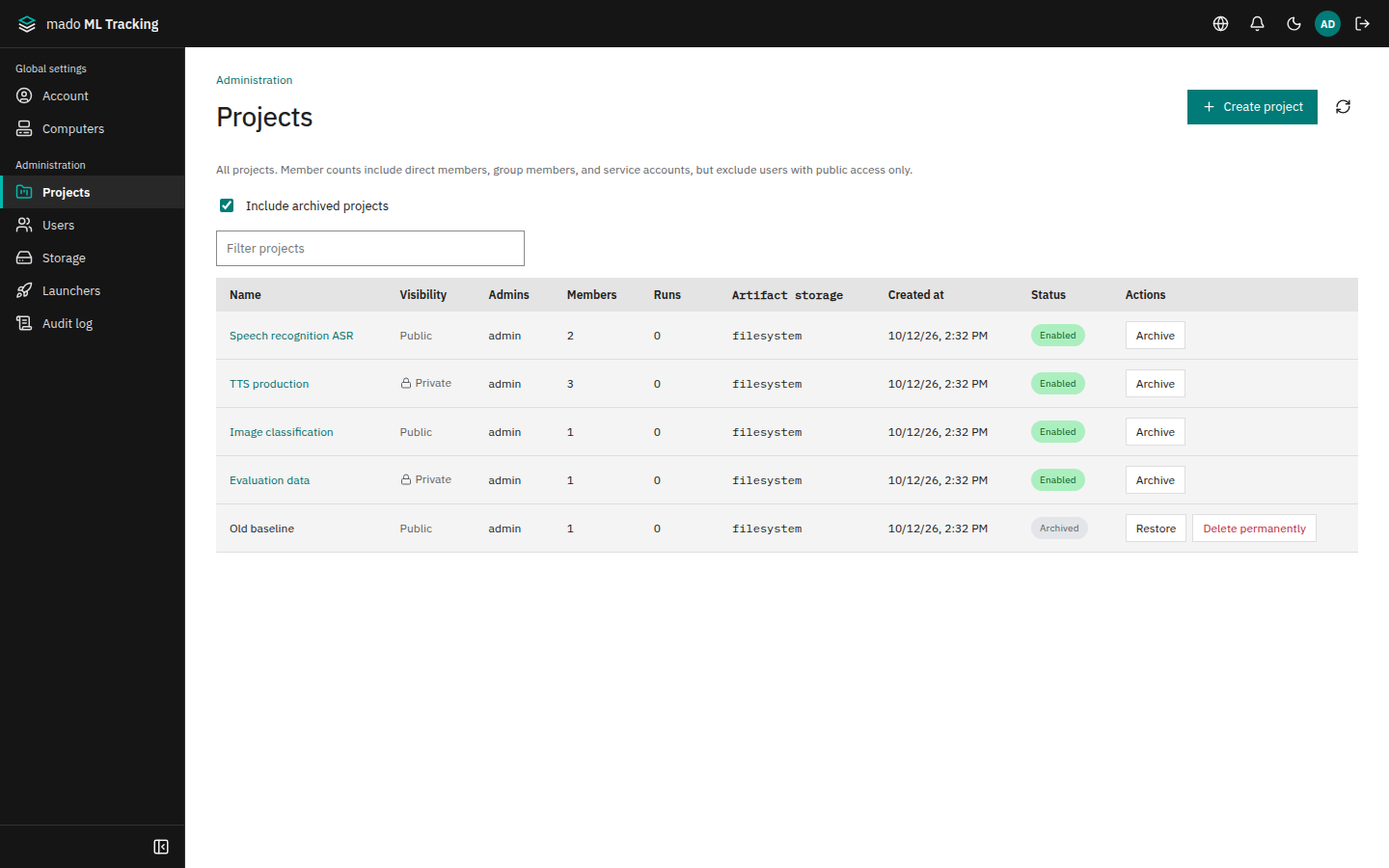
- Open Global settings from the user menu, then Projects under Administration in the sidebar.
- Select Include archived projects. Archived Projects appear as Archived. With many Projects, narrow the list by name in the box above it. The Admins column shows the names of the Project's admins (whom to contact); the Members count includes Service Accounts.
- Click Restore on the row, then Restore in the confirmation dialog.
Members and data are the same as before archiving. API tokens limited to the Project work again.
Delete permanently
This deletes an archived Project together with its data. It cannot be undone. Only global administrators can delete, and only archived Projects.
- In Administration → Projects, select Include archived projects.
- Click Delete permanently on the row of the Project.
- Type the Project name in Enter the project name to confirm and click Delete permanently. The dialog also shows the creation and archive dates, so a Project of the same name is not taken for it.
After deletion:
- Everything in the Project is deleted: Runs, models, datasets, Artifacts, Jobs, reports, members and group grants, and so on.
- Files in the Artifact storage are removed by the garbage collector after the grace period (
MMT_ARTIFACT_DELETE_GRACE_DAYS, 7 days by default). Until then, the files remain in the storage. - API tokens limited to the Project are revoked, and its Service Accounts are disabled.
- The audit log remains. Read it in Administration → Audit log.
- Things outside mado ML Tracking, such as dataset caches on external computers, are not deleted.
A Project that is not archived cannot be deleted (409 project_not_archived).
Audit log
Creating and managing Projects is recorded in the audit log (Audit log).
| Operation | Audit action |
|---|---|
| Create | project.create. Members added at creation are recorded as project.member.set |
| Change the description, visibility, or storage | project.update |
| Archive | project.archive |
| Restore | project.restore |
| Delete permanently | project.purge |
API
| Operation | API | Required permission |
|---|---|---|
| Create | POST /api/projects (name, description, visibility, artifactBackend, members) | A signed-in user. API tokens need the admin scope and must not be limited to a Project |
| Read one | GET /api/projects/<Project ID>. An archived one answers 404 project_archived to its members and global administrators | Project Viewer |
| Change | PATCH /api/projects/<Project ID> (description, visibility, artifactBackend) | Project Admin |
| Archive | POST /api/projects/<Project ID>/archive | Project Admin |
| List, including archived | GET /api/admin/projects?includeArchived=true | Global administrator |
| Restore | POST /api/admin/projects/<Project ID>/restore | Global administrator |
| Delete permanently | DELETE /api/admin/projects/<Project ID> | Global administrator |
| Search users to add as members | GET /api/users?query=<start of a name> | Anyone who can create Projects. A token limited to a Project needs Admin in that Project and the admin scope |
visibility is public or private, and members is an array of {"userId": "<user ID>", "role": "editor"}. Listing the same user twice returns 400, an unknown user 404, and a Service Account or disabled user 400; in each case no Project is created. See Native API for details.