Automation after registration
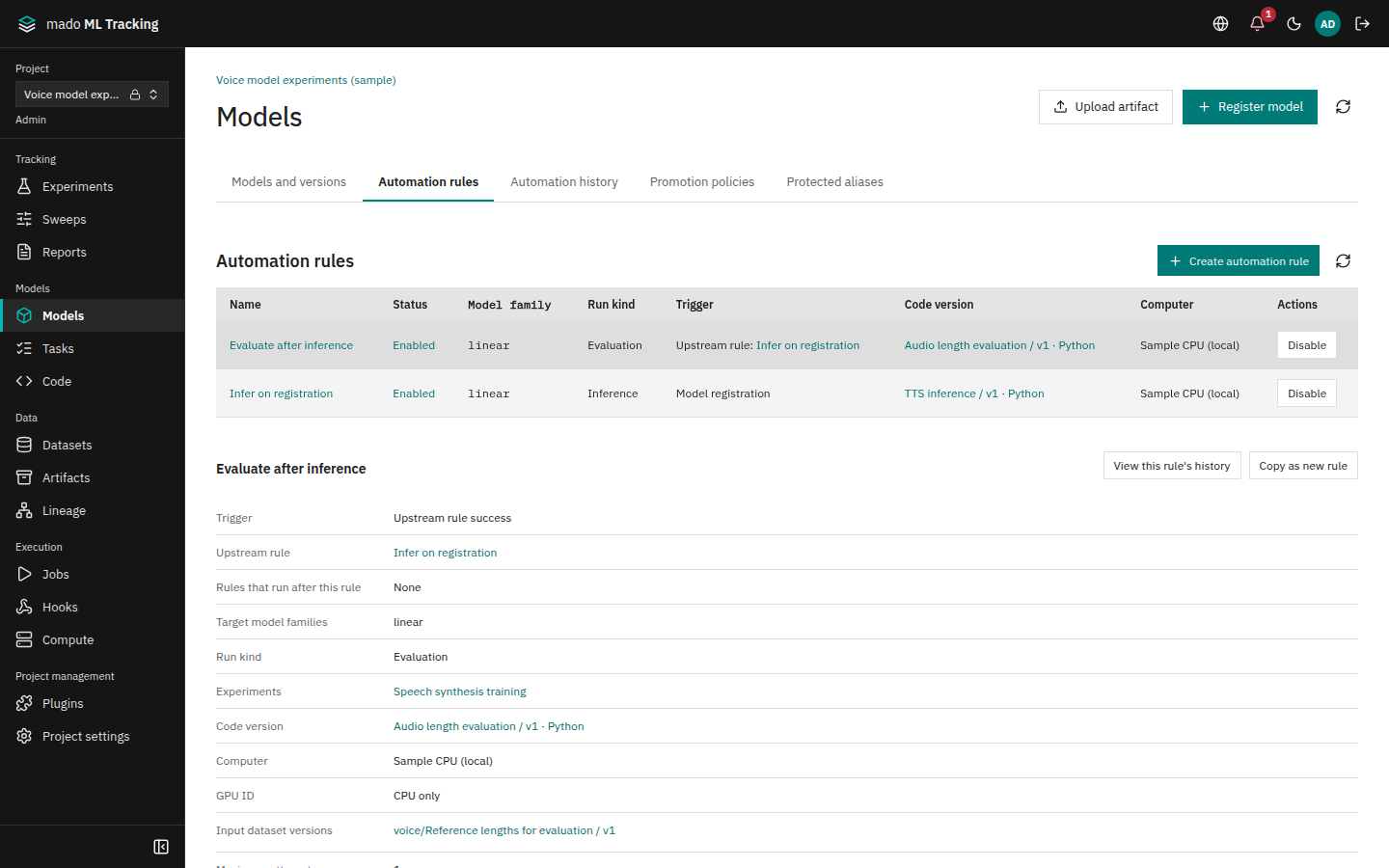
An automation rule starts inference and evaluation Jobs whenever a model version is registered. A rule pins the code version, dataset versions, computer, and parameters, so every version is evaluated under the same conditions.
When to use it
- Go from a finished training straight to inference and evaluation
- Pass the inference output to evaluation automatically
- Fix how evaluation is done so that versions are compared under the same conditions
- Run the same evaluation later for versions registered before the rule existed or during training
How it works
Training Run → register a version → rule A: inference Run → rule B: evaluation Run → promotion policy decision- The trigger is the registration of a model version. Uploading an Artifact alone does not start anything.
- The same rules run however the version was registered (web UI, Python SDK, MLflow, Task output setting,
result.json). - A rule runs once per version. Versions registered before the rule was created are not processed automatically (Apply a rule to existing versions).
- Inference and evaluation are separate Jobs.
Two chained rules connect registration, inference, and evaluation as above. To decide promotion from the evaluation, see Evaluation and promotion.
Create a rule
Only Project admins create rules. API tokens also need the admin scope.
- Open Automation rules in Models and press Create automation rule.
- Fill in the fields and save.
| Field | Meaning |
|---|---|
| Name | For example inference on registration |
| Trigger | Model registration or Upstream rule success |
| Upstream rule | The previous rule, when the trigger is upstream success |
| Target model families | Families this rule runs for, chosen from those the code version supports |
| Run kind | Inference, evaluation, or data processing |
| Experiments | The Experiment that records the Runs |
| Code version | A code version that supports the families and the run kind |
| Computer, GPU ID | Where to run. Without a GPU the Job runs on CPU only |
| Input dataset versions | Data given to every version, such as the evaluation references |
| Parameters, tags | JSON. Tags starting with automation. or mmt. are reserved for the server |
| Maximum attempts | 1 to 100. Two or more retries failed Runs automatically. Default 1. It limits automatic retries only; retries by people in Jobs do not count |
- Check that Status of the new rule is Enabled.
Rule settings cannot be changed after creation; only enabling and disabling is possible. To change settings, create a new rule and disable the old one with Disable. This keeps the settings each past run used.
With the Python SDK:
rule = client.create_automation_rule(
    project_id, name="inference on registration", model_families=["linear"], kind="inference",
    experiment_id=experiment_id, code_version_id=code_version_id, target_id=target_id,
    input_dataset_version_ids=[], parameters={"batch_size": 8},
)
Chain evaluation after inference
Create inference rule A with the model registration trigger, and evaluation rule B with the upstream trigger and A as its upstream. Registering a version runs A's inference Run, and B's evaluation Run starts when that Run succeeds.
- The evaluation Run uses the same version as the inference.
- Its input dataset versions are those pinned in B (the reference set) plus the dataset versions the inference Run produced.
- If the inference Run succeeds without producing any dataset version, evaluation is skipped and the history shows that the upstream Run had no output dataset.
- If the inference Run fails or is canceled, evaluation is skipped.
- If a failed inference Run is retried from Jobs and the retry succeeds, evaluation starts with the retry as its upstream.
- Disabling either the upstream or the downstream rule stops the downstream run.
- Chains are limited to five stages including the first.
Runs created by people do not chain, even with the same tags as a rule.
Receive the upstream Run's outputs
Inference code registers its outputs as dataset versions. Containers without the SDK can declare them in datasets of result.json (version 2) (Install and run the worker).
The evaluation code receives the upstream inference Run as follows.
| Variable | Contents |
|---|---|
MMT_UPSTREAM_RUN_ID | ID of the upstream Run |
MMT_UPSTREAM_RUN_FILE | Path of upstream-run.json with {runId, outputDatasetVersionIds, outputModelVersionIds} |
MMT_INPUT_DATASET_DIRS | JSON mapping each input dataset version to its downloaded directory |
The Python SDK can download the upstream Run's Artifacts from the evaluation code.
from mado_tracking import download_upstream_artifacts, upstream_run_id

print(upstream_run_id())  # None for a Job without an upstream
files = download_upstream_artifacts("upstream", prefix="container/")
Files keep their stored paths under upstream/.
To refer to inference audio from an evaluation results table, write mmt-artifact://runs/<inference Run ID>/<stored path> instead of copying the file. See Write an evaluation results file.
Versions registered during training wait for success
The SDK's register_output_model() and MLflow's log_model(registered_model_name=…) register a version while the training Run is still running. So that a later training failure does not trigger inference and evaluation, automation for a version whose source Run has not ended waits until it succeeds.
| Source Run | Automation |
|---|---|
| None, or already ended at registration | Starts with the registration |
| Running | Waits; the history shows Waiting for training to finish |
| Finished while waiting | Starts with the rules enabled at that time |
| Failed or canceled while waiting | Skipped |
| Waiting for more than 7 days, or the training Run was deleted | Skipped as expired |
A wait closed by failure or expiry does not start later even if the training Run succeeds. To run it, apply the rule to the version.
Check the results
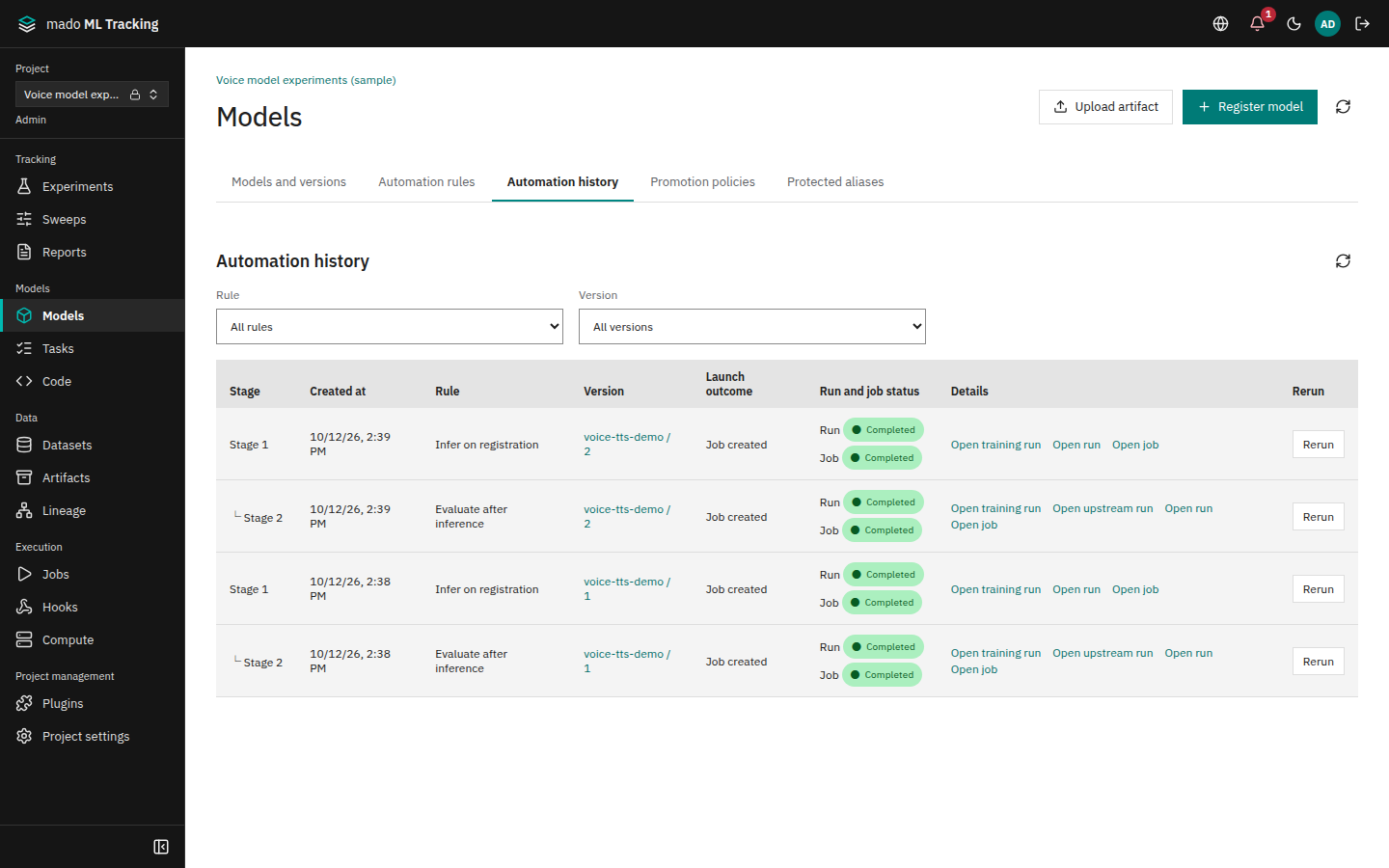
Automation history in Models shows each rule's outcome and the state of the created Runs and Jobs. It lists the newest 100 at a time; Show more reads older ones. Rule and Version narrow the list, and View this rule's history in a rule's details opens the history narrowed to that rule.
| Outcome | Meaning |
|---|---|
| Job created | A Run and a Job were created. Follow them in Run and job status |
| Waiting for training to finish | Waiting for the training Run to succeed |
| Not launched | Conditions were not met. The reason is shown |
| Launch failed | The Run could not be created, for example because the rule owner lost access or the target is disabled. The reason is shown under the outcome. The registered version is kept |
Chained runs are shown as stage 1, stage 2, and so on. Open training run and Open upstream run lead to the Run that triggered them. The Automation section of a version page shows the same history for that version.
To be notified of start failures, select automation.failed in a Project notification rule (Notifications).
Apply a rule to existing versions
Project admins can apply an enabled rule to an existing version. A disabled rule's details show Enable in place of the apply form; once enabled, the rule can be applied. Use this, for example, to:
- Evaluate versions registered before the rule existed
- Run versions that were skipped because training failed or the wait expired
- Re-evaluate the baseline version after changing the evaluation code
- Select the rule in Automation rules to open its details.
- In Apply to an existing version, choose Version to apply to. For a rule with an upstream, choose Upstream run instead: a successful Run created by the upstream rule that has output dataset versions (chosen from the newest 200).
- Press Apply and confirm.
- When Job created. Check its status in automation history. appears, check the state there.
While a run of the same rule and version is queued or running, applying is rejected. Otherwise a new Run is created with the attempt number increased by one. A manually applied inference that succeeds chains to evaluation as usual.
Rerun in the automation history and on the version page applies the same rule to the same version (or the same upstream Run) again. Both are shown only to Project admins, and the person who applied it is recorded in the history and the audit log.
Retry failures automatically
Setting Maximum attempts to two or more queues the next attempt when an automation Run fails. The default is 1 (no retry) so GPUs are not spent on retries you did not ask for.
| How the automation Run ended | Retried |
|---|---|
| Run and Job failed, attempts below the limit | Yes |
| Attempt limit reached | No |
| Canceled by a person | No |
| Rule disabled | No |
| Run created or retried by a person | No |
- Retries start from the beginning, not from a checkpoint. To continue from a checkpoint, resume manually in Jobs (Resume training).
- A successful retry chains to later rules as usual.
- Maximum attempts limits automatic retries only. People can retry with Rerun as a new run in Jobs, both for rules that do not retry automatically and for Runs that reached the attempt limit. The Job's creator (the rule owner) and Project admins can do so (The Jobs page).
Move rule ownership to a Service Account
Automation runs with the permissions of the rule owner, who becomes the creator of the Runs. The owner is initially the person who created the rule. If that person stops being a Project admin, the rule fails to start. For long-lived rules, move ownership to a Service Account that is not tied to a person.
- In the Project settings, create a Service Account with the admin role. No token is needed (API tokens and Service Accounts).
- Select the rule in Automation rules and press Transfer to service account.
- Choose Destination service account and confirm.
- Check that Owner in the rule details shows
<name> (service account).
Only Project admins can move ownership, and only to an enabled admin Service Account of the same Project. The rule's creator is still recorded, and the change is in the audit log.
If the rule runs on a Private computer, move ownership to a Service Account created by that computer's owner. A Service Account created by someone else cannot use the computer, so the rule fails to start (Computers and visibility).
When the evaluation code changes
Rules cannot be edited, so switch evaluation code in this order:
- Select the old evaluation rule in Automation rules and press Copy as new rule. The form opens with the rule's name, trigger, upstream rule, families, code and the rest filled in.
- Change Code version to the new one, rename the rule and create it. While Disable “…” after creating stays checked, the old rule is disabled as the new one is created. Rules that follow the old rule are named on the form: they stop running once it is disabled, so recreate them the same way.
- Apply the new rule with the baseline version's inference Run (for example the version
productionpoints at) as the upstream Run. Only evaluation runs again with the new code.
Comparisons use evaluation Runs with the same evaluation code version. Without evaluating the baseline with the new code, a new version has nothing to compare with.
Permissions
| Action | Required role |
|---|---|
| View rules and history | viewer or higher |
| Create rules, enable and disable them, apply to existing versions, rerun, move ownership | Project admin (admin scope for API tokens) |